

TorobPay for WooCommerce
Description
TorobPay lets customers pay in installments at checkout.
You need a TorobPay merchant account to use this plugin. You may register here.
The plugin:
- Works with classic and block checkout
- Syncs order status and supports refunds
- Shows installment info on product pages, plus a slider and banners so shoppers know installments are available
- Takes in-store payments with a QR code
- Shows an optional TorobPay discount code on the product widget
- Lets merchants join the TorobPay campaign
Installation
- Upload the plugin or install the ZIP via Plugins Add New.
- Activate TorobPay for WooCommerce.
- Make sure WooCommerce is active.
- Go to WooCommerce Settings Payments, enable TorobPay, and enter your merchant details.
Screenshots

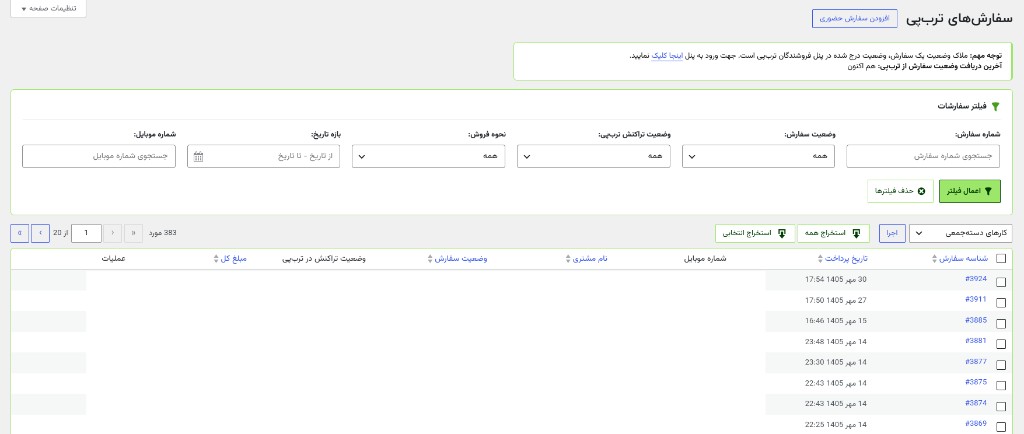
TorobPay orders, with filters for order number, status, TorobPay status, sale type, date, and mobile number.
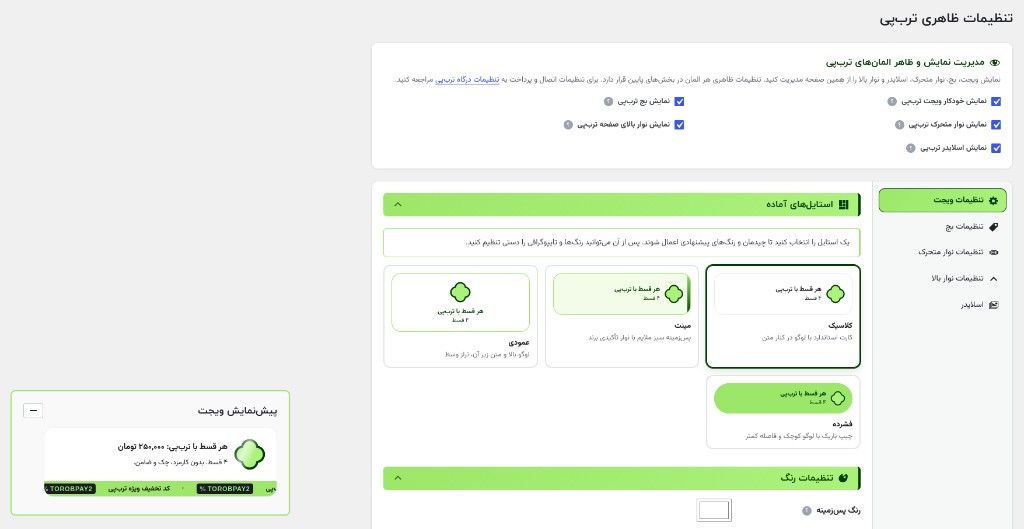
Product-page widget styles, with a live preview and the optional TorobPay discount code.
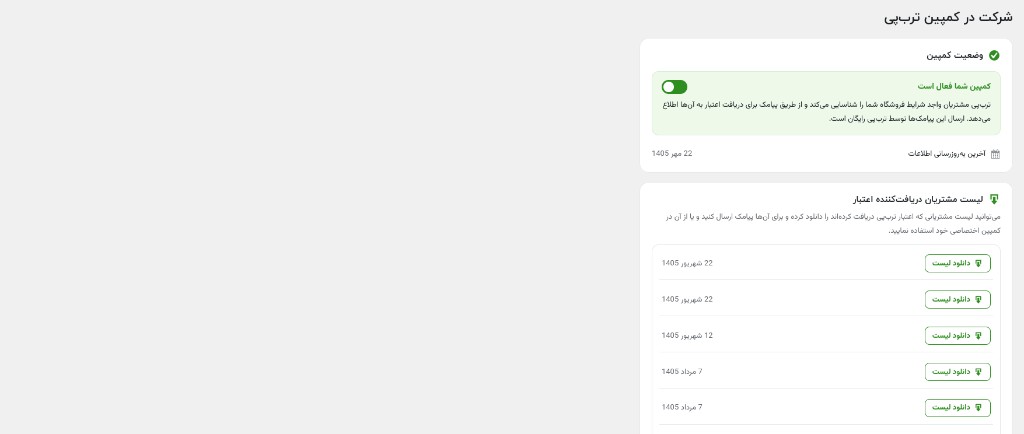
Campaign participation, and the lists of customers who received credit.
Support page, with contact options, useful links, and common questions.
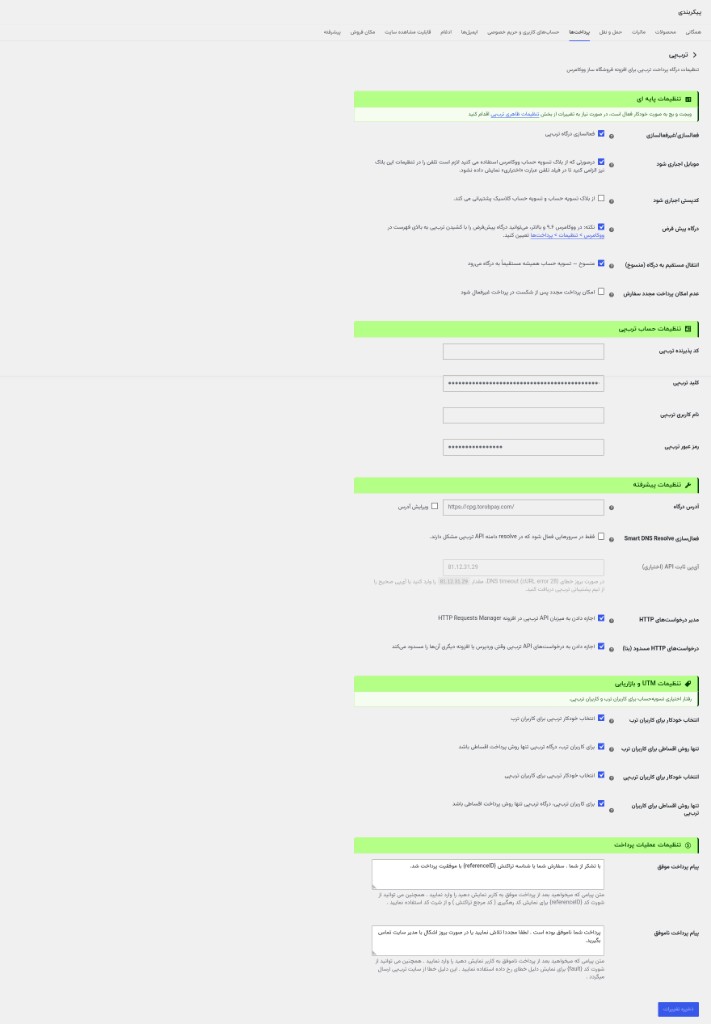
WooCommerce payment settings for the TorobPay gateway.

Faq
Do I need a TorobPay account?
Yes. Register as a TorobPay merchant and get your account details before you can accept payments.
Why don’t I see the In-store selling option on the TorobPay orders page?
Ask TorobPay to enable this feature for you.
Does this work with High-Performance Order Storage (HPOS)?
Yes.
Where can I get support?
Visit https://panel.torobpay.com/s or use the support options in your TorobPay merchant panel.
What happened to the Custom CSS editor?
It was removed in 4.7.2. If you had custom CSS there, copy it into your theme or Appearance Customize Additional CSS. Those rules are not migrated automatically.
Reviews
Changelog
4.8.17
- Product widget, badge, marquee, discount amounts, and the in-store payment total follow the currency position set in WooCommerce. With Left selected, تومان and ریال stay on the left of the amount. This matches WooCommerce 11.2.
4.8.16
- Checkout does not open TorobPay when the amount TorobPay stored does not match the amount the store sent. The customer is asked to try again. This is to combat infringement and keep price integrity.
- Two edits of the same TorobPay order cannot run at once. A save that already finished is not applied again.
- When editing a TorobPay order, item, discount, and shipping amounts accept Persian and Arabic-Indic digits.
- Clearer message when TorobPay will not update an order that already has a discount.
- Works with more adding fee/surcharge plugins when those plugins add a surcharge on TorobPay. TorobPay removes the fee on its payment method; other gateways are unchanged.
- Adding fee plugins surcharges are removed with new updated methods.
- Optional beta setting under Advanced: allow TorobPay API calls when WordPress or another plugin blocks outbound HTTP.
- Automatic gateway setup can finish from the admin screen when the host blocks background requests.
- Clearer diagnostics on the gateway settings screen.
- New confetti animation for Special Discounts popup and Topbar.
4.8.7
- Gateway URL stays locked until you turn on “Use a custom gateway URL”.
- Product widget sits higher on the page. Stores that set their own hook or priority are left as they are.
- Stops other plugins from adding a fee or raising prices on TorobPay. Discounts on other payment methods stay.
- An order that is already paid finishes checkout instead of starting another payment.
- The admin notice for orders that need review can be dismissed until more orders need action.
4.8.0
- In-store orders from the TorobPay orders screen. The customer pays by QR code and sees a payment result page with installment dates.
- In-store orders are marked in the orders list and in the order screen.
- Optional TorobPay discount code on the product-page widget. Shoppers enter it on the TorobPay payment page, not in the store coupon field.
- Clearer TorobPay error and warning messages, with a way to recheck eligibility from the notification center if there was any issue reported by TorobPay.
4.7.6
- Better handling when TorobPay is default payment method.
- Stops a conflicting discount plugin from adding extra fees on TorobPay.
- New campaign data sharing method, now merchants could just enable it and it works automatically.
- New UTM action profile for “utm_medium” which contain “TorobPay” term.
- Improved settings UI and bug fixes.
- Improved marquee and badge styles to support more themes out of the box.
- Combined Jalali date range filter in TorobPay orders table page.
4.7.5
- Guest checkout now goes straight to TorobPay.
- Clearer checkout error messages.
- Checkout always redirects to TorobPay.
4.7.4
- WordPress.org review follow-up.
4.7.3
- WordPress.org review follow-up.
- Product-page installment amounts now follow the selected quantity.
- Safer handling when a paid order is not marked paid by WooCommerce.
4.7.2
- WordPress.org review fixes. Custom CSS editor removed — move any custom CSS to your theme or Appearance Customize Additional CSS.
4.7.1
- More reliable order updates, especially on shared hosting.
4.7.0
- First WordPress.org release. Updates now come through WordPress.org. Re-activate the plugin if the main file name changed.