
Smart Auto Upload Images – Import External Images
Description
Smart Auto Upload Images imports external images from your post content into the WordPress Media Library when you save or update a post. It replaces the original image URLs with local URLs, helping you keep a copy of the images your content depends on.
Automatic image imports
- Detects external image URLs in
imgtags, includingsrcandsrcset. - Imports supported images into the Media Library and updates matching URLs in post content.
- Works with the Classic Editor, image markup in block content, and custom post types.
- Supports external featured image imports from the post editor or REST API.
Settings for your workflow
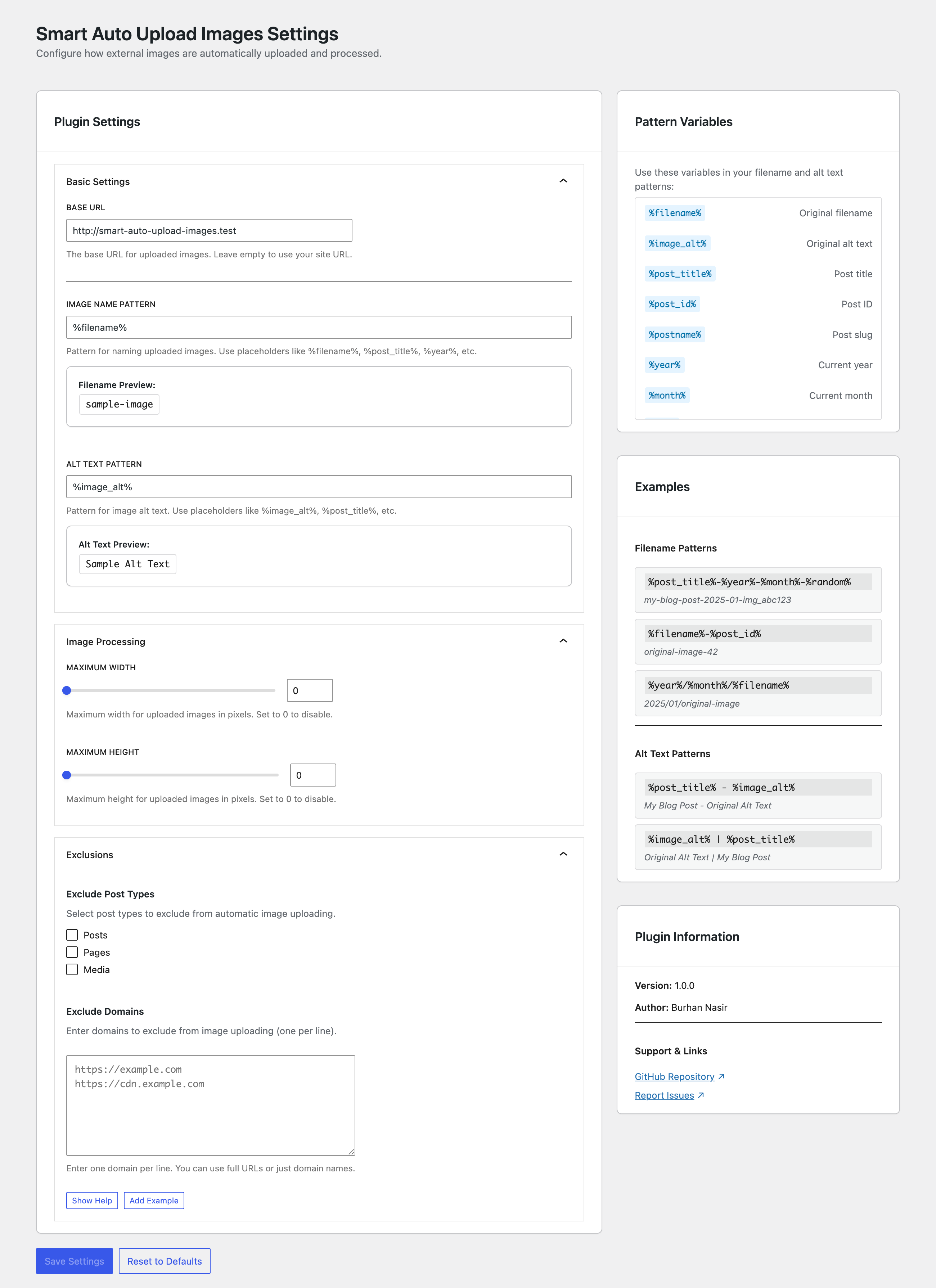
- Customize imported filenames and image alt text with pattern variables.
- Set maximum image width and height.
- Exclude specific post types or external domains.
- Set a custom base URL for imported image links.
- Reuse an existing image when the generated filename and downloaded file contents match.
Import history and recovery — new in 1.3.0
Open Settings Smart Auto Upload Images History to review recent successful post-content imports. Each entry shows the post, import time, image count, and original and imported URLs.
Select Restore original URLs to replace imported URLs that are still present in that post. Recovery preserves other post edits and keeps imported files in the Media Library.
- History starts with imports made after updating to 1.3.0; older imports are not added retroactively.
- The plugin stores up to 500 import events per site and displays the latest 50 that you can edit.
- Recovery applies to recorded URL replacements in post content. It does not restore alt text or featured images, or act as a full post backup.
- If different original URLs share one imported image URL, recovery is blocked to avoid restoring the wrong source.
- Recovered external URLs may be imported again when the post is saved normally. Exclude their domain or post type if you want them to remain external.
- Administrators can access history and must have permission to edit a post before recovering it.
The Settings and History tabs have separate URLs, so you can bookmark a tab and use browser Back and Forward.
Filename and alt text patterns
Use variables such as:
%filename%— original filename without its extension.%image_alt%and%image_title%— original image attributes.%post_title%and%post_name%— post title and slug.%year%,%month%,%day%, and%today_date%— current UTC date values.%post_date%— post date.%timestamp%and%random%— timestamp or generated identifier.
For example, use %post_name%-%filename% for filenames or %image_alt% - %post_title% for alt text. The settings sidebar lists available variables.
Exclude external domains
In Settings Smart Auto Upload Images Settings, open Exclusions and enter one hostname or URL per line, such as cdn.example.com or https://cdn.example.com. Hostnames match without case sensitivity; add subdomains separately when needed.
Compatibility and limits
Images must be publicly accessible and pass WordPress URL and file validation. Importing many or large images can increase post save time and consume disk space. Maximum dimensions control resizing, not download size.
Page builders are supported when they store image markup in post content. Images stored only in custom fields, CSS backgrounds, or other separate builder data are not guaranteed to be imported. There is no dedicated bulk import screen; existing content is processed when its posts are saved.
Only import images you have permission to use. The plugin contacts the image hosts referenced in your content to download files.
Installation
- Install and activate Smart Auto Upload Images from Plugins Add New, or upload the plugin ZIP using Upload Plugin.
- Open Settings Smart Auto Upload Images and configure the Settings tab.
- Save a post containing an external image and check the Media Library for the imported file.
- Open the History tab to review the import or restore its original URLs.
Requires WordPress 6.2 or later and PHP 8.0 or later. Your server must be able to download public images and write to the WordPress uploads directory.
Screenshots
Faq
Does this work with Gutenberg and page builders?
Yes, when images are stored as img tags in post content. This includes Classic Editor and block content. Page builders such as Elementor may store images in custom fields or separate data that the plugin cannot process.
Does this work with WooCommerce products?
Yes, for image markup in product descriptions. Ensure the product post type is not excluded. Product galleries stored separately are not automatically imported.
What image formats are supported?
Common formats include JPEG, PNG, GIF, and WebP, subject to WordPress file validation and the image processing support available on your server.
Can I bulk import images from existing posts?
There is no dedicated bulk import screen. Existing posts are processed when saved normally. Test any bulk-update workflow on a small set of posts first.
Can I exclude specific domains from import?
Yes. Open Exclusions in Settings and enter one hostname or URL per line, such as cdn.example.com or https://cdn.example.com. Add subdomains separately.
Will this slow down my post save process?
Imports run during post save. Save time depends on image count, file sizes, remote server response time, and your hosting resources.
How do I prevent duplicate imports?
An upload is reused when the generated filename and downloaded contents match. Changed files or naming patterns can create separate imports.
Why are my images not importing?
Check domain and post type exclusions, public image access, and uploads-directory permissions. WordPress URL checks can also reject unsafe URLs or redirects. Review the debug log for details.
How can I debug why an image is not saving?
- Open the original image URL in a private browser window. It must load without logging in; your server must also be able to download it.
- Check the domain and post type exclusions in the Settings tab, and confirm the image appears in the post content as an img tag.
- Confirm that WordPress can write to wp-content/uploads and that your server has enough disk space and image processing support.
- In wp-config.php, enable WP_DEBUG and WP_DEBUG_LOG, and keep WP_DEBUG_DISPLAY disabled. Update existing definitions rather than adding duplicates.
- Save the affected post again, then check wp-content/debug.log for entries beginning with [Smart Auto Upload Images]. If WP_DEBUG_LOG uses a custom file path, check that file instead. Download failures, HTTP errors, and invalid image messages help identify the cause.
Disable debugging when finished. If you need support, include the relevant error message, your WordPress and PHP versions, and the steps to reproduce the problem.
Can I undo an image import?
Yes. In History, select Restore original URLs. Only recorded imported URLs still present in the post are restored; imported files remain in the Media Library. History starts with imports made after updating to 1.3.0.
Why did restored URLs get imported again?
Recovery skips importing during its own request. A normal post save runs imports again. Exclude the source domain or post type if you want those URLs to remain external.
Reviews
So helpful
By  bN (Seesomethingnew) on June 2, 2026
Recently made the mistake of trying out other newsletter and blogging platforms before coming back to wordpress. This has made it so much easier to get my images into my posts as the exports from the other platforms are so complicated to map to wordpress was easier to just do a copy past job for each post and this made sure the images came across and linked to my site as well.
Amazing, exactly what I needed
By  august579 on March 17, 2026
This plugin saved me SO MUCH TIME on a complicated blog import image issue
Saves me so much time!
By  ideezo on December 23, 2025
Thanks!
Amazing Plugin
By  zunairnasir on November 12, 2025
Never thought this plugin would be that helpful for me. Super Clean, Easy to use.
Very Disappointing and Potentially Harmful Plugin
By  askhematologist on November 8, 2025
I installed Smart Auto Upload Images – Import External Images hoping it would help manage external images on my WordPress site, but it ended up causing serious damage instead. The plugin removed many of my post images that had external links and replaced them with a placeholder stating “Content not viewable in your region.” This completely ruined the appearance of my posts and could have led to permanent data loss.
Be extremely cautious before installing this plugin — you may lose all your externally linked images permanently. I had to uninstall it immediately and manually reconstruct the missing images to restore my site. Definitely not recommended.
Life Saver
By  Alexander S. Kunz (antermoia) on September 12, 2025
This plugin has been a life saver while migrating Typepad blogs to WordPress. On top of that, the developer is super helpful and responsive to questions, earning the plugin six out of five stars. Thank you, Burhan!
Changelog
1.3.0 – 2026-10-25
Added:
- Added recent import history with post details, timestamps, image counts, and original and imported URLs.
- Added recovery of original post-content image URLs while retaining imported Media Library files.
- Added separate Settings and History tabs with bookmarkable URLs and browser Back/Forward navigation.
- Added regression tests for history, recovery, permissions, and safe image downloads.
Fixed:
- Preserve edited image URLs during recovery and reject ambiguous shared-URL mappings.
- Apply alt-text patterns on first import without changing unrelated images.
- Use the site URL when Base URL is blank and accept bare hostnames in domain exclusions.
- Preserve complete source URLs and backslashes while processing saved post content.
- Clear displayed exclusions after resetting settings and preserve keyboard focus when switching tabs.
1.2.4 – 2026-08-17
Added:
- Added WordPress 7.1 support.
1.2.3 – 2026-01-31
Fixed:
- Fixed SSRF vulnerability. Thanks Patchstack for reporting it!
1.2.2 – 2026-01-10
Added:
- Added WordPress 6.9 support.
Fixed:
- Fixed post type exclusion.
- Fixed deprecated warnings on the settings page.
1.2.1 – 2025-11-01
Fixed:
- Fixed a security issue. Thanks Wordfence for reporting it!
1.2.0 – 2025-09-28
Added:
- Added featured image import from external URL – set featured images using remote image URLs
- Introduced
smart_aui_validate_image_urlfilter hook for developers to customize image URL validation logic
Fixed:
- Improved duplicate detection system – automatically reuses existing images in media library instead of importing duplicates
- Fixed undefined index PHP warning when processing images without complete metadata
- Enhanced image validation with better error handling and logging
1.1.1 – 2025-09-06
Fixed:
- Fixed missing plugin files during WordPress.org deployment process
- Resolved asset loading issues in production environment
1.1.0 – 2025-09-06
Added:
- Introduced new
%image_title%dynamic tag for file naming patterns – use image title attributes in file names - Added support for image title attribute extraction during import
Changed:
- Replaced admin notices with modern snackbar notifications for better user experience
- Improved notification system with auto-dismiss functionality
Fixed:
- Enhanced file name sanitization to properly handle special characters, spaces, and international characters
- Fixed image file naming conflicts with duplicate names
1.0.0
- Initial Release.