
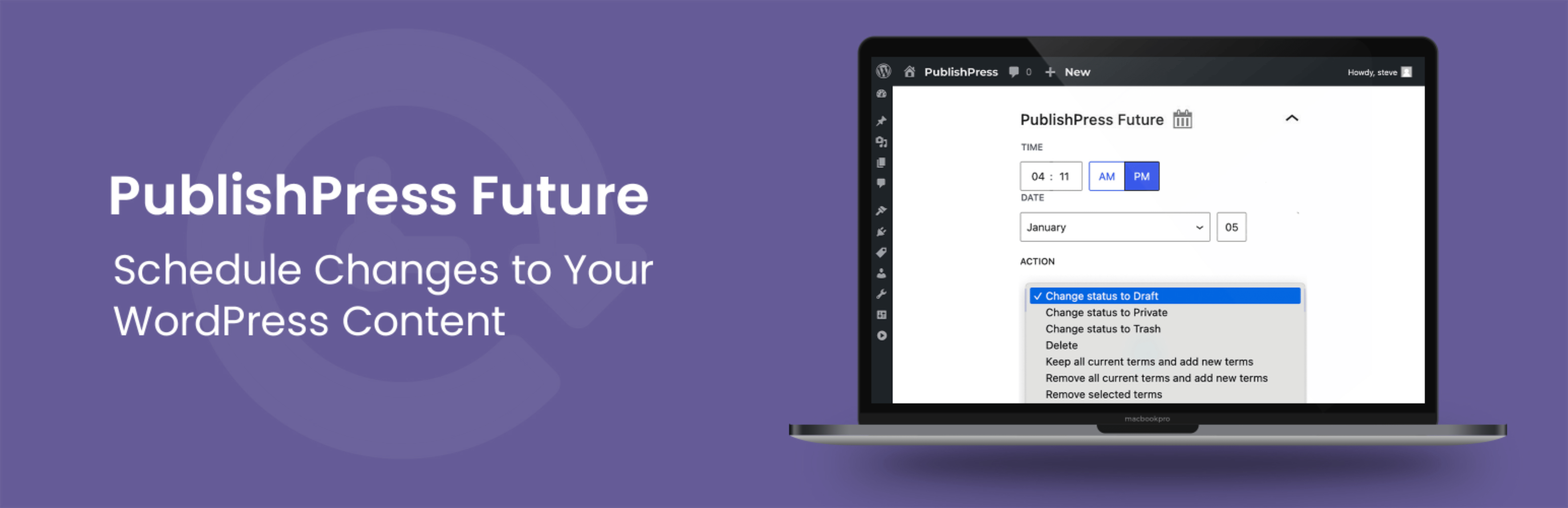
Schedule Post Changes With PublishPress Future: Unpublish, Delete, Change Status, Trash, Change Categories
Description
The PublishPress Future plugin allows you to schedule changes to posts, pages and other content types. With this plugin you can create automatic actions to unpublish, delete, trash, move a post to a new status and more. With the Pro version you can update your content using custom workflows with multiple steps and schedules.
Here’s an overview of what you can do with PublishPress Future:
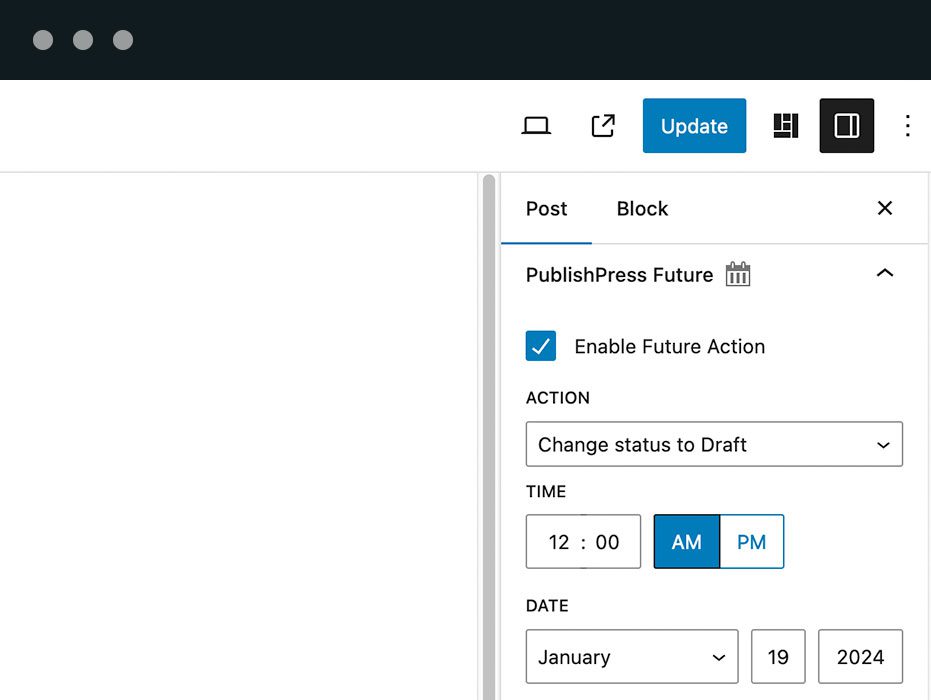
- Select future action dates in the right sidebar when you are editing a post. This makes it very easy to schedule changes to your content.
- Receive email notifications when Future makes changes to your content.
- Build Action Workflows that allow you to update your content using custom workflows with multiple steps and schedules (available in the Pro version).
- Control post changes via integrations with Advanced Custom Fields and other plugins (available in the Pro version).
PublishPress Future Pro
Upgrade to PublishPress Future Pro
This plugin is the free version of the PublishPress Future plugin. The Pro version comes with all the features you need to schedule changes to your WordPress content. Click here to purchase the best plugin for scheduling WordPress content updates!
Options for Future Actions on Posts
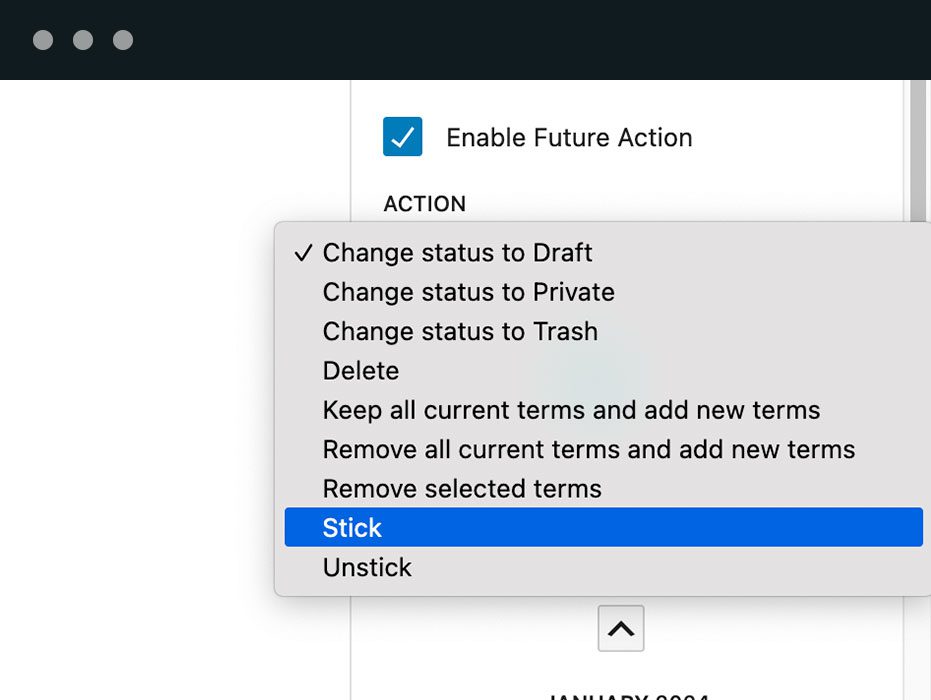
With PublishPress Future, you can configure actions that will happen automatically to your content. Here are the changes you can choose for your posts:
- Change the status to “Draft”.
- Delete the post.
- Send the post to the Trash.
- Change the status to “Private”.
- Enable the “Stick to the top of the blog” option.
- Disable the “Stick to the top of the blog” option.
- Remove all existing categories, and add new categories.
- Keep all existing categories, and add new categories.
- Keep all existing categories, except for those specified in this change.
- Move the post to a custom status (available in the Pro version)
Click here for details on scheduling post changes.
Custom Workflows to Schedule Content Changes
With PublishPress Future Pro, you can build Action Workflows. These allow you to update your content using custom workflows with multiple steps and schedules. Here are some examples of what you can do with Action Workflows:
- Email the site admin when a post is updated.
- Change the post status to “Trash” a week after it was published.
- 15 days after the post is published, move the post to the “Draft” status and add a new category.
- 1 year after a post is published, send an email to the author asking them to check the content.
Click here for details on workflows for changes.
Display the Action Date in Your Content
PublishPress Future can automatically show the expiry or action date inside your articles. The date will be added at the bottom of your post.
Click here to see the Footer Display options.
You can use shortcodes to show the expiration date inside your posts. You can customize the shortcode output with several formatting options.
Click here to see the shortcode options.
Choose Actions Defaults for Post Types
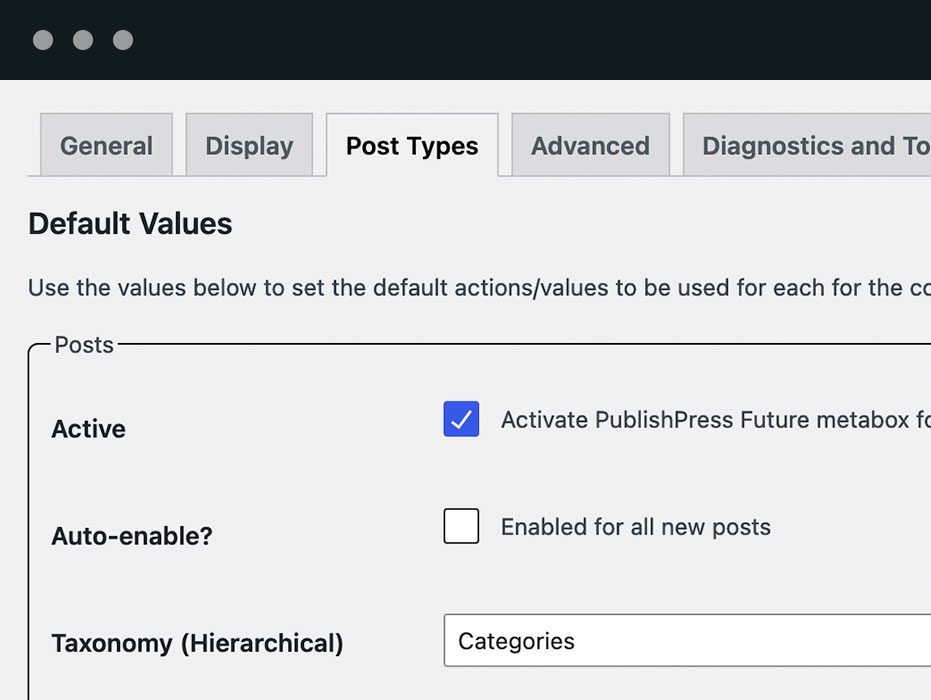
PublishPress Future can support any post type in WordPress. Go to Future > Post Types and you can choose default actions for each post type. Turn on “Automatically create actions” if new content should get that action on its own.
Click here to see the default options.
PublishPress Future Email Notifications
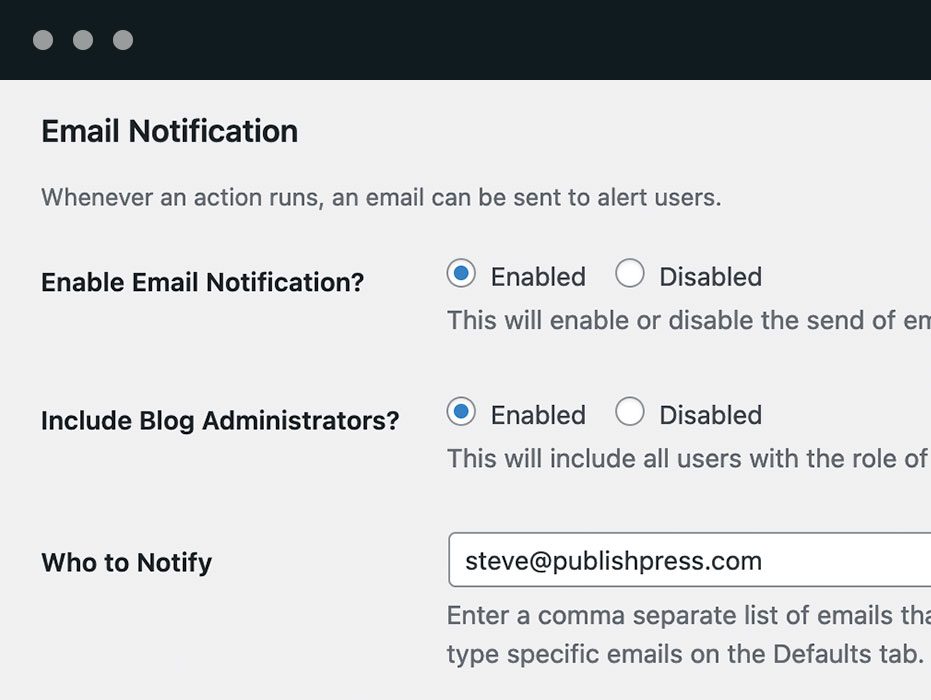
The PublishPress Future plugin can send you email notifications when your content is changed. You can control the emails by going to Future > Notifications.
Click here to see the notification options.
Integrations With Other Plugins
In PublishPress Future Pro it is possible to schedule changes to your posts based on metadata. This makes it possible to integrate PublishPress Future with other plugins. For example, you can create a date field in the Advanced Custom Fields plugin and use that to control the date for Future Actions.
When you are using an integration, there are five types of data that you can update in PublishPress Future:
- Action Status: This field specifies if the action should be enabled.
- Action Date: This field stores the scheduled date for the action.
- Action Type: This field stores the type of action that will be executed.
- Taxonomy Name: The taxonomy name for being used when selecting terms.
- Taxonomy Terms: A list of term’s IDs for being used by the action.
Click here to see how to integrate Future with other plugins.
Import the Future Actions
PublishPress Future Pro supports imports from external data sources. You can import posts and automatically create Future Actions associated with those posts.
The best approach is to use the Metadata Scheduling feature. If you’re using a plugin such as WP All Import, you can match up the import tables with the fields you have selected in the Metadata Scheduling feature.
Click here to see how to import data for Future Actions.
Details on How Post Changes Works
Each scheduled change is stored as an Action Scheduler action. Action Scheduler usually runs that queue through WP-Cron, which keeps the load down on busy sites. If a change does not happen, check that WP-Cron is running. Sites that disable WP-Cron on purpose can still process the queue with Action Scheduler’s async runner or with WP-CLI.
Click here to see the technical details for this plugin.
Logs for All Your Post Changes
PublishPress Future Pro allows you to keep a detailed record of all the post updates. PublishPress Future records several key data points for all actions:
- The post that the action was performed on.
- Details of the post update.
- When the change was made to the post.
Click here to see more about the logs feature.
Join PublishPress and get the Pro plugins
The Pro versions of the PublishPress plugins are well worth your investment. The Pro versions have extra features and faster support. Click here to join PublishPress.
Join PublishPress and you’ll get access to these Pro plugins:
- PublishPress Authors Pro allows you to add multiple authors and guest authors to WordPress posts.
- PublishPress Blocks Pro has everything you need to build professional websites with the WordPress block editor.
- PublishPress Capabilities Pro is the plugin to manage your WordPress user roles, permissions, and capabilities.
- PublishPress Checklists Pro enables you to define tasks that must be completed before content is published.
- PublishPress Future Pro is the plugin for scheduling changes to your posts.
- PublishPress Permissions Pro is the plugin for advanced WordPress permissions.
- PublishPress Planner Pro is the plugin for managing and scheduling WordPress content.
- PublishPress Revisions Pro allows you to update your published pages with teamwork and precision.
- PublishPress Series Pro enables you to group content together into a series.
- PublishPress Shortlinks Pro allows you to create custom URLs for your posts and external links.
- PublishPress Statuses Pro enables you to create additional publishing steps for your posts.
Together, these plugins are a suite of powerful publishing tools for WordPress. If you need to create a professional workflow in WordPress, with moderation, revisions, permissions and more… then you should try PublishPress.
Bug Reports
Bug reports for PublishPress Future are welcomed in our repository on GitHub. Please note that GitHub is not a support forum, and that issues that are not properly qualified as bugs will be closed.
Installation
Install from within WordPress
- Go to Plugins > Add New in your WordPress admin.
- Search for “PublishPress Future”.
- Click Install Now, then Activate.
Install manually
- Unzip the plugin contents to the
/wp-content/plugins/post-expirator/directory. - Activate the plugin through the ‘Plugins’ menu in WordPress.
After activating
Open a post and look for the Future panel in the right sidebar to set your first action date. To apply an action to a whole post type by default, go to Future > Post Types and turn on “Automatically create actions”.
Scheduled changes are stored with Action Scheduler, which usually runs through WP-Cron. See the FAQ below.
Screenshots

You can select future action dates in the right sidebar when you are editing a post. This works with Gutenberg, the Classic Editor, and most page builder plugins.
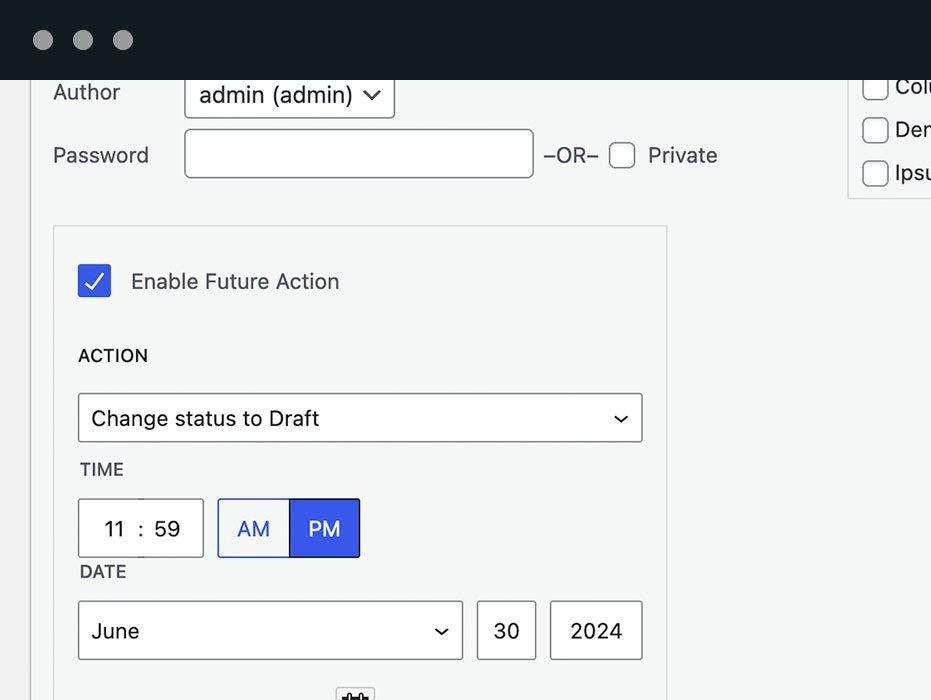
You can modify action dates using the “Quick Edit” and “Bulk Edit” modes. This enables you to quickly add automatic actions to as many posts as you need.
PublishPress Future allows you to modify, remove or completely delete content when the scheduled date arrives.
The PublishPress Future plugin can send you email notifications when automatic actions happen on your content.
PublishPress Future allows you to choose action dates for post, pages, WooCommerce products, LearnDash classes, or any other custom post types.
PublishPress Future allows you to automatically show the scheduled date inside your articles. The action date will be added at the bottom of your post. You can also use shortcodes to show the action date and customize the output.
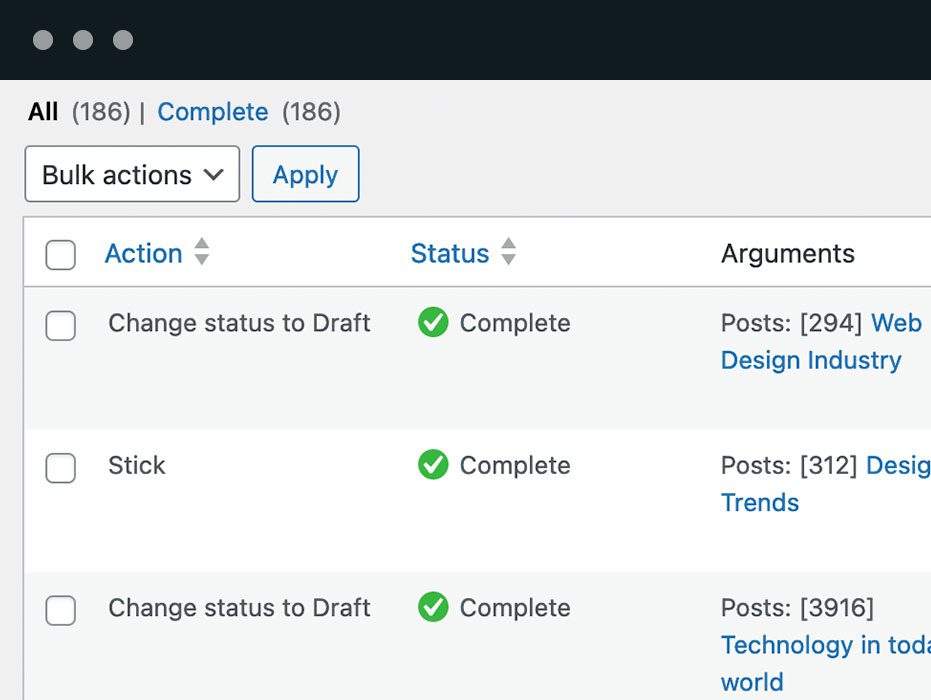
The PublishPress Future plugin creates a log of all the modified posts. This allows you to have a detailed record of all the automatic actions for your posts.
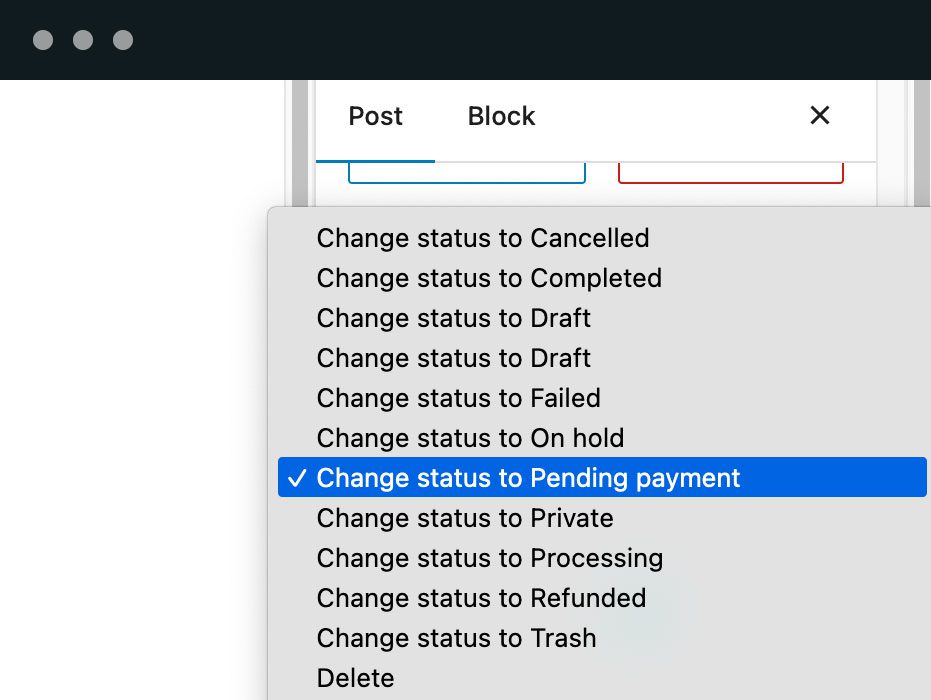
PublishPress Future Pro supports custom statuses such as those provided by WooCommerce. This means that Pro users can set their content to move to any status in WordPress.

Faq
Change the status to Draft or Private, send the post to the Trash, delete it, turn the “Stick to the top of the blog” option on or off, or change its categories — replacing them, adding to them, or removing only the ones you name. The Pro version can also move a post to a custom status.
While editing it. The Future panel in the right sidebar sets the action and the date, and it works with the block editor, the Classic Editor and most page builders.
Yes. Action dates can be set through Quick Edit and Bulk Edit on the posts list, so you can apply the same action to as many posts as you need without opening each one.
Yes. Go to Future > Post Types, choose the action and timing for that post type, and turn on “Automatically create actions”. The default action alone does not schedule anything; that option is what creates the action on new content.
Any of them. Posts and pages, WooCommerce products, LearnDash courses, and any custom post type — you enable each one under Future > Post Types.
Yes. Go to Future > Post Types and check the “Active” box in the “Product” area.
Click here for more details on WooCommerce changes
Yes. Go to Future > Post Types and check the “Active” box for the post type you are using with Elementor.
Click here for more details on Elementor post changes
Yes, if you want to be. PublishPress Future can email you when it acts on your content. Turn the emails on under Future > Notifications.
Yes, in two ways. The footer display adds the date to the bottom of the post automatically, and a shortcode puts it anywhere in the content, with formatting options for how the date reads.
Scheduled changes are Action Scheduler actions, not separate WP-Cron events. Action Scheduler usually runs its queue through WP-Cron, so a broken or disabled WP-Cron is the first thing to check if a change does not happen. Sites that disable WP-Cron on purpose can still run the queue with Action Scheduler’s async runner or with WP-CLI. Some hosts disable WP-Cron.
Click here for the technical details
PublishPress Future Pro keeps a log of every action: which post it ran on, what was changed, and when.
Yes, in the Pro version. Metadata Scheduling lets a date field from ACF, or another plugin, supply the action date, along with the action status, action type and taxonomy terms.
Yes, in the Pro version. Importers such as WP All Import can map their columns onto the Metadata Scheduling fields, so imported posts arrive with their Future Actions already set.
Action Workflows with multiple steps and schedules, custom post statuses, the action log, Metadata Scheduling and its plugin integrations, and imports.
Reviews
Very handy plugin
By  renemwor on September 9, 2026
I like this plugin. You can control exactly what is needed to post scheduling. Definitely recommend!
Perfect Solution
By  Ruanna on February 9, 2026
Publish Press Future lets me schedule a custom taxonomy change on a custom post type.
I wouldn’t be able to manage my website without it. Thank you!
This plugin has not been tested with your current version of WordPress
By  BɅJV (bsantiko) on December 22, 2025
Hi there,
I has been a while since the update but it seems that this plugin has not been tested with the latest version of WordPress (v6.9).
This notification keep appearing on the plugin’s detail page:
Warning: This plugin has not been tested with your current version of WordPress.
Is it safe or not to update this plugin?
Love this plugin.
By  abldigital on October 20, 2025
I use it a lot, it should be a core feature.
Very usefull
By  AudunBK on October 18, 2025
Works as it should and makes it easy to unpublish posts according to a schedule.
Great plugin
By  dionysios on July 25, 2025
Thank you so much for creating and maintaining this plugin!
Very convenient
By  aki (akiueda) on July 9, 2025
thank you as always
Very good support and a very helpfull plugin
By  Tom (Tom van M) on May 22, 2025
Very good support and a very helpfull plugin.
Highly recommended!
Excelente acompanhamento para eventos
By  daudtivan on May 1, 2025
Uso para definir a data de corte de venda das atividades do mês disponíveis na minha loja virtual. Deixo tudo programado e vou cuidar da minha vida.
Excelente opção. Recomendo
Great plugin!
By  Matt Rock (mattrock1) on April 30, 2025
Very handy plugin and perfect for my needs. Also love that you can Quick Edit on the All Posts overview page. Makes managing multiple posts a breeze, and a great feature.
Changelog
The full changelog can be found on GitHub.