

Opt-Out for Google Analytics (DSGVO / GDPR)
Description
The General Data Protection Regulation (GDPR, German: DSGVO) requires that website visitors can object to the collection of their data by Google Analytics.
Until now, this was only possible with a browser add-on or with complicated JavaScript code on your own website. With this plugin, it is child’s play, and visitors can also undo their objection at any time.
And the plugin makes sure that it stays that way: it checks regularly whether the opt-out still works on your website, and notifies you by email, in Slack, Microsoft Teams or Discord, or in your uptime monitoring, if something is wrong.
Features
Opt-out for your visitors
- Support for Google Analytics 4 (GA4)
- Visitors can disable Google Analytics tracking for themselves and enable it again later.
- The texts of the opt-out and opt-in link can be customized, also individually per block, widget, module or shortcode.
- After the click, the popup text is shown as a browser popup or as a notice below the link, optionally with a reload of the page. Also individually per block, widget, module or shortcode.
- Local storage fallback: If a visitor deletes their cookies, the opt-out cookie is restored, as long as the browser’s local storage has not been cleared as well.
- Works with page caching: the link always shows the current status of the visitor.
- Accessible: the link can be used with the keyboard (Enter and space key), and screen readers announce the notice below the link or the new status.
- Compatible with Google Tag Manager
- Optional Google Consent Mode: the opt-out also denies the consent “analytics_storage”, so it also works if Google Analytics is loaded by the Google Tag Manager.
- No other plugin needed to add the Google Analytics code to your website. The plugin can add it for you.
- The GA4 measurement ID (G-XXXXXXXXXX) can be entered manually or read automatically from a Google Analytics plugin (see compatible plugins).
Block, page builders and shortcode
- Gutenberg block with a preview, a warning if the link is not displayed, link colors (also on hover, e.g. as a button), colors of the notice, typography, spacing and alignment. Shortcode blocks with the opt-out shortcode can be converted into the block.
- Elementor widget with individual texts, behavior, alignment, typography, colors and background (also on hover), padding, border radius and the style of the notice.
- Divi module for Divi 4 and Divi 5 with individual texts, behavior, live preview in the Visual Builder, the Divi design settings and the style of the notice. Existing modules are converted automatically to Divi 5.
- Shortcode
[ga_optout]with attributes for individual texts and the behavior.
Status check and monitoring
- Regular check (daily, weekly or monthly) whether the opt-out still works, and “Check now” at any time.
- The check also loads the website and checks whether the opt-out script is loaded (and not removed or delayed by an optimization plugin), which measurement ID is used and whether the opt-out link is displayed on the privacy policy page, with every page builder and theme. Also for websites protected with a password (HTTP basic authentication), e.g. staging websites.
- Email if a check failed, also to several addresses.
- Webhook for Slack, Microsoft Teams, Discord, Google Chat, n8n, Make or Zapier: the result is sent if a check failed, or optionally after every check.
- Dashboard widget with the status check, and integration into the Site Health of WordPress.
- REST API for uptime monitoring (UptimeRobot, Better Stack, Uptime Kuma etc.): a status URL with a secret token returns the result as JSON with an ID per check and the number of passed and failed checks, and the HTTP status 200 or 503.
- WP-CLI commands for the status check, the export and import of the settings and the status of all sites of a network.
- Multisite: overview of all sites in the network admin with filter, search and sorting, the check can be started for one or all sites, one status URL and one webhook for all sites, and the settings can be transferred to all sites, used for new sites. The settings page and the dashboard widget can be hidden for site admins.
Settings and developers
- Modern settings page with a help tab, which contains all instructions, and a preview of the link with the current settings, also before saving.
- Import and export of the settings as JSON file.
- Custom CSS to change the appearance, with line numbers, a check while typing (e.g. for a missing “;” or “}”) and automatic formatting. On the website it is minified and only loaded together with the link.
- Actions and filters for developers, e.g. for own checks, other page builders or the status email (see FAQ).
- Full integration with the privacy features of WordPress
- Compatible with WordPress Multisite
- Compatible with Advanced Custom Fields, Secure Custom Fields, WPML, Polylang and Loco Translate
- Also works on smartphones, provided the browser supports cookies
- Available in English and German
- Supports PHP 7.4 to PHP 8.4
Regular check whether the opt-out still works
Have you ever edited your privacy policy page and accidentally deleted the opt-out shortcode? Or removed your Google Analytics plugin, reinstalled it later and forgot to set up the tracking code again? Or does an optimization plugin delay the opt-out script, so it runs too late?
To keep you on the safe side, the plugin checks the settings and the website regularly. If something is no longer correct, an error message appears in the WordPress admin and in the Site Health, and you receive an email.
You can choose how often the check runs: daily, weekly or monthly. With “Check now” in the dashboard widget or on the settings page, it runs at any time.
The following is checked:
- Opt-out function is enabled
- A valid GA4 measurement ID was found
- Opt-out shortcode, block, Elementor widget or Divi module is present on the privacy policy page
- The privacy policy page is publicly available (published and not password protected)
- The cron job for the status check is active
- The opt-out script is loaded on the website, and not removed or delayed by an optimization plugin
- The opt-out link is displayed on the privacy policy page
- Google Analytics on the website uses the measurement ID of the settings (if it is not loaded after the consent or by the Google Tag Manager)
For agencies and multisite networks
wp gaoo statusshows the result of the status check with WP-CLI,wp gaoo status --runruns it first. The command fails if a check failed, so it can be used in a monitoring script.- The status URL (REST API with a secret token) returns the result as JSON, with the HTTP status 200 or 503. An uptime monitoring like UptimeRobot can check it without access to the server, and your own scripts can evaluate each check by its ID. The texts are English, or translated with the parameter
lang. - In a multisite network, the network admin shows the status of all sites with filter, search and sorting, and the check can be started for one or all sites. One status URL of the network shows the status of all sites, for one monitor of the whole network.
wp gaoo network statusandwp gaoo network checkshow and start the check of all sites,wp gaoo settings exportandwp gaoo settings importtransfer the settings, e.g. in a deployment script.- A webhook sends the result to Slack, Microsoft Teams, Discord, Google Chat or a service like n8n, so your team sees problems without checking emails.
- In a multisite network, the settings page and the dashboard widget can be hidden for site admins, so only super admins change the settings, while site admins still see the status.
- The settings can be exported and imported, and in a network transferred to all sites. New sites can get the settings of a site automatically. The settings of each site (source and code of Google Analytics, privacy policy page, access data, email addresses and webhook) are not transferred.
- With filters, you can add own checks (e.g. for a cookie banner), send the result to another service or change the recipients of the status email.
Built-in compatibility with the following plugins
You do not need any of these plugins! The plugin also works with other plugins, or if you have added the Google Analytics code yourself.
With the built-in compatibility, the current GA4 measurement ID is read automatically and kept up to date, so you never have to correct it manually.
- MonsterInsights Pro
- MonsterInsights – Google Analytics Dashboard for WordPress (Website Stats Made Easy)
- ExactMetrics – Google Analytics Dashboard for WordPress (Website Stats Plugin)
- Analytify – Google Analytics Dashboard Plugin For WordPress
- GA Google Analytics
- Site Kit by Google – Analytics, Search Console, AdSense, Speed
Privacy policy that is AUTOMATICALLY kept up to date
Keeping track of all changes in data protection law is not easy, especially alongside your core business. That’s why we offer a privacy policy generator together with our partner eRecht24.
You create your privacy policy ONCE, and it is automatically kept up to date in WordPress. No more filling out forms and copying and pasting privacy statements: it is completely automated.
More information: https://schweizer.solutions/erecht24
Do you like our plugin?
A positive review motivates us a lot to keep working on our free plugins.
Coded with love by Schweizer Solutions GmbH
This plugin is not made or supported by Google. Google Analytics is a trademark of Google LLC.
Installation
Installation in WordPress
- In the admin, go to
Plugins > Add New Plugin. - Search for
Opt-Out for Google Analytics. - Click “Install Now”.
- Activate the plugin.
Manual installation
- Download the ZIP file and unpack it.
- Upload the folder
opt-out-for-google-analyticsto the/wp-content/plugins/directory of your WordPress installation. - Activate the plugin.
Configuration
- In the admin, go to
Settings > GA Opt-Out. - Switch on “Enable Opt-Out function”, if it is not enabled yet.
- Select the source of the GA4 measurement ID, or enter it manually.
- Select your privacy policy page, so the status check can monitor it.
- Save the changes.
- Add the link to your privacy policy: with the shortcode
[ga_optout], the block, the Elementor widget or the Divi module “Opt-Out for Google Analytics”. Done! - Optional: in “Status check”, set up the email addresses, a webhook (e.g. Slack or Microsoft Teams) or the status URL for your uptime monitoring.
All instructions can also be found in the help of the settings page (“Help” at the top right).
Note on the GA4 measurement ID
If you added the Google Analytics tracking code yourself, e.g. in your theme, enter the measurement ID in the input field.
If you use one of the compatible Google Analytics plugins, you can select it as the source. The plugin then reads the current measurement ID automatically, and you do not need to enter it.
Screenshots

Settings page of the plugin (Settings > GA Opt-Out), with the status check and the custom CSS
Shortcode inserted in the classic editor
Opt-out link with popup on the website
Example of a status email
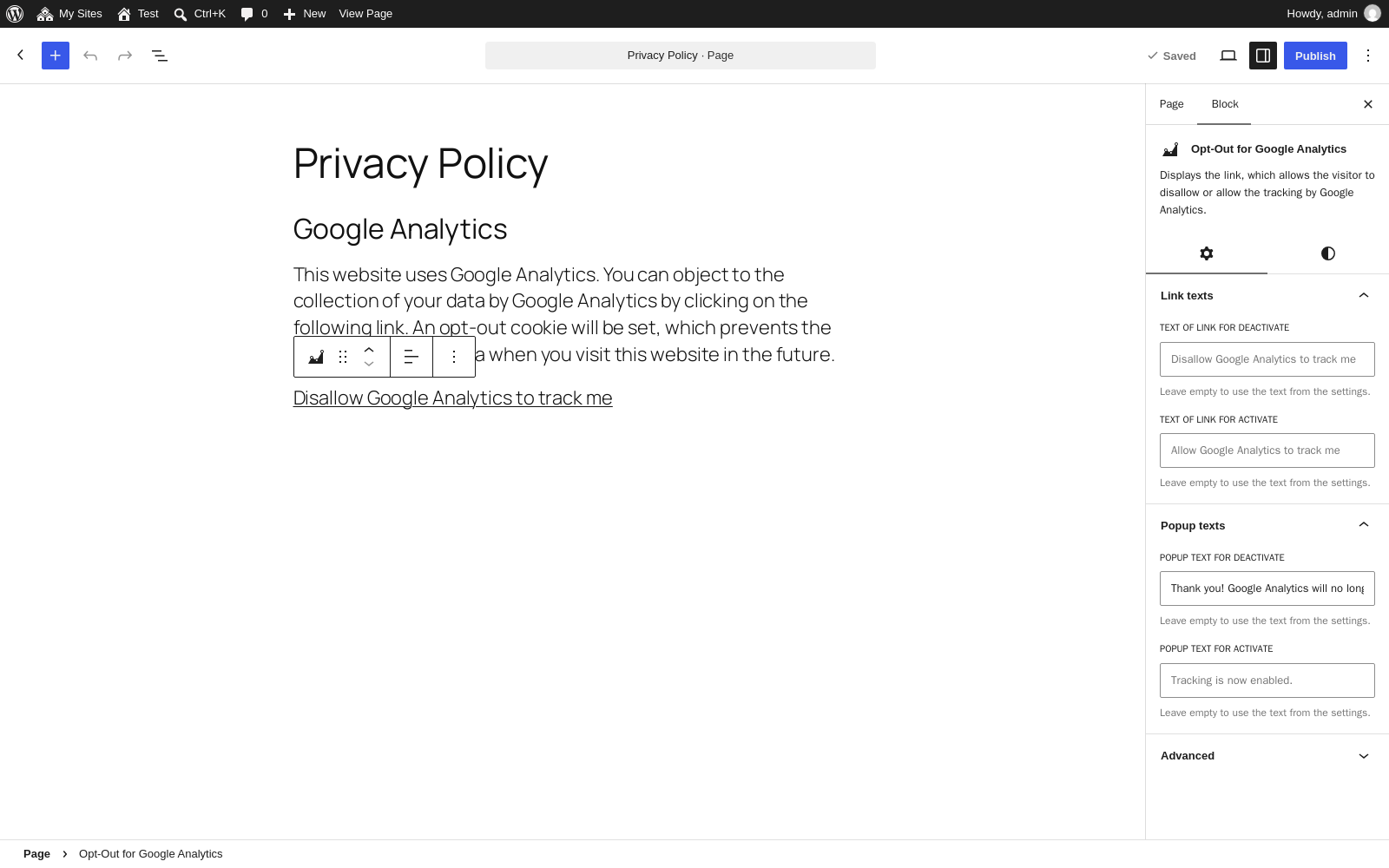
Block in the block editor, with individual link and popup texts
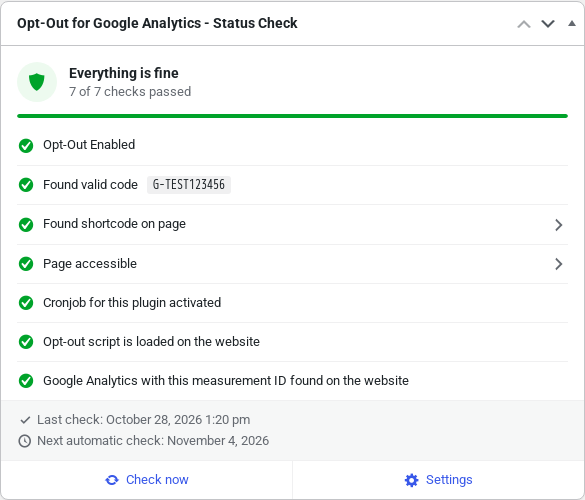
Dashboard widget with the status check, also of the website
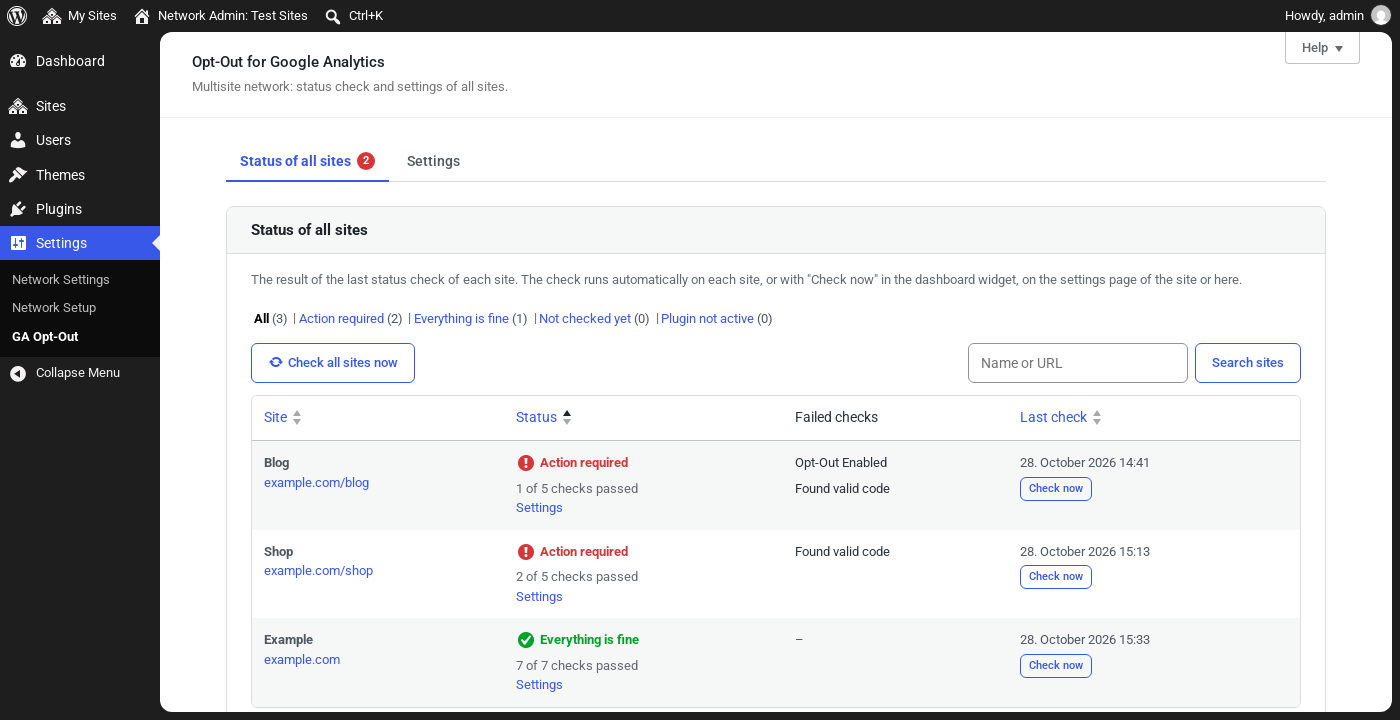
Multisite: status of all sites in the network admin, with filter, search and sorting, the check can be started for one or all sites
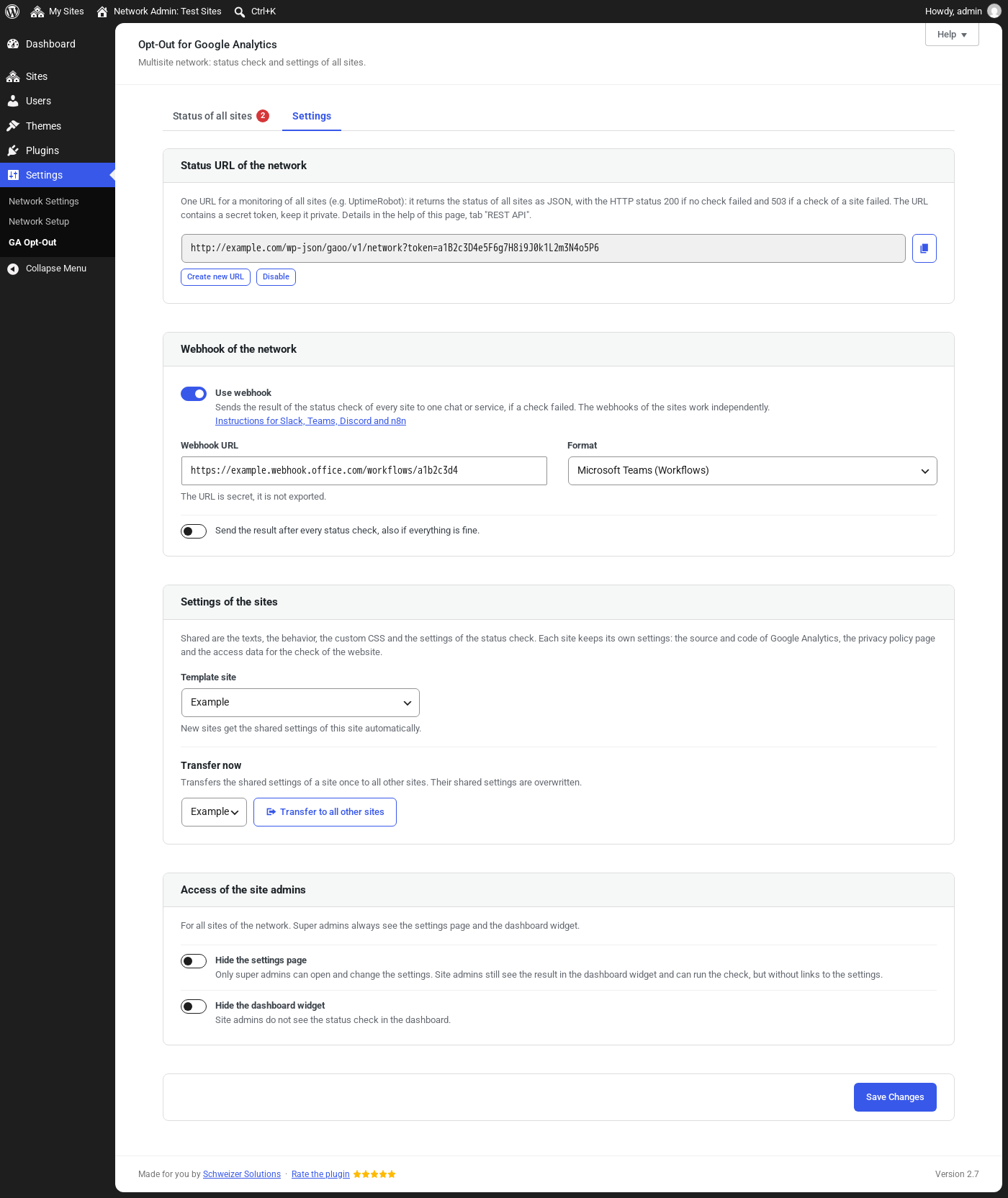
Multisite: settings of the network, with the status URL and the webhook for all sites, the template site, the transfer of the settings and the access of the site admins


Faq
Why should I use this plugin?
The General Data Protection Regulation (GDPR, German: DSGVO) requires that website visitors can object to the collection of their data by Google Analytics.
Until now, this was only possible with a browser add-on or with complicated JavaScript code on your own website.
With this plugin, it is very easy, and visitors can also undo their objection.
Is it the same opt-out code as the one from e-recht24.de?
Yes, because both follow Google’s specifications for Google Analytics 4. More information: https://developers.google.com/tag-platform/security/guides/privacy#turn-off-analytics
I added the Google Analytics tracking code myself, in my theme or with another plugin. Can I still use this plugin?
Yes. The plugin also works if the tracking code was added to the theme manually or with another plugin.
Do I need to update my privacy policy? Can it be updated AUTOMATICALLY?
Yes, we recommend offering the opt-out for Google Analytics in your privacy policy.
Keeping track of all changes in data protection law is not easy, especially alongside your core business. That’s why we offer a privacy policy generator together with our partner eRecht24.
You create your privacy policy ONCE, and it is automatically kept up to date in WordPress. No more filling out forms and copying and pasting privacy statements: it is completely automated.
More information: https://schweizer.solutions/erecht24
How long does the opt-out remain valid?
When a visitor clicks the opt-out link, a cookie is set. This cookie tells the website not to track this visitor.
The cookie is only valid in the browser in which the visitor clicked the opt-out link. In a different browser, the visitor has to click the link again.
If the visitor clears their browser data (cookies, history, etc.), the cookie is deleted as well, and they have to click the opt-out link again.
How do I deactivate the plugin?
To turn off the opt-out function, go to Settings > GA Opt-Out and switch off “Enable Opt-Out function”.
To deactivate the whole plugin, go to Plugins > Installed Plugins and click “Deactivate” below “Opt-Out for Google Analytics”.
After deactivating the plugin, you can remove it completely by clicking “Delete”.
Where can I use the shortcode?
You can use the shortcode [ga_optout] in posts, pages and widgets (text widget). In the block editor, you can also use the block “Opt-Out for Google Analytics”, and in Elementor and Divi the widget or module with the same name.
Can I use different link and popup texts on one page?
Yes. In the Gutenberg block, the Elementor widget and the Divi module, you can enter individual link and popup texts in the settings. If you use the shortcode, add the texts as attributes:
[ga_optout link_deactivate="Disallow tracking" link_activate="Allow tracking" popup_deactivate="Tracking is disabled." popup_activate="Tracking is enabled."]
If a text is empty, the text from the plugin settings is used.
With popup_type="notice" the popup text is shown below the link instead of a browser popup (popup_type="alert"), with force_reload="yes" or force_reload="no" the page is reloaded after the click or not. Without these attributes, the settings of the plugin are used. In the block, the Elementor widget and the Divi module, these options are in the settings too.
Can developers customize the plugin?
Yes. The plugin provides the following actions and filters:
// Before the shortcode is rendered
add_action( 'gaoo_before_shortcode', 'my_before_shortcode', 10, 2);

function my_before_shortcode( $tracking_code, $current_status ) {
    // $tracking_code - The measurement ID in use: "G-XXXXXXXXXX"
    // $current_status - The current status of the visitor: activate or deactivate
}

// After the shortcode is rendered
add_action( 'gaoo_after_shortcode', 'my_after_shortcode', 10, 2);

function my_after_shortcode( $tracking_code, $current_status ) {
    // $tracking_code - The measurement ID in use: "G-XXXXXXXXXX"
    // $current_status - The current status of the visitor: activate or deactivate
}

// Before the JavaScript code that disables GA is output
add_action( 'gaoo_before_head_script', 'my_before_script', 10, 1);

function my_before_script( $tracking_code ) {
    // $tracking_code - The measurement ID in use: "G-XXXXXXXXXX"
}

// After the JavaScript code that disables GA is output
add_action( 'gaoo_after_head_script', 'my_after_script', 10, 1);

function my_after_script( $tracking_code ) {
    // $tracking_code - The measurement ID in use: "G-XXXXXXXXXX"
}

// The GA4 measurement ID in use
add_filter( 'gaoo_get_ua_code', 'my_ga_tracking_code', 10, 2 );

function my_ga_tracking_code( $tracking_code, $ga_plugin ) {
    // $tracking_code - The measurement ID in use: "G-XXXXXXXXXX"
    // $ga_plugin - The selected source of the measurement ID
}

// Whether the page should be reloaded after the click
add_filter( 'gaoo_force_reload', 'my_force_reload', 10, 1);

function my_force_reload( $force ) {
    // $force - "true" = reload the page; "false" = do not reload
}

// The texts from the settings (also: gaoo_link_activate_text, gaoo_popup_deactivate_text, gaoo_popup_activate_text)
add_filter( 'gaoo_link_deactivate_text', 'my_link_text', 10, 1 );

function my_link_text( $text ) {
    // $text - The text from the settings
    return $text;
}

// The individual texts of a shortcode, block, Elementor widget or Divi module
add_filter( 'gaoo_shortcode_atts', 'my_shortcode_atts', 10, 1 );

function my_shortcode_atts( $atts ) {
    // $atts - Array with the keys link_deactivate, link_activate, popup_deactivate, popup_activate, popup_type (alert, notice) and force_reload (yes, no). An empty value uses the settings.
    return $atts;
}

// The HTML code of the link, e.g. to add a wrapper. The class "gaoo-link" must be kept.
add_filter( 'gaoo_shortcode_html', 'my_shortcode_html', 10, 4 );

function my_shortcode_html( $html, $tracking_code, $current_status, $atts ) {
    return '<p class="my-optout">' . $html . '</p>';
}

// The status check: the page for the check of the website (default: home page)
add_filter( 'gaoo_frontend_check_url', 'my_frontend_check_url', 10, 1 );

function my_frontend_check_url( $url ) {
    return home_url( '/privacy-policy/' );
}

// The status check: whether the link was found on the privacy policy page, e.g. for page builders which store the content in their own format
add_filter( 'gaoo_shortcode_found', 'my_shortcode_found', 10, 3 );

function my_shortcode_found( $found, $page_id, $page ) {
    // $found - true if the plugin found the link
    return $found || false !== strpos( (string) get_post_meta( $page_id, 'my_builder_content', true ), '[ga_optout' );
}

// The status check: add own checks. They are shown in the dashboard widget, on the settings page and in the status email.
add_filter( 'gaoo_status_checks', 'my_status_checks', 10, 2 );

function my_status_checks( $checks, $settings ) {
    $checks[] = array(
        'id'      => 'cookie_banner', // Optional: unique ID of the check, e.g. for the REST API. The last check with the same ID wins.
        'label'   => 'Cookie banner is active', // Text of the check
        'checked' => is_plugin_active( 'my-cookie-banner/my-cookie-banner.php' ), // true = passed, false = failed, null = unknown
        'url'     => admin_url( 'plugins.php' ), // Optional: page to fix the check
    );

    return $checks;
}

// After every status check (automatic or "Check now"), e.g. to send the result to another service
add_action( 'gaoo_status_check_done', 'my_status_check_done', 10, 2 );

function my_status_check_done( $checks, $failed ) {
    // $checks - List of the checks with the keys "label" and "checked"
    // $failed - true if at least one check failed
}

// Data of the webhook, sent as JSON (format: json, slack, teams or discord)
add_filter( 'gaoo_webhook_payload', 'my_webhook_payload', 10, 4 );

function my_webhook_payload( $payload, $format, $checks, $network ) {
    // $network - true for the webhook of the network (multisite)
    return $payload;
}

// Number of sites per page in the overview of the network (default: 50)
add_filter( 'gaoo_network_per_page', function () {
    return 100;
} );

// The status email, which is only sent if a check failed (also: gaoo_status_mail_subject, gaoo_status_mail_body)
add_filter( 'gaoo_status_mail_recipients', 'my_status_mail_recipients', 10, 2 );

function my_status_mail_recipients( $recipients, $checks ) {
    // $recipients - Array of email addresses. An empty array sends no email.
    $recipients[] = '[email protected]';

    return $recipients;
}
My theme does not render shortcodes. How can I add the link with PHP?
Some custom themes do not render shortcodes, so the link is not displayed.
In this case, add the following code to your theme at the desired position:
echo do_shortcode('[ga_optout]');
The status check reports a problem, although I have already fixed it!
If you changed a setting, e.g. in a compatible Google Analytics plugin, the change is only detected during the next automatic check (daily, weekly or monthly, depending on your settings).
You can run the check right away: click “Check now” in the dashboard widget or on the settings page Settings > GA Opt-Out.
The next automatic check is then moved by the interval.
How can I react to the clicks, e.g. with another plugin?
The plugin fires the JavaScript event gaoptout on the window object.
If the visitor clicks the link to opt out, event.detail is true. If the visitor opts in again, it is false.
Example:
window.addEventListener(‘gaoptout’, function (e) { console.log(e.detail); });
With jQuery, the value is available in e.originalEvent.detail.
How do I change the appearance of the link?
You can change the appearance of the link with custom CSS in the plugin settings. The following CSS classes are available:
The link itself:
.gaoo-link { … }
The ID #gaoo-link still works for compatibility, but please use the CSS class. The ID is not unique if the link is used several times on one page.
The link if the visitor has opted out of tracking:
.gaoo-link-activate { … }
The link if the visitor has NOT opted out of tracking:
.gaoo-link-deactivate { … }
The notice below the link, if the popup text is not shown as a browser popup:
.gaoo-notice { … }
In the block, the Elementor widget and the Divi module, you can also change the appearance in their design settings.
How can I send the status emails to multiple addresses?
Enter several email addresses, separated by commas, in the email field of the status check.
Example: [email protected],[email protected],[email protected]
Why don’t I receive emails from the status check?
The status check runs at the selected interval and only sends an email if at least one check has failed.
If you still do not receive any emails, there may be the following reasons:
- The email ended up in your spam folder. Please check your spam folder and add the sender address to your contacts, so future emails do not end up in spam.
- You have disabled the WordPress cron in the wp-config.php. Please make sure that a server-side cron job is set up and working.
- You use a caching plugin. Without a server-side cron job, WordPress checks for pending tasks on every page load. If the page is delivered from the cache, this check does not happen, and the cron job is not triggered.
- Your website has only a few visitors, with long gaps between visits. In this case, the WordPress cron is rarely triggered.
We therefore recommend:
- Set up a server-side cron job.
- Add the sender address to your contacts.
What does the status check check on the website?
The status check loads the home page like a visitor without consent and checks whether the opt-out script is loaded (and not removed or delayed by an optimization plugin), and whether Google Analytics is loaded with the measurement ID of the settings.
If Google Analytics is loaded only after the consent or by the Google Tag Manager, it can not be found in the HTML. This is shown as an information, not as an error.
If the website is protected with a password by the server (HTTP basic authentication), e.g. a staging website, enter the access data in the settings of the status check.
Can I check the status with WP-CLI, in the Site Health or for all sites of a multisite network?
Yes. wp gaoo status shows the result of the status check, wp gaoo status --run runs it first. The command fails if a check failed, so it can be used for a monitoring.
More commands:
wp gaoo settings export [<file>]andwp gaoo settings import <file> [--yes]: export and import of the settings, like on the settings page.wp gaoo network status [--status=failed] [--format=json]: the status of all sites of a multisite network. The command fails if a check of a site failed.wp gaoo network check [--site=<id>]: starts the check of all sites or of one site in the background.
The result is also shown in the Site Health of WordPress (Tools > Site Health), and in a multisite network the network admin shows the status of all sites (Network Admin > Settings > GA Opt-Out).
Can an uptime monitoring check the status (REST API)?
Yes. In the settings of the status check, create the status URL. It returns the result of the last status check as JSON:
https://example.org/wp-json/gaoo/v1/status?token=TOKEN
- HTTP status
200if no check failed,503if at least one check failed,403if the token is wrong. You can create a new URL (the old one stops working) or disable it at any time. - The token can also be sent as header
X-GAOO-Tokeninstead of the parametertoken. - The texts are English by default. With the parameter
lang(e.g.lang=deorlang=de_DE) they are translated, if the language is installed on the website, otherwise they stay English. statusisokorfailed,total,passed,failed,unknownandinfoare the number of checks.- Every check has an
id, which does not depend on the language, alabel(translated text) and aresult:passed,failed,unknown(not checked yet) orinfo(only an information, not an error). last_checkandnext_checkare in UTC (ISO 8601).
Example:
{"status":"failed","total":8,"passed":6,"failed":1,"unknown":0,"info":1,"checks":[{"id":"opt_out_enabled","label":"Opt-Out Enabled","result":"passed"},{"id":"shortcode","label":"Shortcode found on the page","result":"failed"}, ...],"last_check":"2026-10-28T06:00:00+00:00","next_check":"2026-10-29T06:00:00+00:00","language":"en_US"}
IDs of the checks: opt_out_enabled, measurement_id, shortcode, privacy_page_link, page_accessible, cronjob, website_check (only if the website could not be loaded), opt_out_script and google_analytics. Own checks of the filter gaoo_status_checks: the key id is optional, without it they get custom_1, custom_2 etc. Set an ID if you evaluate the check in your own code, because these numbers change when checks are added. The ID is unique: if several checks have the same ID, only the last one is shown, at the place of the first one. So an existing check can also be replaced.
Set up the monitoring:
- UptimeRobot, Better Stack, Uptime Kuma etc.: create an HTTP(S) monitor with the status URL. It reports an error if the HTTP status is not 200.
- If your monitoring service can not check the HTTP status, use a keyword monitor with the keyword
"status":"ok". - An interval of one hour is enough. The status check itself runs daily, weekly or monthly, or with “Check now”.
Multisite network: in the network admin (Network Admin > Settings > GA Opt-Out) you can create one status URL for all sites, https://example.org/wp-json/gaoo/v1/network?token=TOKEN. It returns the HTTP status 503 if a check of a site failed, the number of sites per status (ok, failed, not_checked, inactive) and each site with the IDs of the failed checks. With the parameter status (e.g. status=failed) only these sites are listed.
Can the result be sent to Slack, Microsoft Teams or Discord (webhook)?
Yes. Enable “Use webhook” in the settings of the status check, enter the webhook URL and select the format. While the webhook is disabled, its fields are hidden and the URL is kept.
- Slack, Mattermost, Google Chat: create an “Incoming Webhook”.
- Microsoft Teams: create a workflow “Post to a channel when a webhook request is received”.
- Discord: create a webhook in the settings of the channel (Integrations).
- JSON for n8n, Make, Zapier or an own script: the same data as the REST API, with the name and URL of the website.
In a multisite network, the network admin (Network Admin > Settings > GA Opt-Out) can set one webhook for all sites. It gets the result of the status check of every site with the name and URL of the site, “Send test” sends the status of all sites. The webhooks of the sites work independently of it.
The result is sent if a check failed, or optionally after every check. “Send test” sends the result of the last check to test the URL. The webhook URL is secret, so it is not exported. For security, the webhook can not reach addresses of the local network, this can be allowed with the filter http_request_host_is_external.
Can I transfer the settings to other websites?
Yes. With “Import / export” on the settings page, the settings are downloaded as JSON file and imported on another website. The privacy policy page, the access data for the check of the website and the webhook URL are not exported.
In a multisite network, the network admin (Network Admin > Settings > GA Opt-Out) can transfer the settings of one site to all other sites, and new sites can get the settings of a site automatically. The source and code of Google Analytics, the privacy policy page, the access data, the email addresses and the webhook of each site are kept.
Can I hide the settings from site admins in a multisite network?
Yes. In the network admin (Network Admin > Settings > GA Opt-Out, tab “Settings”), “Hide the settings page” hides the settings page for site admins, so only super admins can change the settings. The site admins still see the dashboard widget and can run the check, but without links to the settings. With “Hide the dashboard widget”, the site admins do not see the status check in the dashboard. Both options work independently, super admins always see everything.
How do I use the plugin with Google Tag Manager?
The opt-out cookie is set according to Google’s specifications, so Google Tag Manager (GTM) usually does not need to be adjusted.
However, if you want to prevent the Google Analytics code from loading at all, GTM must check whether the cookie or the local storage entry is set.
Based on this, GTM can decide whether to load the code.
If there is no cookie or local storage entry, or if its value is “false”, the visitor has not opted out.
The visitor has only opted out if the value is “true”.
Specific cookie for your measurement ID: ga-disable-G-XXXXXXXXXX
Generic cookie: ga-opt-out
Specific local storage entry: ga-disable-G-XXXXXXXXXX
Generic local storage entry: ga-opt-out
Does the opt-out work with the Google Consent Mode?
Yes. Enable “Google Consent Mode” in the settings “Status” (it is disabled by default). Then the opt-out also denies the consent analytics_storage, when the link is clicked and on every page load of a visitor who has opted out. So the opt-out also works, if Google Analytics is loaded by the Google Tag Manager or with another measurement ID. On the opt-in, the consent of the cookie banner applies again after the next page load.
Liability / Disclaimer
You use this plugin at your own risk. As the website operator, you are responsible for making sure that the plugin works on your website.
Among other things, check whether a cookie in the format ga-disable-G-XXXXXXXXXX is set after clicking the link.
For Google Tag Manager, an additional cookie named “ga-opt-out” is set.
Reviews
Simple 2 use, easy install, PHP8-compatible
By  The-Dude on January 8, 2022
Mega ad banner in the whole admin area
By  flowdee on March 26, 2020
Thx for that nice plugin!
By  wittich on May 27, 2018
Working fine, but needs correct PHP version
By  selma123 on May 18, 2018
Must have plugin
By  michael.oeser on May 9, 2018
Easy to use!
By  tobit83 on September 3, 2016
Easy to use. Works fine with Google Analytics Dashboard für WP. Perfect for people who don’t know much about programming.
Changelog
2.7
- Added: Website check: the status check loads the website and checks the opt-out script, the measurement ID and the opt-out link on the privacy policy page.
- Added: Access data (HTTP basic authentication) for the website check, e.g. for staging websites.
- Added: Webhook for Slack, Microsoft Teams, Discord, Google Chat, n8n, Make and Zapier.
- Added: REST API for uptime monitoring, e.g. UptimeRobot.
- Added: Option “Google Consent Mode”: the opt-out also denies “analytics_storage”.
- Added: “Check now” in the dashboard widget and on the settings page.
- Added: Status check in the Site Health of WordPress.
- Added: WP-CLI commands for the status check, the settings and the network.
- Added: Multisite: status of all sites, one status URL and one webhook for the network, transfer of the settings and settings for new sites.
- Added: Multisite: the settings page and the dashboard widget can be hidden for site admins.
- Added: Import and export of the settings.
- Added: Popup text as a notice below the link, as an alternative to the browser popup.
- Added: Popup type and page reload individually per block, Elementor widget, Divi module and shortcode.
- Added: Preview of the link and help tab with all instructions on the settings page.
- Added: Actions and filters for developers.
- Updated: Custom CSS is checked while typing and formatted when saving.
- Updated: Gutenberg block: colors for the link and the notice, also on hover. Existing block colors are moved to the link automatically.
- Updated: Elementor widget: background, padding and border radius of the link.
- Updated: Popup texts can have several lines.
- Updated: Better accessibility of the link (space key, screen reader announcements).
- Updated: Several UX tweaks on the settings page and in the dashboard widget.
- Updated: Minimum requirements: WordPress 6.3 and PHP 7.4.
- Removed: CSSTidy library. The plugin minifies the custom CSS itself.
- Fixed: Several smaller bugs, security hardening and code quality.
2.6
- Security: Only users with the “edit_css” capability can change the custom CSS, like the “Additional CSS” of WordPress (relevant for multisite).
- Added: Switch to enable or disable the custom CSS without deleting it, e.g. to test the website without it. It is disabled by default, and enabled automatically on update if custom CSS was already entered.
- Updated: The tracking code and the custom CSS are read-only, with a notice, if the user is not allowed to change them.
- Added: Elementor widget “Opt-Out for Google Analytics” with individual link and popup texts, and settings for alignment, typography and colors.
- Added: The status check also finds the Elementor widget and the shortcode on pages built with Elementor. Same for Divi module (Divi 4 and Divi 5).
- Added: Divi module “Opt-Out for Google Analytics” for Divi 4 and Divi 5, with individual link and popup texts, live preview in the Visual Builder and the Divi design settings.
2.5
- Security: Only users with the “unfiltered_html” capability can change the tracking code (relevant for multisite).
- Security: Hardened the output of the custom CSS, the link texts and the promotion data.
- Added: The Gutenberg block shows a preview of the link and a warning if the link is not displayed on the website.
- Added: Settings for color, typography, spacing and text alignment in the Gutenberg block.
- Added: Individual link and popup texts per block or per shortcode: [ga_optout link_deactivate=”…” link_activate=”…” popup_deactivate=”…” popup_activate=”…”]
- Added: Compatibility with Secure Custom Fields. The status check also finds the shortcode in its fields.
- Updated: New, modern design of the settings page.
- Updated: New, modern design of the dashboard widget.
- Updated: The Gutenberg block is now rendered dynamically and is translatable. Existing blocks keep working and are migrated automatically when edited.
- Updated: The link has the new CSS class “gaoo-link”. Please use it instead of the ID “#gaoo-link”, which still works for compatibility.
- Updated: The minimum required WordPress version is now 5.8.
- Updated: Support for WordPress 7.1.
- Fixed: The opt-out link did not work with block themes (e.g. Twenty Twenty-Five), because the JavaScript data was missing.
- Fixed: With page caching, the opt-out link could show the wrong status. The link now always shows the current status, also if it is used several times on one page.
- Fixed: The admin notice was shown when everything was fine, and hidden when there were problems. Thanks to @greenlightsolutions for reporting!
- Fixed: The plugin could not be deactivated with the bulk action or with WP-CLI.
- Fixed: Fatal error if another plugin also loads the CSSTidy library.
- Fixed: Site Kit by Google: the GA4 measurement ID is now read correctly.
- Fixed: The opt-out link no longer depends on a global JavaScript variable from the header script.
- Fixed: The CSS class of the opt-out link is now updated correctly in both directions.
- Fixed: PHP warning in the status check with Advanced Custom Fields if the page has no fields.
- Fixed: Invalid email addresses for the status emails were silently changed or removed. They are now validated, and an error message is shown.
- Fixed: Multisite: the links to install a compatible Google Analytics plugin lost the search query. The links are now only shown if the user is allowed to install or activate plugins.
- Fixed: Multisite: new sites did not get the status check cron job when the plugin is network activated.
- Fixed: The status check cron job was not created when the plugin was activated with WP-CLI.
- Fixed: The status check is now updated when the privacy policy page is saved.
- Fixed: Cached data is now reliably cleared after a plugin update, regardless of the update method.
- Fixed: The admin styles of the plugin affected code elements on all admin pages.
- Removed: Support for Universal Analytics (UA-XXXXXX-Y). Google has shut down Universal Analytics, so only Google Analytics 4 (G-XXXXXXXXXX) is supported.
- Removed: The status check “IP anonymization is enabled”. Google Analytics 4 does not log or store IP addresses.
- Removed: Unused code and files.
2.4
- Updated: Support for WordPress 6.8.1.
2.3
- Updated: CSSTidy library to version 2.1.0.
- Updated: Support for WordPress 6.5.
- Updated: readme.txt.
- Fixed: Analytify: detection of whether IP anonymization is enabled.
2.2
- Updated: Support for WordPress 6.2.
- Updated: Support for PHP 8.1.
- Improved: Optimized code and user experience.
- Fixed: When a tracking code is pasted in manual mode, the GA4 ID is now read from the JavaScript code and inserted into the input field automatically, if the field is empty.
2.1
- Updated: Support for WordPress 6.0.2.
- Updated: CSSTidy library to version 2.0.0.
- Updated: Integration of all supported Google Analytics plugins.
- Updated: readme.txt.
2.0
- Added: Support for Google Analytics 4 (GA4).
- Added: GA4 support for MonsterInsights.
- Added: GA4 support for ExactMetrics.
- Added: GA4 support for Analytify.
- Added: GA4 support for GA Google Analytics.
- Updated: Support for WordPress 5.9.
- Improved: Several code improvements and cleanup.
1.9
- Updated: Support for WordPress 5.8.
- Updated: Compatibility with all supported Google Analytics plugins.
- Changed: Raised the required versions in the dependency check on plugin activation.
- Fixed: The system directory separator was not used in the constants.
1.8
- Added: Dashboard widget with the current status of the website. It can be disabled in the plugin settings.
- Added: The language files of this plugin are removed on uninstall, if the option “Keep data after uninstall” is not enabled.
- Changed: The translation code. The language files were removed from the plugin, the translations are now provided by translate.wordpress.org.
- Updated: Names of the supported Google Analytics plugins.
1.7
- Added: Option in the settings to keep the data after uninstall.
- Added: Close button for the promotion popup, for better usability.
- Fixed: The data was not deleted after the plugin was deleted.
1.6
- Updated: Support for PHP 8.
- Updated: Support for WordPress 5.7.
- Updated: Compatibility with all supported Google Analytics plugins.
- Updated: CSSTidy from version 1.7.0 to 1.7.3.
- Improved: Gutenberg support for the opt-out block.
- Improved: Some links, the design and the mobile usability of the settings page.
- Improved: PHP code and security.
- Changed: If the promotion box is hidden permanently, this now applies to the whole installation instead of per user.
- Fixed: In some cases, the plugin texts were not displayed in the language of the user.
- Fixed: Unexpected changes to the .htaccess file in some cases (thanks to @danielrufde).
1.5
- Added: Support for Site Kit by Google.
- Added: The current UA code is shown in the status check.
- Added: Send the status email to the WordPress admin email address (automatic sync).
- Updated: Compatibility with the new version of “Google Analytics Dashboard for WP by ExactMetrics” (formerly GADWP), with backward compatibility for older versions.
- Updated: Compatibility with the new version of “Google Analytics Dashboard Plugin for WordPress by Analytify”, with backward compatibility for older versions.
- Fixed: German translations.
1.4
- Added: Support for Gutenberg.
- Added: Support for the ACF plugin, to check whether the shortcode is used in its fields.
- Added: An email is sent if the status check detects an error.
- Added: The interval of the status check can now be changed.
- Added: Google Analytics can be added to the whole website if the UA code is entered manually.
- Added: Custom JavaScript event on the window object, so other plugins can react when a visitor clicks the link.
- Added: Custom CSS in the settings, which is only loaded if the shortcode is used.
- Updated: The link to the Google Analytics page about the data processing agreement.
- Improved: The edit link next to the “Privacy Policy Page” selection now opens the currently selected page.
- Improved: Usability and security.
- Improved: The JSON data is now generated by a static function, so developers can enqueue the scripts on any page.
- Fixed: The wrong version variable was used to check whether WordPress has the new GDPR features.
- Fixed: The redirect after activation now only happens if the plugin is activated on its own, not in bulk.
- Fixed: The filter for the link text did not apply on the initial page load.
1.3
- Added: Support for the GDPR features of WordPress 4.9.6: icon for the shortcode on the privacy page and sync of the page ID for the shortcode.
- Added: Check whether the page with the shortcode is accessible.
- Added: Support for MonsterInsights Pro.
- Added: Compatibility with WPML and Polylang.
- Added: Local storage fallback: if the cookies were deleted but the local storage was not, the cookie is restored.
- Added: Option to disable the dashboard notice if the settings are not correct.
- Added: Option to force a page reload after clicking the link.
- Added: “Google Tag Manager” as an option.
- Improved: Support for Google Tag Manager: a generic cookie named “ga-opt-out” is set when a visitor opts out. You can copy the code into GTM without changing the UA code.
- Improved: Several code and usability optimizations.
- Fixed: PHP error on older PHP versions (< 5.3).
1.2
- Added: Backward compatibility with older versions of “Google Analytics Dashboard for WP (GADWP)”.
- Added: Some status checks now link to the related settings page. Enabling IP anonymization is now just one click away.
- Changed: The message about settings that are not compliant with data protection law is now only visible to admins and super admins.
- Fixed: Activating the plugin directly after installation caused a warning message.
1.1
- Added: Integration of “GA Google Analytics”.
- Added: Integration of “Google Analytics for WordPress by MonsterInsights”.
- Added: Validation of the UA code.
- Added: Monitoring: a weekly check whether the settings are compliant with data protection law. If not, a message appears in the WordPress admin.
- Improved: Several code, security and usability optimizations.
- Fixed: Integration of “Google Analytics Dashboard for WP (GADWP)”.
- Removed: Integration of “Google Analytics by Yoast”.
1.0
- Initial release on February 15, 2016.