

Offload Media – Cloud Storage
Description
Offload Media – Cloud Storage copies the files you upload to the WordPress Media Library to cloud storage and serves them from there. Images, videos, PDFs and other attachments load from your Amazon S3, Google Cloud Storage, Cloudflare R2 or DigitalOcean Spaces bucket, or from a CDN in front of it.
Serving media from the cloud takes load and disk usage off your web server, and a CDN delivers files from locations closer to your visitors, which can help page speed.
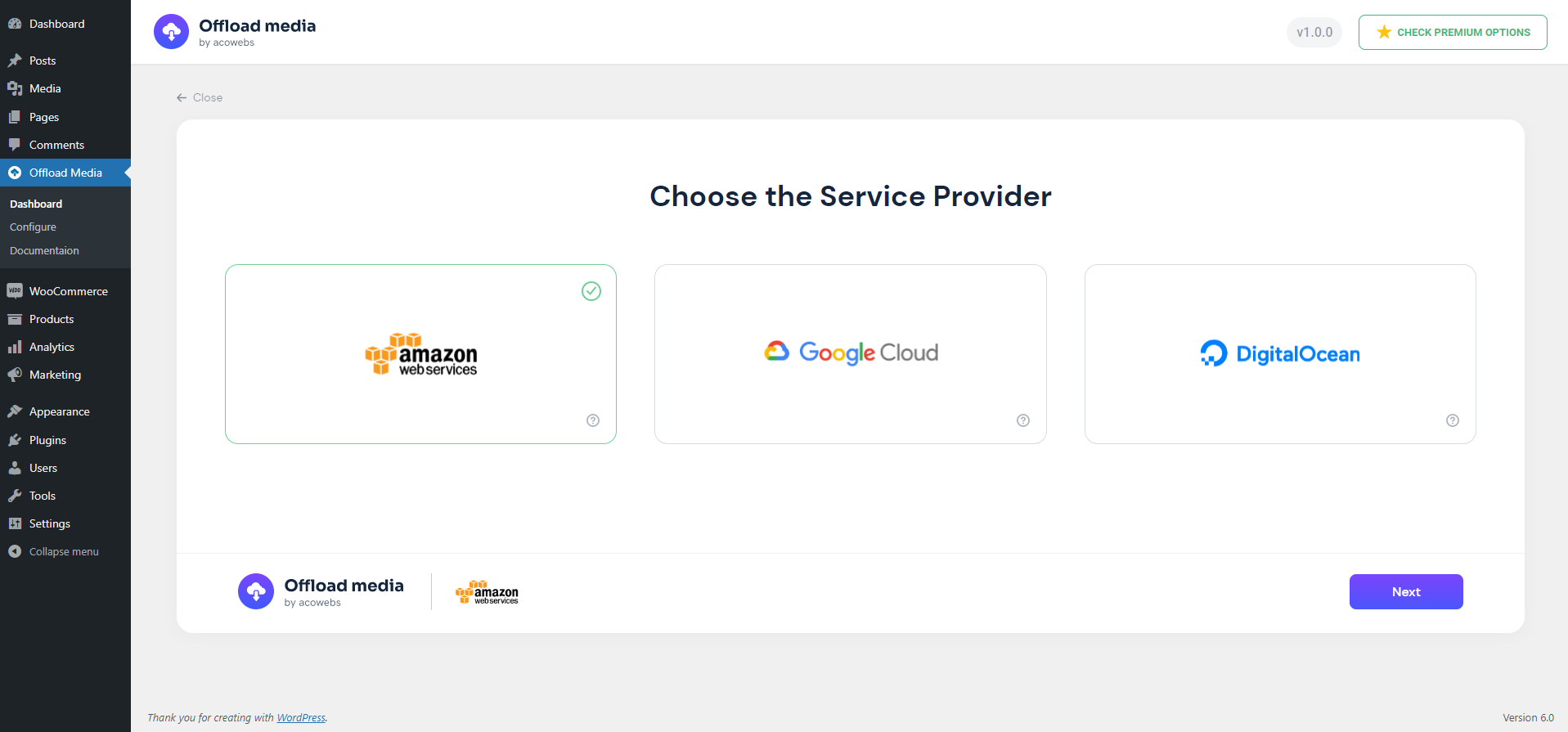
Supported cloud storage providers
- Amazon S3 (including buckets with ACLs disabled)
- Google Cloud Storage (including buckets with uniform bucket-level access)
- Cloudflare R2
- DigitalOcean Spaces
Features
- Automatic offloading: new Media Library uploads are copied to your bucket, including every generated image size and the original image.
- URL rewriting: media URLs in posts, pages, image srcsets and the block editor point to the cloud. Post content keeps local URLs in the database, so your content stays intact if you turn the plugin off.
- CDN support: serve files through a custom CDN or endpoint URL, such as Amazon CloudFront or a Cloudflare domain.
- Pre-signed URLs: serve files through expiring, signed URLs with a configurable lifetime.
- Save disk space: optionally remove local copies once files are in the cloud.
- Folder structure: set a base path and keep WordPress year/month folders.
- Object versioning: add a unique prefix to file paths to avoid stale CDN caches (Amazon S3, Google Cloud Storage, DigitalOcean Spaces).
- Stays in sync: edited images and regenerated thumbnails are offloaded again, and deleting media also removes it from your bucket.
- Reliable background uploads: offloading runs in a queue with automatic retries, so busy uploads and temporary provider errors do not leave files behind.
- Guided setup: a configuration wizard verifies your credentials, can create a new bucket, and lets you keep access keys in wp-config.php.
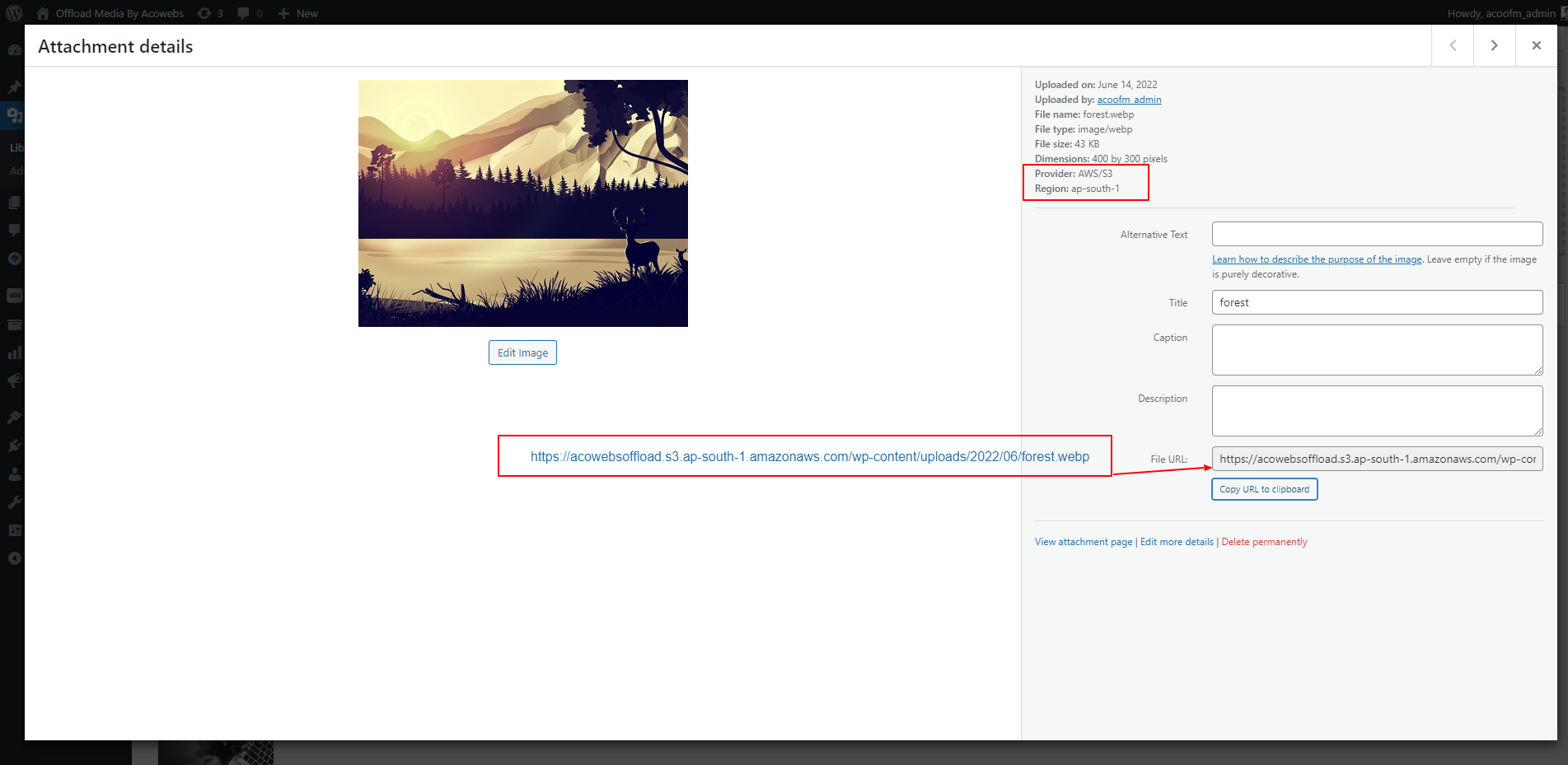
- Offload details: the attachment details screen shows each file’s provider, region and access.
- Works with WooCommerce product images and other themes and plugins that use the standard WordPress media functions.
- Translation-ready.
Pro version
Offload Media – Cloud Storage Pro adds:
- More providers: Wasabi, MinIO and other S3-compatible storage.
- Bulk tools: offload your existing Media Library, remove local copies, or download files back to your server in bulk.
- Media Library tools: an offload status column and per-file actions to sync, remove or download files.
- Image optimization: image compression with original backups, and WebP generation, offloading and delivery.
- WooCommerce: WooCommerce downloadable product files served from your bucket.
- Troubleshooting tools: connection, media and delivery checks, cache clearing, and import of data from earlier versions.
Useful links
Installation
- In your WordPress dashboard, go to Plugins > Add New, search for “Offload Media – Cloud Storage”, then install and activate it. You can also upload the ZIP file under Plugins > Add New > Upload Plugin.
- Open Offload Media in the admin menu and choose your cloud storage provider.
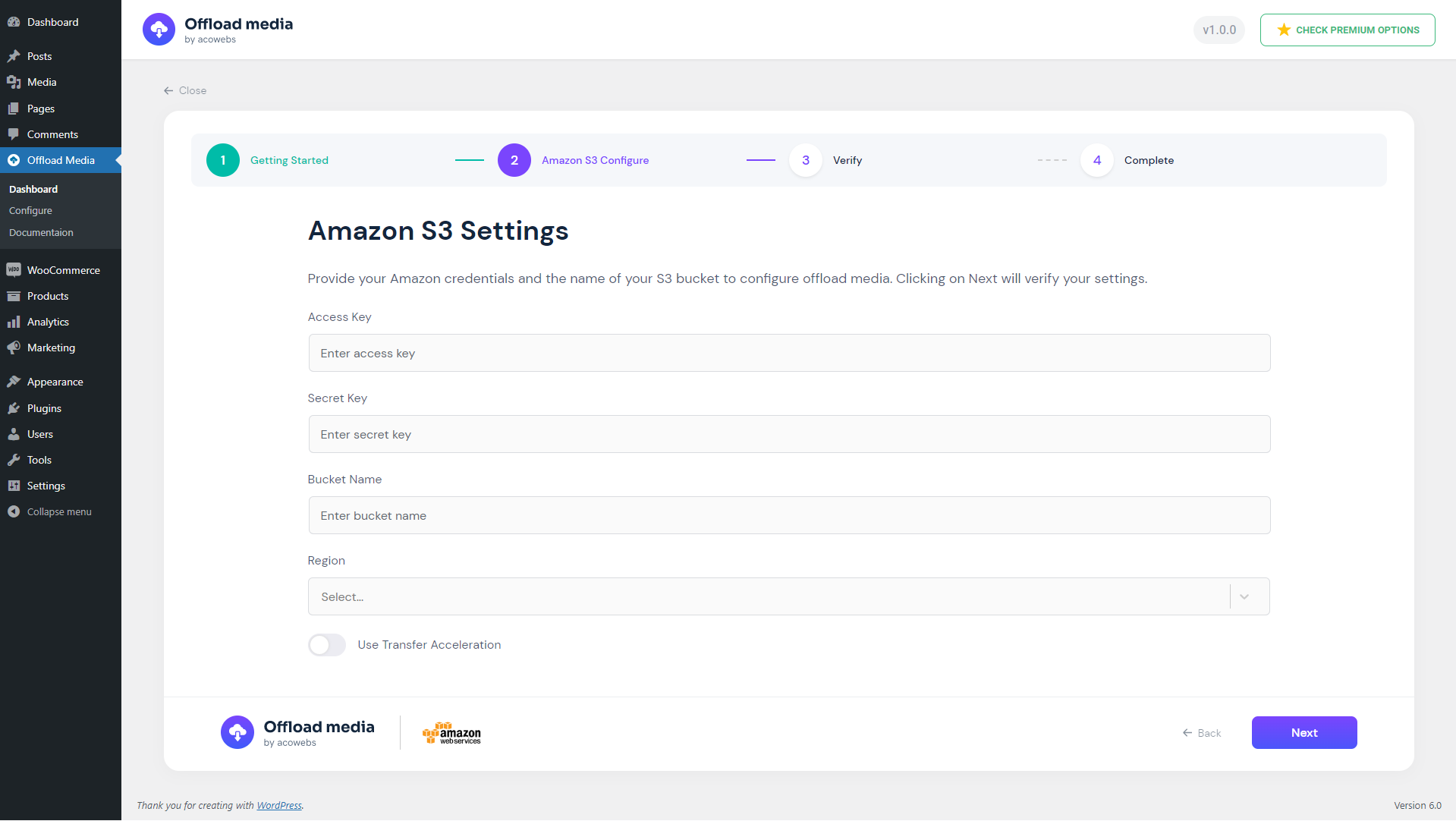
- Enter your access keys (or a Google Cloud service account key file), or define them in wp-config.php.
- Choose an existing bucket or create a new one, then save once the credentials are verified.
- Review the settings: copying files to the bucket, URL rewriting, CDN, pre-signed URLs and removing local files.
New uploads are offloaded from then on.
Screenshots

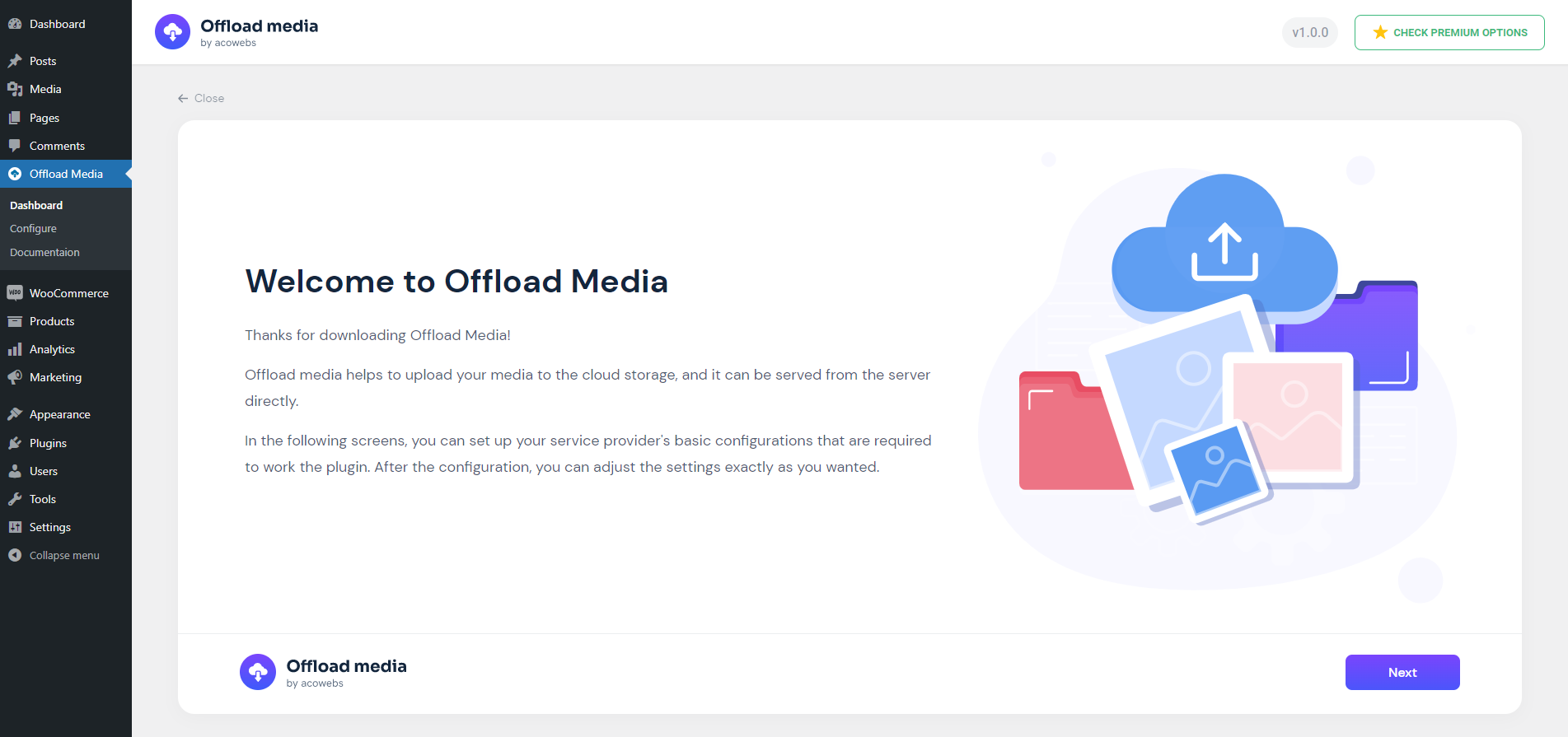
Welcome screen
Choose a cloud storage provider
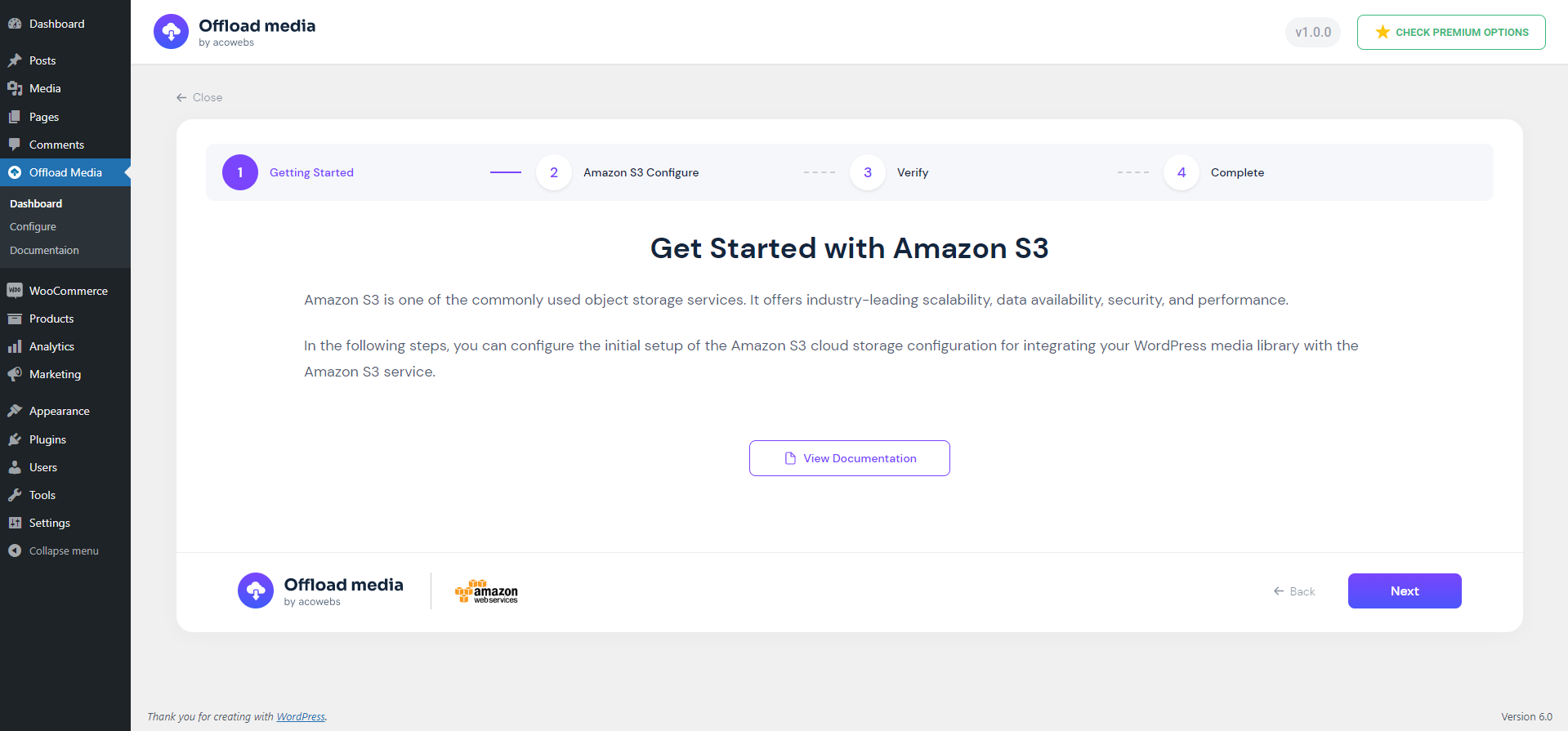
Provider setup overview
Enter cloud storage credentials
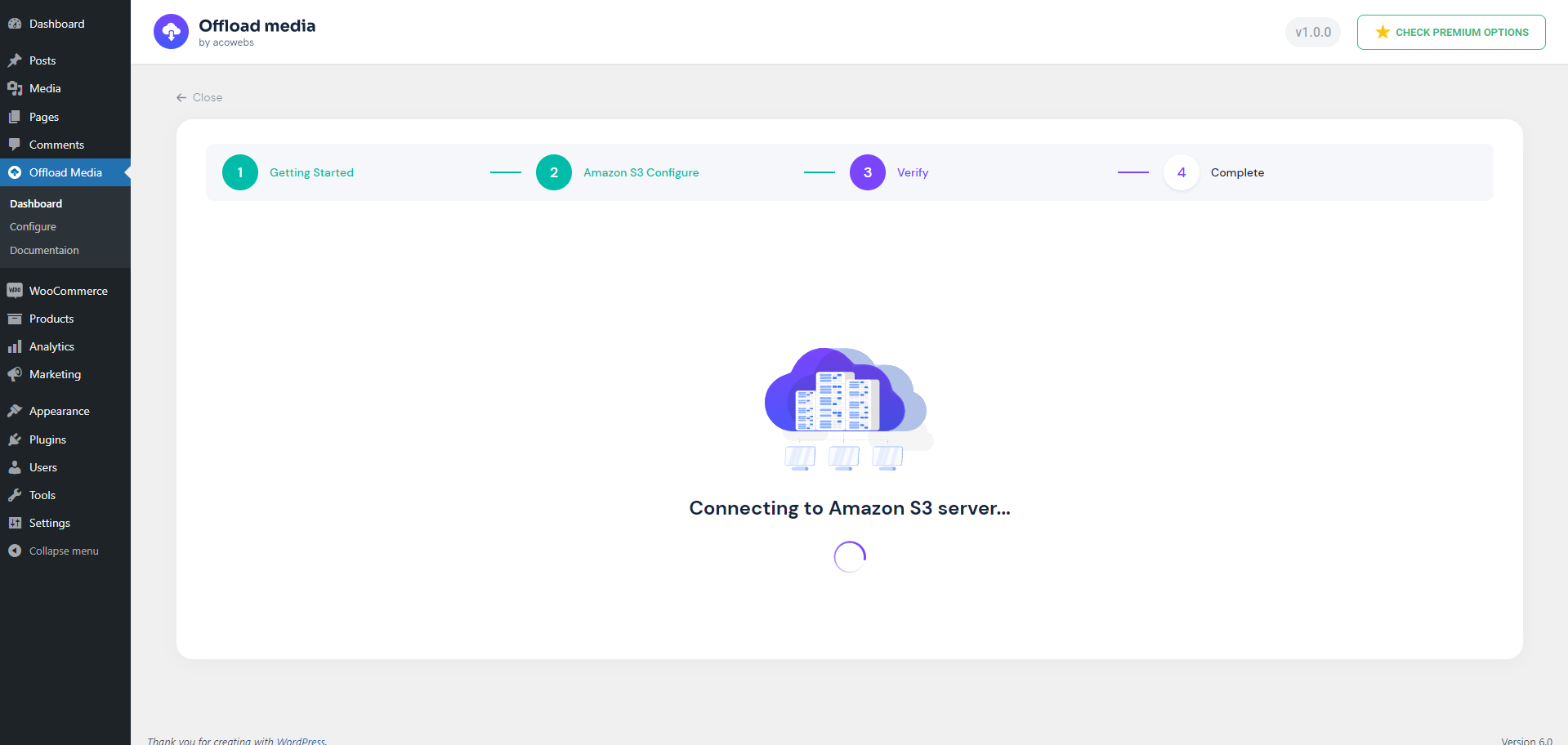
Credential verification
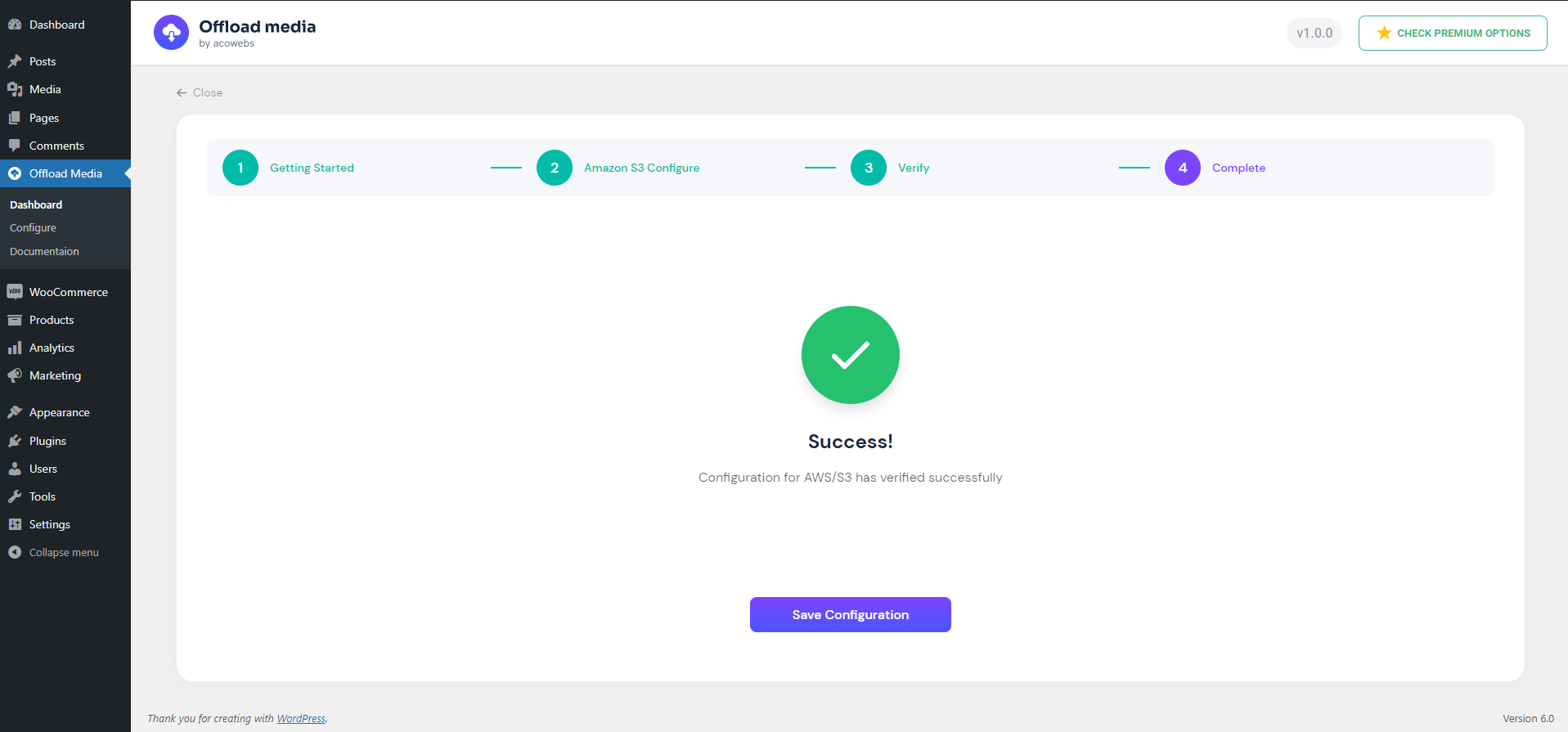
Save the configuration after successful verification
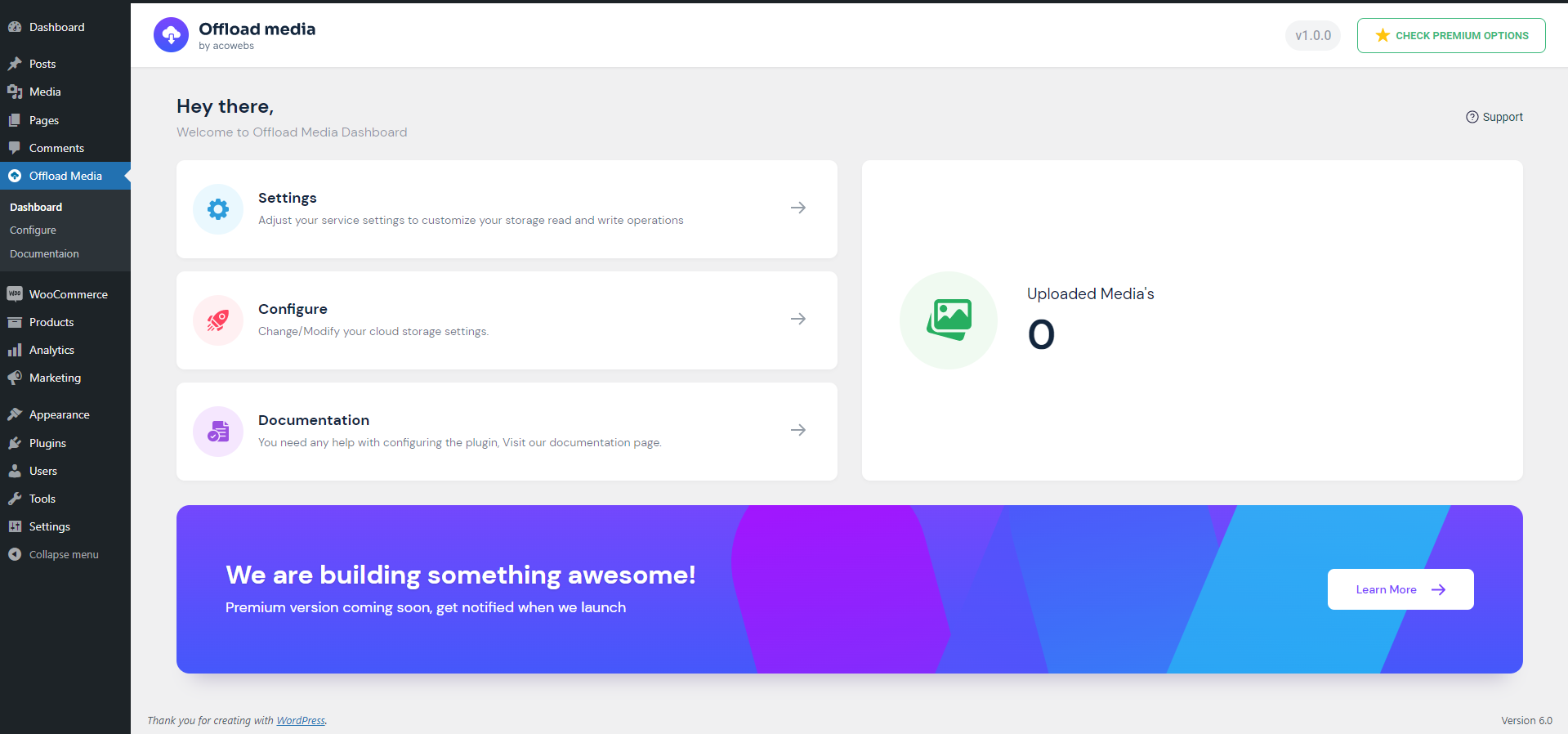
Dashboard
Settings for uploads, URL rewriting, CDN and pre-signed URLs
Offload details of an uploaded attachment

Faq
What does offloading WordPress media do?
It copies the files you upload to the Media Library to a cloud storage bucket and rewrites their URLs, so visitors load them from the cloud or your CDN instead of your web server. This reduces server load and, if you remove local copies, disk usage.
Which cloud storage providers are supported?
Amazon S3, Google Cloud Storage, Cloudflare R2 and DigitalOcean Spaces. The Pro version adds Wasabi, MinIO and other S3-compatible storage.
Are existing Media Library files offloaded?
The free version offloads new uploads, along with edited images and regenerated thumbnails. To offload media uploaded before the plugin was installed, use the bulk offload tool in the Pro version.
Can I serve media through a CDN such as CloudFront or Cloudflare?
Yes. Enable “CDN / Custom End Point” in the settings and enter your CDN URL. Media URLs then use that domain.
Can I delete local files after they are offloaded?
Yes. Enable “Remove files from server” and local copies are deleted once their upload to the bucket is confirmed. Before turning off the plugin, make sure the files are available on your server again, because WordPress will then serve them locally.
What happens if I deactivate the plugin?
Post content is saved with local URLs, so pages keep working and your media is served from your server again. Files stay in your bucket. If you removed local copies, download them back to your server first.
Do my files need to be public?
Files are served by their public URL unless you enable pre-signed URLs, which give each file a signed link that expires after the time you set. On Amazon S3 buckets with ACLs disabled and Google Cloud buckets with uniform bucket-level access, grant public read access through the bucket policy or IAM, or use pre-signed URLs.
Where should I store my access keys?
You can enter them in the setup wizard, or define them in wp-config.php so they are not stored in the database. For Google Cloud Storage, wp-config.php holds the path to your service account key file. The wizard shows the code to add.
Does it work with WooCommerce?
Yes. WooCommerce product images use the standard WordPress media functions, so they are offloaded and served from the cloud like other media. The Pro version also serves WooCommerce downloadable product files from your bucket.
Reviews
Exceptional customer support – patient, professional, and truly helpful
By  vikikrisna on December 10, 2025
The team was kind, patient, and professional throughout the whole process. They solved my issue and made me feel well taken care of. Thank you so much!
OCI media offload
By  articla79 on September 3, 2025
NIce, but I still prefer the OCI media offload from articla for dedicated offloading to Oracle coud infrastructure.
Powerful, user-friendly plugin with excellent support
By  braymaddox on May 7, 2025
I recently upgraded to the Pro version of Offload Media – Cloud Storage by Acowebs, and I couldn’t be happier with the experience. The plugin is incredibly user-friendly while still offering powerful features that make media management a breeze.
I had a few minor hiccups while transitioning from the free version, but their support team was fantastic, responsive, helpful, and got everything running smoothly in no time. The plugin effortlessly offloaded over 33,000 media assets to my cloud storage without a hitch.
A huge thank you to the team for developing such a great tool and backing it up with excellent support. Highly recommended!
Brilliantly Crafted!
By  Josh Journey (ljosh) on April 17, 2025
I’ve tested all the major media offloaders and this one is the best! Images upload swiftly, media management behaves as one would expect, and setup was a breeze on the plugin end. Support is swift, coming in with a custom solution to a feature I had wanted – image resize on upload. This allows uploads to be better sized to save storage space and bandwidth. I’m very thankful this solution exists!
Offload Media Cloud Storage comes highly recommended! 😊
Very good customer service
By  caetano24 on March 3, 2025
excellent support thank you!
I also wanted to express my appreciation for the excellent customer service.
By  inthanet on January 31, 2025
Hello, Thank you so much for the helpful information! I’ll check out the information about the paid version. I also wanted to express my sincere appreciation for the excellent customer service for the free version of the ‘Offload Plugin’ you’ve provided. It’s truly refreshing to encounter a company that not only promises great support, but actually delivers on it.
These days, it’s all too common for companies to fall short, so your responsiveness and helpfulness are very much valued.
Regards,
Uwe
Suer sh….
By  aksel777 on September 9, 2024
Don’t install. I installed it, turned it off right away and I can’t turn it off or remove it, some kind of virus. I was only able to remove it on the server, and the site went down. Don’t even think about installing it!
Great plugin!
By  nikola888 on September 8, 2024
I’m just switching from MediaCloud plugin to Acowebs Offload-Media-Cloud-Storage plugin. The inicial setup is easy and quick and the plugin works absolutely smooth. Media files are perfectly stored on S3, served via CDN custom url (optional) and also deleted on local server (optional). The only problem I have now is how to change the base slug from the previously uploaded images as they are being served by default WordPress url and not with custom CDN.
Sorry for this, but it adds a lot of Page Loading Time issues
By  waqastariq1 on August 30, 2024
First of all I would like to say sorry for writing this, being a dev myself I know how much effort does it take to write a plugin.
I made the decision of choosing this plugin to offload the media to google cloud bucket, once I moved all of the media, I noticed that there was delay of 8-10 seconds on almost each page ( which have had no media ) . Firstly i thought it might be CDN but nothing made the load time go-away.
Then while debugging I turned this plugin off, and everything came back to life, so I had to go through a pain full process of migrating from this plugin to the WP Offload Media plugin.
All I am saying is, if somehow the person responsible for maintaining this plugin can look into this as to why does it take so much time to load, I am sure, not the only who faced this issue.
Great plugin
By  myeasymaster on June 13, 2024
This is great plugin! Works like a charm! Thanks for your effort to develop such a great plugin!
There are several options to configure medias well 2 features I like it very much:
- Rewrite is great, when I enabled cdn option in the plugin and input my cdn domain, all of relevant images’ url are changed automatically.
- Remove files from server is great, when I delete a product, relevant images are deleted from my aws bucket.
The below is just some information for reference:
Unfortunately, it’s not compatible with the plugin “Plus WebP“, images uploaded were converted to webp format, now the original images will be uploaded. Well it’s not mandatory for conversion now when I use aws, the loading speed of images looks good even if each image is about 2-3mb.
Changelog
1.9.0
- WordPress 7.1 compatibility
- Reliable background offloading with automatic retries
- Block editor uploads use cloud URLs
- Google Cloud uniform bucket and S3 ACL-disabled bucket support
- Security improvements
- Bug fixes
1.8.3
- Fix PHP fatal when rewriting image URLs in the block editor REST API
1.8.2
- Fix Cloudflare R2 undefined account ID warning during setup
- Improve Cloudflare R2 credential error messages
- Remove unsupported object ACL usage for Cloudflare R2 uploads
- Improve configure wizard credential verification error display
1.8.1
- WordPress 7.0 compatibility
- Improvements and bug fixes
1.7.0
- WordPress 6.9 compatibility
- Improvements and bug fixes
1.6.0
- WordPress 6.8 compatibility
- Improvements and bug fixes
1.5.1
- WordPress 6.8 compatibility
- Improvements and bug fixes
1.5.0
- WordPress 6.8 compatibility
- Improvements and bug fixes
1.4.1
- WordPress 6.8 compatibility
- Improvements and bug fixes
1.4.0
- New configuration UI
- Option to create bucket
- Bug fixes
1.3.0
- WordPress 6.7 compatibility
- Added Cloudflare R2 Support
1.2.0
- WordPress 6.7 compatibility
- Bug fixes
- Updated Amazon S3 and Google Cloud PHP SDKs
1.1.11
- WP 6.5 support
- Bug Fixes
1.1.10
- WP 6.4 support
1.1.9
- Compatibility: Modified/Created some functions for supporting pro version.
1.1.8
- Compatibility: Modified/Created some functions for supporting pro version.
1.1.7
- Bug Fix: Offloading count wrong.
- Bug Fix: Digital Ocean Upload Permission Issue.
- Bug Fix: Minor function changes.
1.1.6
- Tweek: Make sure pro plugin loads last.
1.1.5
- Tweek: Delete sizes and original file only if uploaded.
- Tweek: Updated method of counting medias.
- Tweek: Minor tweeks to make free version as base plugin.
1.1.4
- Bug Fix: Multipart upload URL is encoded made decoded and saved to db.
- Bug Fix: Issue in getting error code digital ocean, Amazon s3.
1.1.3
- Bug Fix: Issue in getting error code digital ocean, Amazon s3
- Bug Fix: Wrong offloaded count
1.1.2
- Bug Fix: Removed frontend extension checking
- Bug Fix: Issue on deleting attachment
1.1.1
- Bug Fix: Uploading error for non-image types
- Bug Fix: Uploading issue for original image
1.1.0
- Tweaks: Performance improvement
- Tweaks: More convinient and performance enhanced cache implementation
- Tweaks: Removed extension check of js and css from frontend
- Bug Fix: Multiple query executing from frontend
- Bug Fix: Undefined descriptor, value warning
- Bug Fix: Base path empty exception issue
- Bug Fix: Digital Ocean Zip file upload issue
- Compatibility: WordPress 6.1.x Support
1.0.7
- Bug FIx: Front end page media subsize URL issue
1.0.6
- Bug FIx: Minor
1.0.5
- Bug FIx: Critical Error in post page
- Bug FIx: Critical Error in product page woocommerce
1.0.4
- Bug FIx: open_basedir is not within the allowed path(s)
- Bug FIx: Remove from server unique filename issue
- Bug FIx: Sizes not uploading to Cloud Services
1.0.3
- Minor Bug Fixes
1.0.2
- Tweaks : Readme file updated
- Bug Fixes : Redirecting to configure page on activation of plugin.
1.0.1
- Bug Fixes : File not rewriting URL’s
1.0.0
- Initial release