

Make Column Clickable for Elementor
Description
Disclaimer: This plugin is not affiliated with, or supported by, Elementor Ltd. Quite the opposite.
Add a link to any column, section or container in Elementor, and your visitors can click anywhere inside it, not just on a button or a heading. It’s perfect for service cards, banners, call-to-action areas, team members, pricing tables and any other block that should behave like one big link.
Real links: better for SEO and accessibility
Most “clickable column” solutions rely only on JavaScript, so there is no actual link in the page. Search engines can’t follow it, keyboard users can’t reach it, and visitors can’t open it in a new tab.
Since version 1.7, this plugin adds a real HTML link that covers the whole element:
- Google can crawl it. The link is in the page HTML, so search engines can follow it and pass authority to the destination page, just like any other internal link.
- Meaningful anchor text. The link uses the first heading inside the element as its text (or the text you choose), which helps search engines understand the destination page.
- Keyboard and screen reader friendly. Visitors can reach the link with the Tab key, open it with Enter, and screen readers announce it properly.
- Works like a normal link. Ctrl/Cmd + click, middle click and right click “Open in new tab” work as expected, and the browser shows the destination URL on hover.
- Respects your link options. “Open in new window”, “Add nofollow” and custom attributes from the Elementor link field are applied to the link.
Buttons, links and form fields inside the element keep working and go to their own destination.
Unlike Elementor’s native container link (HTML Tag Link), you can keep buttons and other links inside the element without breaking your layout, and it also works with columns and sections.
Features
- Make columns, sections and containers clickable.
- Real HTML links, good for SEO and accessibility (default), or the legacy JavaScript mode.
- Internal, external and relative links, plus anchors with smooth scrolling.
- Open Elementor Pro popups and Elementor lightboxes.
- Dynamic tags support.
- Optional click tracking for Google Analytics 4 and Google Tag Manager.
- WPML compatible.
- Lightweight: no jQuery, just a tiny script and stylesheet.
How to use it
- Open the Elementor editor and select a column, section or container.
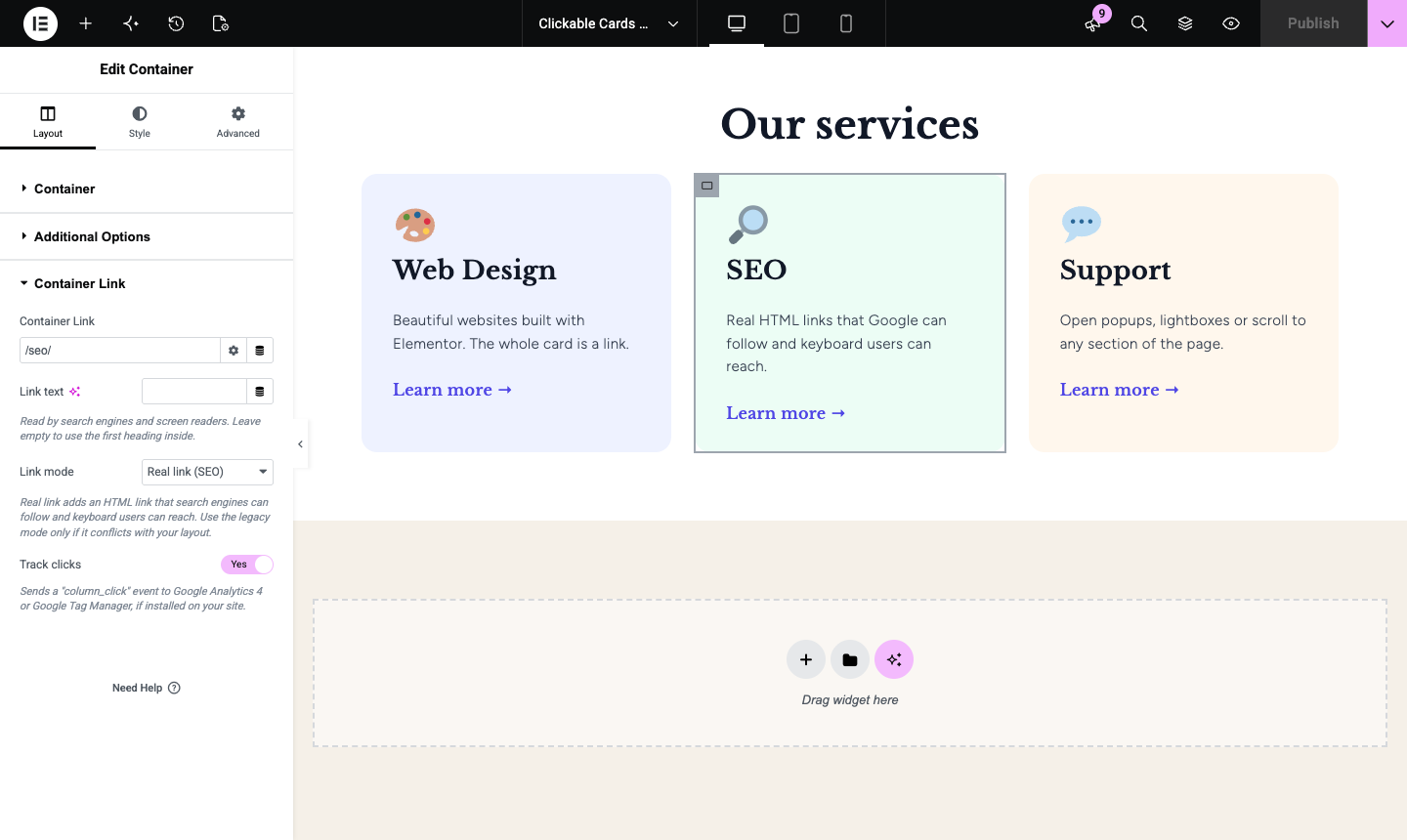
- In the Layout tab, open the Column Link (or Container Link) section.
- Add your link. Optionally, set the link text and turn on click tracking.
Popups and lightboxes
With Elementor Pro, click the Dynamic Tags icon in the link field and choose Actions Popup to open a popup when the element is clicked. Lightbox actions work the same way.
Click tracking
Turn on Track clicks and the plugin sends a column_click event every time the element is clicked, with the link_url, link_text and element_id parameters:
- If Google Analytics 4 is installed (gtag.js), the event is sent directly to GA4.
- If Google Tag Manager is installed, the event is pushed to the
dataLayer, so you can use it as a Custom Event trigger.
Nothing is sent anywhere else, and no tracking happens unless you turn it on.
Looking for custom WooCommerce or Elementor development? Contact us at [email protected]
Installation
- Install and activate the plugin from Plugins Add New in your WordPress dashboard.
- Make sure Elementor is installed and active.
- Edit any page with Elementor and add a link to a column, section or container (see “How to use it” above).
Screenshots

The Container Link settings in the Elementor editor.
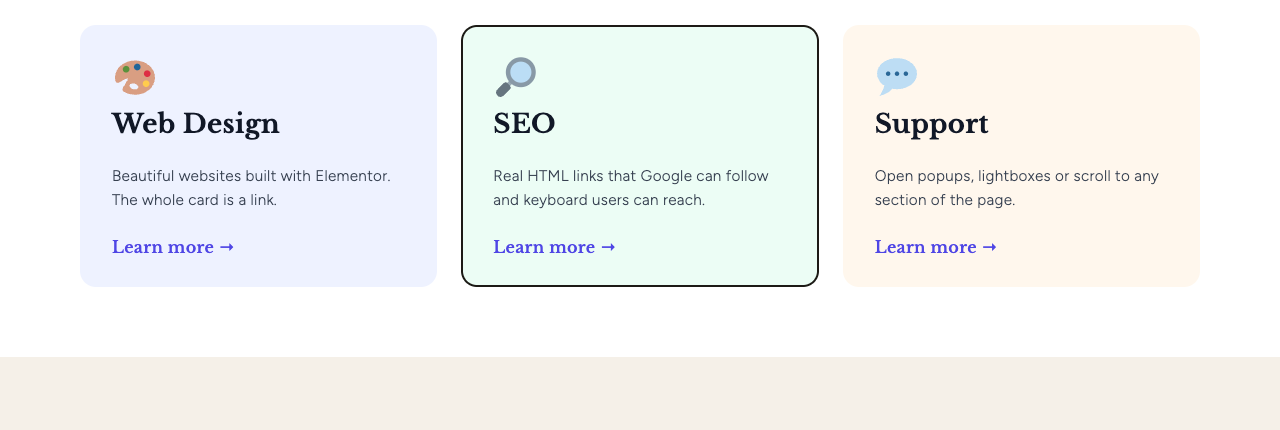
The whole card is a real link, reachable with the keyboard.
Faq
It adds a link field to every column, section and container in the Elementor editor. When you add a link, the plugin places a real HTML link over the whole element, so visitors can click anywhere inside it.
Yes. The link is a regular <a href> in the page HTML, so search engines can crawl it, and its anchor text comes from the first heading inside the element. You can also set a custom link text, and use the “Add nofollow” option in the link field when needed.
Yes. Inner buttons, links and form fields stay clickable and go to their own destination. The column link is placed next to your content, not around it, so there are no links inside links.
Select the widget, go to Advanced CSS Classes and add no-link. Clicks on that widget will no longer open the column link. This is useful for videos, sliders, maps or any widget with its own click behavior. It also lets visitors select the text inside that widget.
Go to Plugins and click Use legacy mode below the plugin name. It switches the whole site back to the JavaScript mode, which works exactly like the previous versions of the plugin. You can also change the Link mode of a single element in the Column Link section. Please also open a support request so we can take a look.
Yes. The link and link text fields support Elementor Pro dynamic tags, such as the post URL or an ACF field.
Yes. With Elementor Pro, click the Dynamic Tags icon in the link field and choose Actions Popup.
On Brazilian Portuguese sites, the plugin shows a small notice about Rishi, a WhatsApp service made by the plugin author. You can close it with the “X” button and it won’t be shown again. Developers can also disable it with add_filter( 'make_column_clickable_show_promo', '__return_false' );.
Please open a support request on the plugin page. We’re happy to help.
Reviews
AVOID THIS LIKE THE PLAGUE!!!
By  vdcaf on November 2, 2023
Apart from not being updated, this plugin stores the code in NON-STANDARD areas in the DB. Result – screwed up websites that will not restore properly! THIS IS A DREADFUL PIECE OF CODING, WHATEVER YOU DO, DO NOT USE THIS!!!!!!
Works Good!
By  pipetko on January 23, 2023
Works flawless. Very nice plugin 🙂
perfect!!
By  modes200 on January 19, 2023
Works like a champ.!!
Does one thing and does it well
By  muzKore (muzoid) on October 5, 2022
great
By  naimwdm on August 26, 2022
This plugin save me time! 👏👏👏
By  Acley Filho (yelca) on August 23, 2022
Simple, small, functional
By  sittingpilgrim on August 11, 2022
works
By  Sepi (sepicompanywork) on April 27, 2022
Worked Well
By  conradish on April 5, 2022
Perfect for single language sites
By  puregraphx on March 11, 2022
Changelog
1.7.2 – 2026-10-21
- Fix: Clickable elements inside a container whose HTML Tag is “a” or “button” (the Elementor container link) produced a link inside a link, which browsers can’t render and broke the layout. These elements now use the JavaScript mode, so both links keep working.
1.7.1 – 2026-10-19
- Fix: Updating to 1.7.0 deleted the Elementor CSS files, which broke pages served by a page cache (for example, sections hidden on mobile or desktop showing on every device). Now only the Elementor element cache is cleared.
1.7.0 – 2026-10-18
- New: Real HTML links (default), so search engines can crawl them and keyboard and screen reader users can reach them.
- New: Ctrl/Cmd + click and middle click open the link in a new tab.
- New: “Link text” option, using the first heading inside the element by default.
- New: The “Add nofollow” and custom attributes options of the link field are now applied.
- New: Optional click tracking for Google Analytics 4 and Google Tag Manager.
- New: Switch the whole site back to the legacy JavaScript mode with one click (Plugins screen), or change the “Link mode” of a single element.
- Improved: Removed the jQuery dependency.
- Improved: Selecting text inside a clickable element no longer opens the link.
- Improved: Tested with WordPress 7.1 and Elementor 4.3.
1.6.2 – 2025-09-13
- Allow relative URLs.
1.6.1 – 2025-09-02
- Better link validation.
1.6.0 – 2025-08-11
- Updated for Elementor 3.3+ compatibility.
- Added support for making containers clickable.
- Fixed deprecated hooks for better stability.
1.5.1 – 2025-08-11
- Added support for making sections clickable.
1.5.0 – 2025-08-11
- Updated versions and libraries.
1.4.0 – 2022-04-20
- Added WPML compatibility.
1.3.1 – 2019-10-12
- Fix: Prevent illegal offset warning.
- New: Support for multiple popups.
1.3.0 – 2019-08-27
- New: Support for Elementor popups and lightboxes.
1.2.1 – 2019-04-16
- New: Support for smooth scrolling.
- Fix: Links now work with dynamic content.
1.2.0 – 2019-03-14
- New: Prevent the column redirect when clicking on custom links or buttons.
1.1.0 – 2019-02-14
- Fix: Links opening in new tabs.
- Fix: Minor improvements.
1.0.0 – 2018-11-21
- First version.