
Leo Product Recommendations: Upsell Popup, Frequently Bought Together & Cart Drawer for WooCommerce
Description
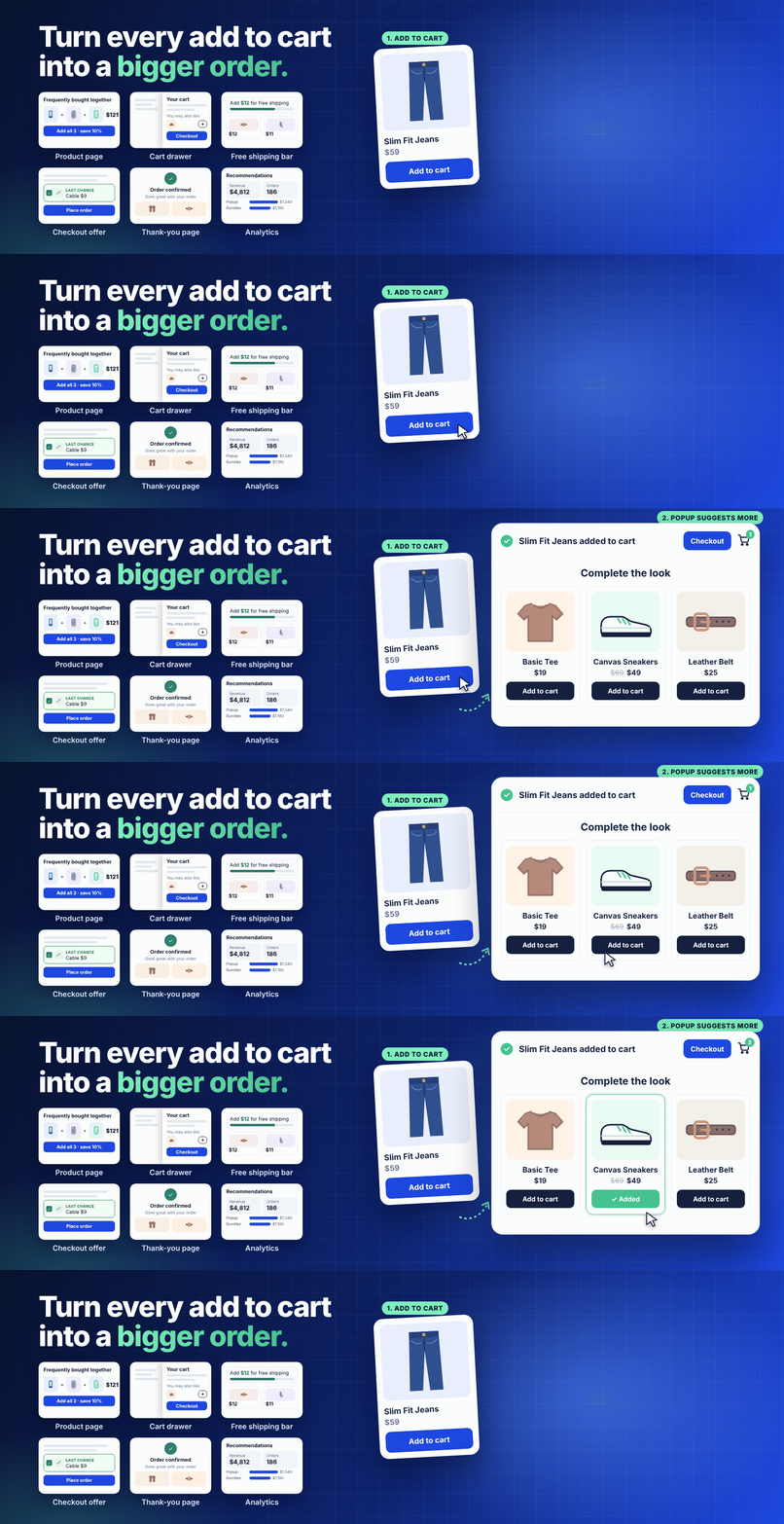
The best time to suggest a second product is right after a shopper adds the first one. They have already decided to buy. A phone case, a belt, a refill pack: one good suggestion at that moment is often enough.
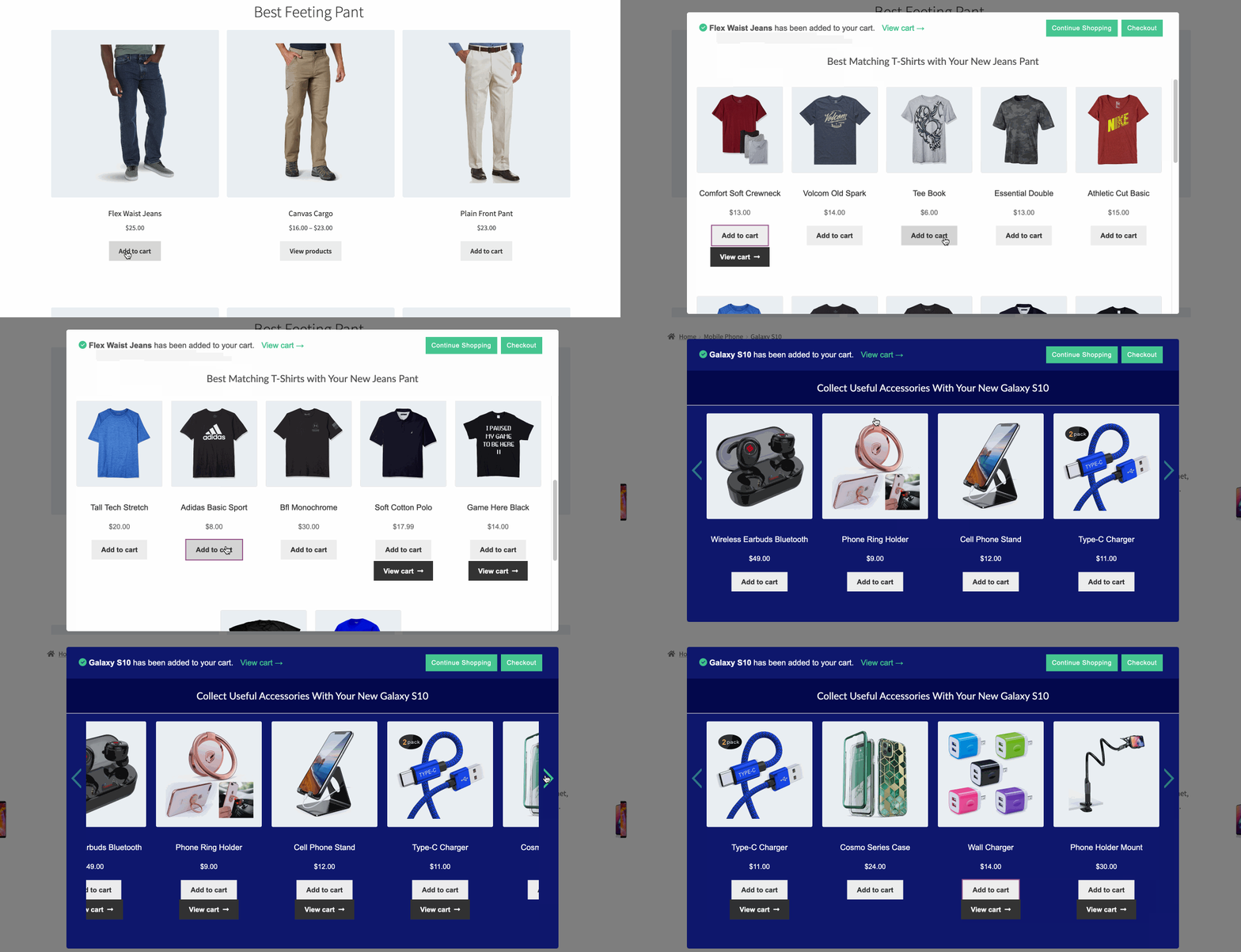
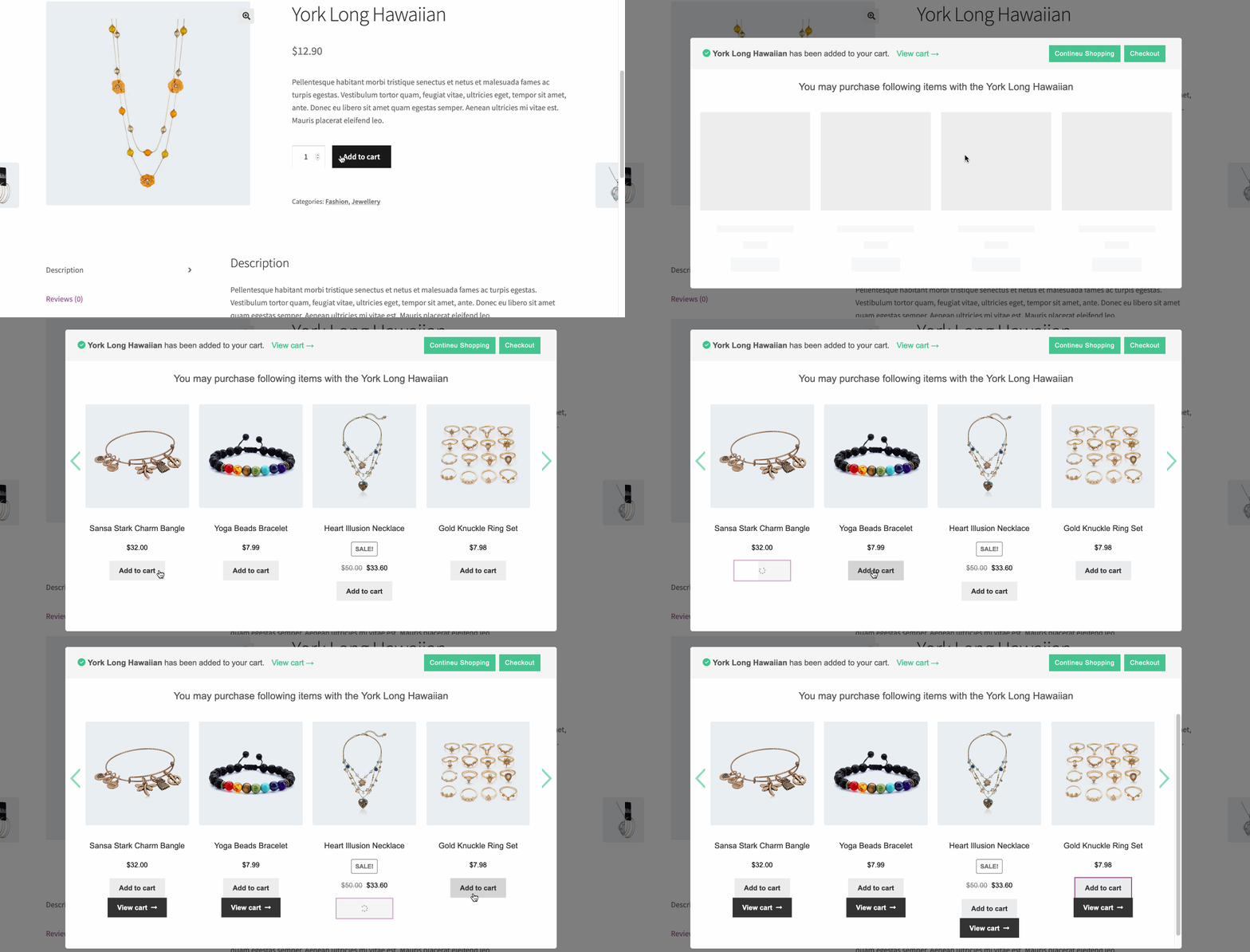
Leo Product Recommendations shows that suggestion. When a product goes into the cart, a popup confirms it and shows the products you want to recommend. The shopper adds one with a single click and keeps shopping or goes to checkout. No new page, no redirect.
Install it, choose what to recommend, and it works on your shop, category and product pages. Pro adds “Frequently bought together” on the product page, a slide-in cart drawer, a free shipping bar and recommendations on the cart, checkout and thank-you pages.
What shoppers see
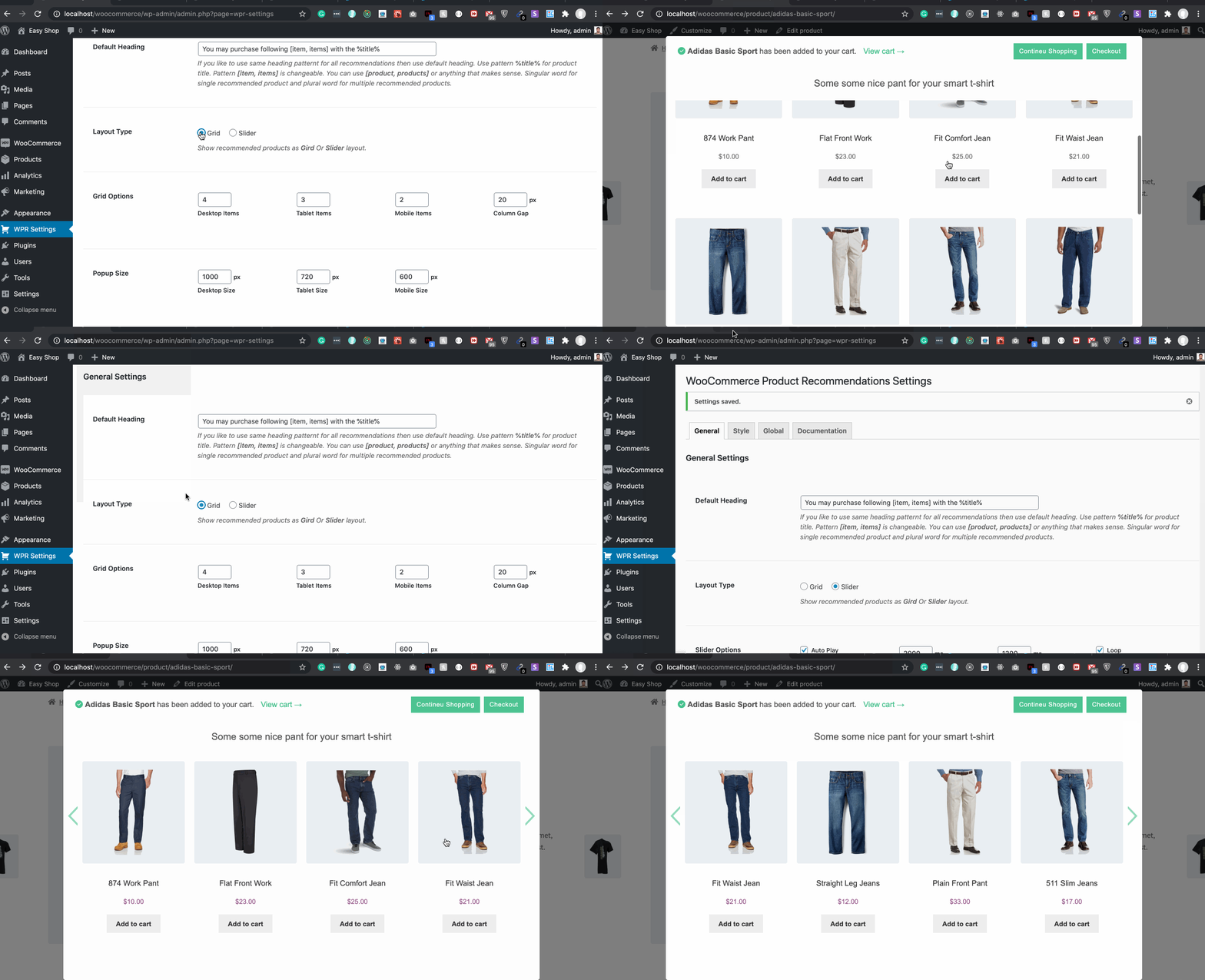
The popup shows what was just added, the cart subtotal, and a row of products that go with it. Each product has its own Add button, and products with options (size, color) can be chosen right there. Checkout and View cart are one tap away. On phones it slides up from the bottom of the screen.
It draws its own product cards, so it looks clean in any theme. If you prefer the older layout, you can switch back to the classic design in the settings.
Three ways to choose what to recommend
1. The Upsells and Cross-sells you already have. If you set them in WooCommerce (Product data > Linked Products), the popup uses them. Nothing else to set up.
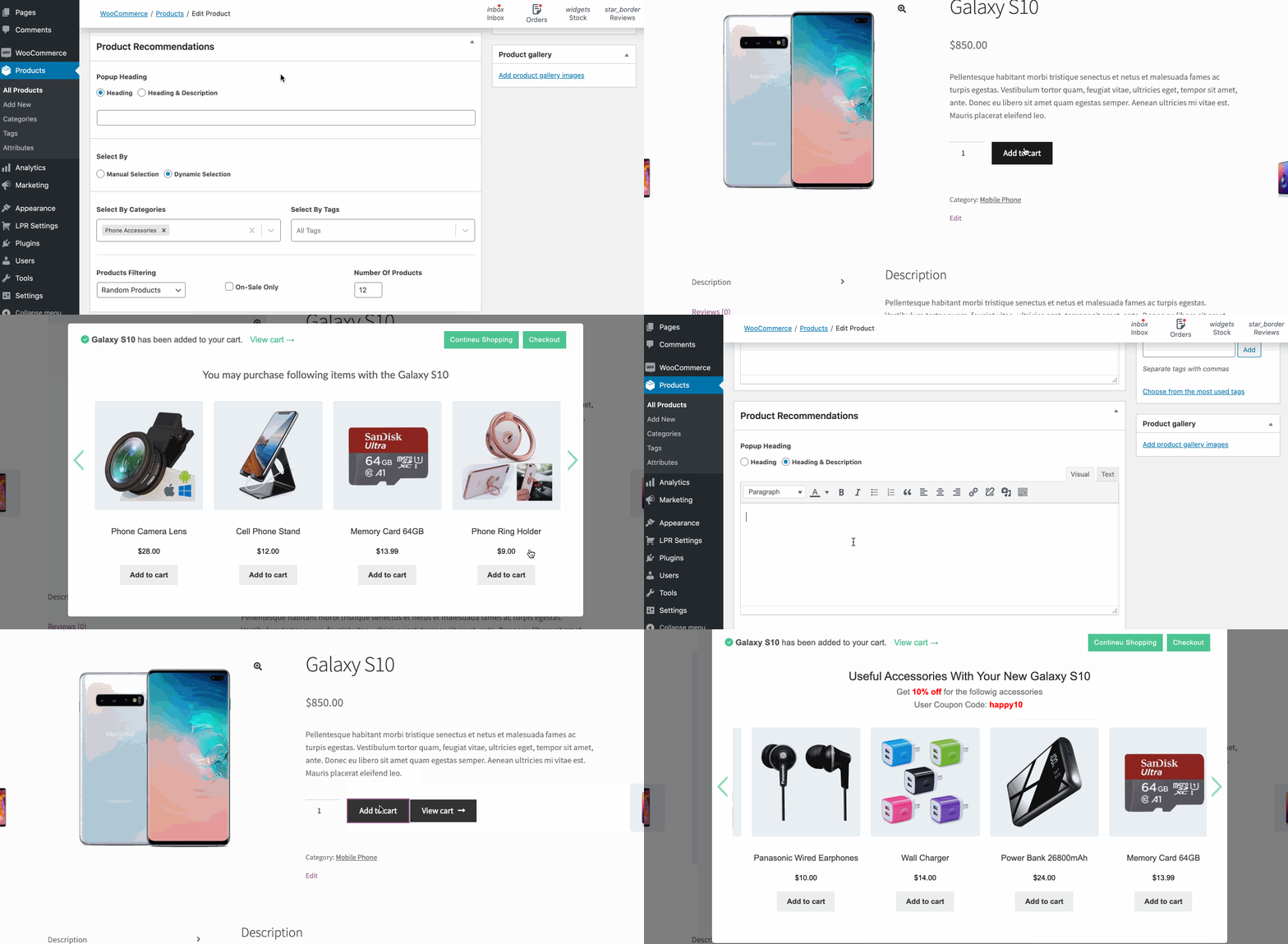
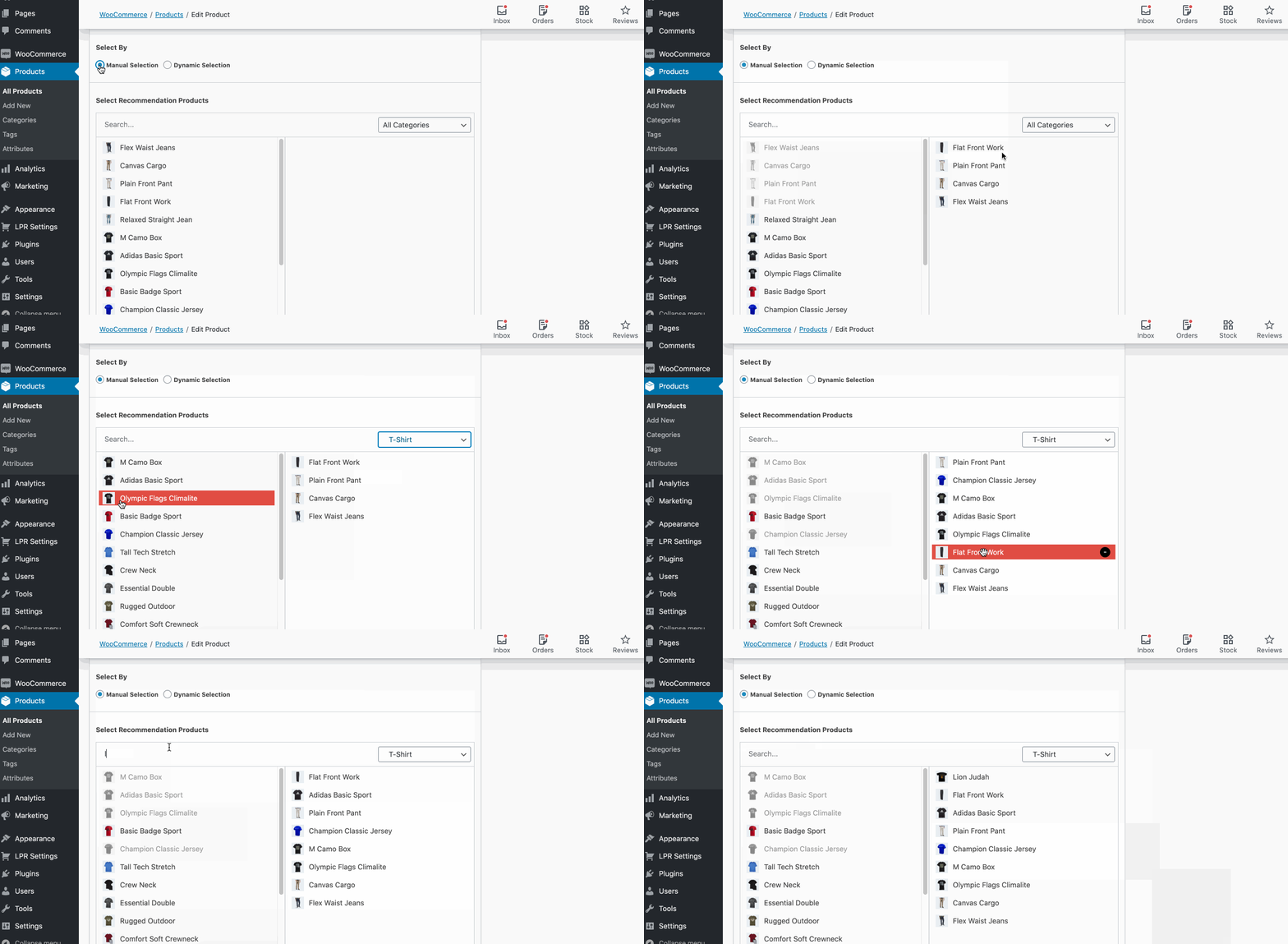
2. Products you pick yourself. Open a product’s Recommendations tab, pick the products to suggest and drag them into order. Best for accessories and things you know sell together.
3. One rule for the whole store. For example “4 best sellers from the same category” or “newest products tagged summer”. Filter by categories, tags and sale items, and sort by best selling, rating, date, price or random. Running a sale? Campaign Mode shows your campaign products on every product until you turn it off.
Products that are hidden, out of stock or already in the cart are never suggested.
Track the sales it brings in
If your site uses Google Tag Manager, the popup sends GA4 ecommerce events to the dataLayer: lpr_popup_view_item_list, lpr_popup_select_item and lpr_popup_add_to_cart. Each event carries the product data and the product that opened the popup, so you can report what the recommendations sell. Your normal add_to_cart tracking keeps working.
Prefer a ready report? Pro has a built-in analytics dashboard.
Works with your store
- Simple, variable and grouped products
- Shop, category and product pages, WooCommerce blocks and shortcodes, block themes
- Bundles, subscriptions and other product types with their own add to cart (the popup opens after the page reloads)
- Popular themes such as Astra, Storefront, Kadence, OceanWP, Blocksy and the Twenty themes
- Elementor and other page builders
- HPOS and the block cart and checkout
- Keyboard and screen reader friendly, right-to-left languages, translation ready
The recommended products load only after something is added to the cart, so your pages don’t get heavier.
Free features
- Popup after add to cart, modern or classic design
- Uses your WooCommerce Upsells and Cross-sells
- Recommendations you pick for each product
- A store-wide rule, with Campaign Mode
- One-click add to cart in the popup, products with options included
- Products per row for desktop, tablet and mobile
- Heading with the added product’s name, or your own heading and text
- Limit how often each visitor sees the popup
- GA4 and Google Tag Manager dataLayer events
- Template overrides and hooks for developers
Pro features
Leo Product Recommendations Pro shows recommendations in more places, picks them from your own sales, and shows you the money they bring in:
- Smart picks. Learns which products your customers buy together from your own orders. New products and new stores get similar products until there is enough data.
- More places. “Frequently bought together” on the product page, a slide-in cart drawer, “Complete your order” on the cart page, a last-chance offer at checkout and suggestions on the thank-you page.
- Discounts. A small saving for products bought together, for add-ons from the popup or cart drawer, and for the checkout offer. Percentage or fixed amount, with a bigger saving for 2 or 3+ products. Taken off in the cart automatically, no coupon code needed.
- Free shipping bar. “Add $12.00 more to get free shipping” with products that cost about the missing amount, added in one tap.
- Analytics dashboard. Revenue, orders and adds to cart from recommendations, the best product pairs, and average order value with and without a recommended product. Data stays in your own database.
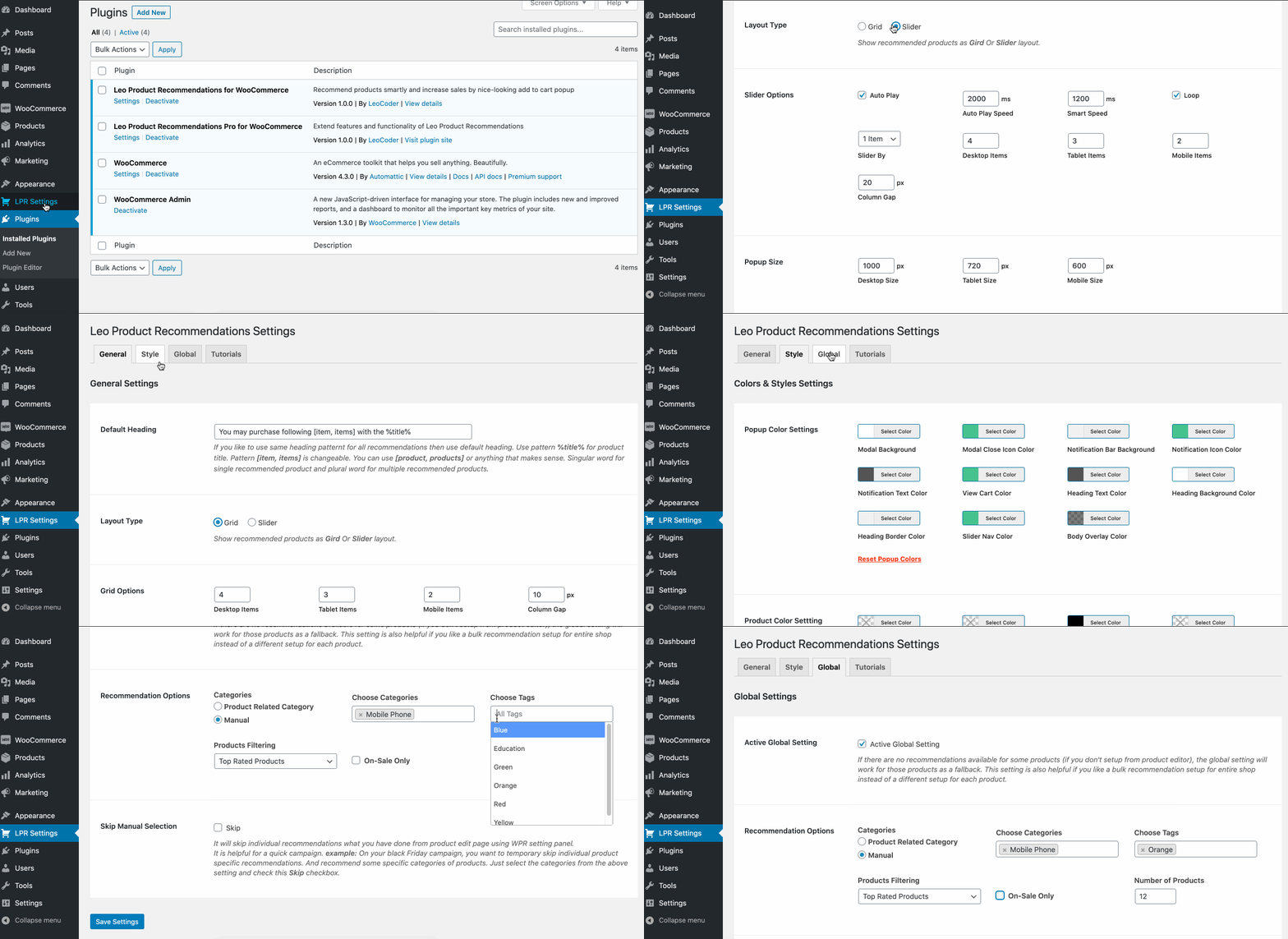
- Rules per product, slider layout, popup size, your own colors and button options.
Demo and docs
Privacy
The plugin does not send any data by itself. To show a few milestone notices in your admin (for example after the popup has been shown 100 times), it keeps simple counts in your own database: how often the popup was shown, how many products were added from it, and how many paid orders included them. These counts never leave your site. If you choose to send feedback when you deactivate it, only the reason you pick, any comment you write and the plugin version are sent to LeoCoder. No site URL or other site details are sent. You can skip the feedback form.
The Feature Request tab in the settings works the same way: only when you click Send request, it sends what you typed, your email if you added one, and the plugin version to LeoCoder. No site URL or other site details are sent.
The dataLayer events stay in the visitor’s browser, in a dataLayer your site already has. The plugin does not send them anywhere.
Installation
- Go to Plugins > Add New, search for Leo Product Recommendations, click Install Now, then Activate.
- Open LPR Settings > Settings. The What to Recommend tab is where you set what the popup shows.
- To pick products for one product, edit it and open its Recommendations tab.
Requires WordPress 6.6+, WooCommerce 7.0+ and PHP 7.4+.
On activation the plugin turns on WooCommerce’s “Enable AJAX add to cart buttons on archives” and turns off “Redirect to the cart page after successful addition”, so the popup can open on shop and category pages.
Screenshots

The popup after add to cart, with one-click add for each recommended product
On phones the popup slides up from the bottom
Choose recommendations for one product in its Recommendations tab
What to Recommend: Upsells and Cross-sells, and one rule for the whole store
Popup settings with a live preview
Pro: “Frequently bought together” on the product page, with a bundle saving
Faq
Is the free version really free?
Yes. The popup, your own picks, Upsells and Cross-sells, the store-wide rule and the GA4 events are free, with no limit on products or popups.
Will it slow down my store?
No. It adds two small scripts and one stylesheet. Recommended products are loaded only after a shopper adds something to the cart.
Does it work with block themes like Twenty Twenty-Five?
Yes. The popup opens after add to cart from block product grids, the shop page and the product page.
Does it work with variable and grouped products?
Yes, both for the product being added and for the products in the popup. Shoppers choose options inside the popup.
Does it use the Upsells and Cross-sells I already set?
Yes. Products with nothing in their own Recommendations tab show their Upsells first, then their Cross-sells. You can turn each one off in LPR Settings > What to Recommend.
I updated and still see the old popup. Why?
Stores that used the plugin before 3.6.0 keep the classic design so nothing changes without you knowing. To use the new design, go to LPR Settings > Popup > Popup Design and choose Modern.
Can I stop the popup from showing too often?
Yes. Show it every time, or limit it to a number of times per visitor.
Can I track sales from the recommendations in GA4?
Yes. With Google Tag Manager, create GA4 event tags for lpr_popup_view_item_list, lpr_popup_select_item and lpr_popup_add_to_cart. They use the GA4 ecommerce format.
How do I translate it?
Use a plugin such as Loco Translate. Translation guide
Can I change the popup templates?
Yes. Copy a file from the plugin’s templates folder to your-theme/lpr/templates/ and edit it there. This needs some PHP knowledge.
Reviews
Great plugin, great service!
By  succachump on November 16, 2023
At first when I tried using the plugin, it was not showing images. I emailed support and one day later they released an update that completely solved the issue. Every company will run into issues, it’s how they handle them that matters, and Leo is top notch. Keep it up.
Great plugin and great support!
By  steblo94 on November 14, 2023
I’ve been using this plugin for several woocommerce sites, and it’s perfect to upsell compatible products.
Support has been very helpful, and quick with responses!
Great plugin! Great support!
By  rcrinsnc on October 12, 2023
Great plugin, easy to set up and use.
Excellent support service from the developer: during an update a small conflict occurred with another plugin, we contacted the developer who quickly provided us with all the information to fix the issue. Thank you!
Plugin Owner Hasan is such an incredible person
By  deemaandco on June 7, 2023
I highly recommend everyone to use this plugin as the plugin owner is compassionate and dedicated. He went above and beyond to fix the issue and my request not once but twice he repeated the process.
My website/ cpanel had gone through migration before launching (which was a mistake from cost vs benefits). And couple times, things didnt go as plan during migration. During this process, Hasan helped me with my requests/ issues i faced with the plugin in terms of aesthetics. And he did a great job!! But what happened was, we had to restore data from old backup so whatever changes he made were all gone. It was time consuming and I did not expect Hasan to actually agree to help the second time. A kind person indeed. Thank you Hasan for supporting this small business. So anyone out who is looking to have product recommendation plugin, look no further than LPR plugin.
Great customer service ever!
USe this plugin, you will not regret.
Unbias and real life review,
Deema from deemaandco.com
Good customer Care service
By  divinelevi58 on September 15, 2022
Excellent plugin, I recommend it to everyone
By  bilky1507 on August 7, 2022
Top product and support ever seen
By  blanke123 on November 1, 2021
Very Good Plugin
By  deepthikj on June 2, 2021
good plugin
By  maryamait123 on November 4, 2020
Must Have Plugin
By  atosekyi on October 12, 2020
Changelog
3.7.0
- New: Feature Request tab in the settings. Tell us what you would like the plugin to do next. Only what you type, your email if you add one, and the plugin version are sent. The Plugins page has a Feature Request link too.
- New: A few short notices in your admin when the popup reaches a milestone: shown 100 times, the first paid order with a product added from it, and a monthly summary with your store’s own numbers. Admins only, one at a time, at least two days apart, and never when Pro is active. The counts stay in your database.
- Improvement: The More Places tab starts with where your shoppers don’t see recommendations yet, then previews each Pro place with your own products.
- Improvement: Each settings tab has an icon. The last tab is now Feature Request, with links to the documentation and help.
- Improvement: The “Go Pro” link on the Plugins page is now “Get Pro”.
- Fix: On block themes like Twenty Twenty-Five, the popup’s Add buttons could open a page of code instead of adding the product. They now add it in place.
- Fix: “Top Rated” sorting left out products that have no reviews yet.
- Fix: No “translation loading was triggered too early” notice when WooCommerce is missing.
- Improvement: Uninstalling also removes the milestone counts, on every site of a multisite network. Product recommendations are kept.
- Improvement: Checked with Plugin Check: safer database queries and output.
- Developer:
can_recommend()tells whether a product can be recommended for another (also when the list is in random order), with thelpr_random_pool_sizefilter. Newlpr_popup_shownaction. The block theme add button firesadding_to_cartlike WooCommerce does.
Older versions are listed in changelog.txt.