
Custom Icons for Elementor and WPBakery
Description
Custom Icons for Elementor and WPBakery lets you add your own icon fonts to WordPress and pick them in the icon controls of Elementor and WPBakery Page Builder. Instead of relying on a stock icon library, you can use a custom icon set that matches your brand.
Generate an icon font with the free IcoMoon app, upload the ZIP file on the plugin’s “Custom Icons” page, and your icons appear next to the built-in ones in the page builder.
Features
- Upload custom icon fonts as a ZIP file exported from IcoMoon
- Icons show up as an extra tab in Elementor’s icon library
- Icons are available in the WPBakery Page Builder icon picker
- Add as many icon sets as you need
- Icon manager in the admin menu with search across all uploaded icons
- Delete an icon set with one click
- Uploads are validated: only font files with allowed extensions are extracted from the ZIP, and size limits apply
How to add custom icons to Elementor
- Create your icon set in the IcoMoon app and download it as a ZIP file.
- In WordPress open “Custom Icons” in the admin menu and click “Upload New Icons”.
- Select or upload the ZIP file in the media library and insert it.
- Edit a page with Elementor, add an Icon widget (or any element with an icon control), open the icon library and pick your set from its tab.
For WPBakery, choose your icon set in the icon type dropdown of the Icon element and select an icon.
Requirements
Elementor and/or WPBakery Page Builder must be installed to use the icons in the page builder. The ZIP must be an IcoMoon export that contains the selection.json file. Limits: up to 300 files per ZIP, 5 MB per file and 20 MB in total.
Installation
- Upload the plugin files to the
/wp-content/plugins/directory, or install the plugin through the WordPress plugins screen directly. - Activate Custom Icons for Elementor and WPBakery through the ‘Plugins’ screen in WordPress
- Set Up Page in Menu -> Custom Icons.
Screenshots

The Custom Icons manager: an uploaded icon set with search and delete.
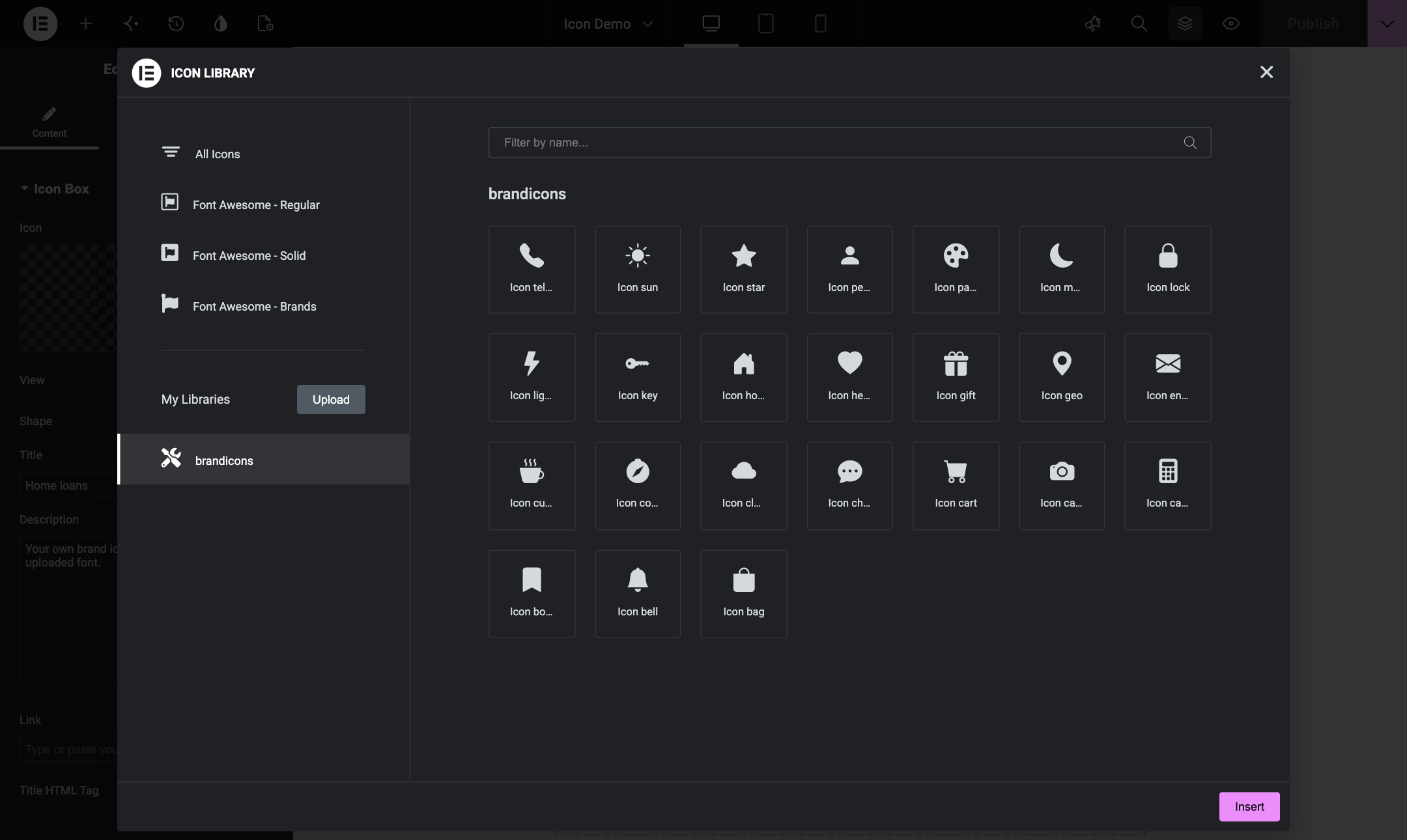
The uploaded icon set appears as its own tab in the icon library of the page builder.
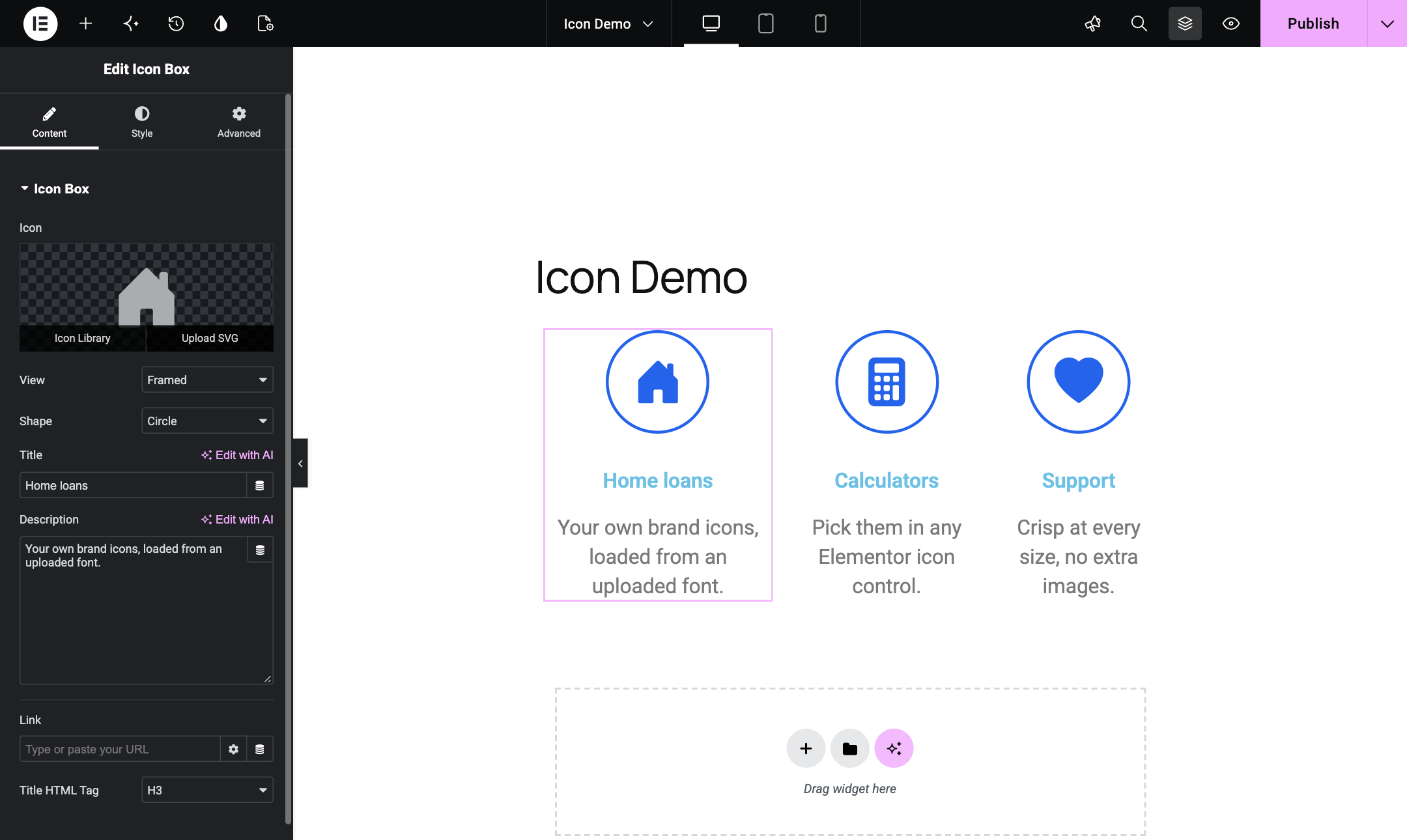
A custom icon chosen in an icon control.
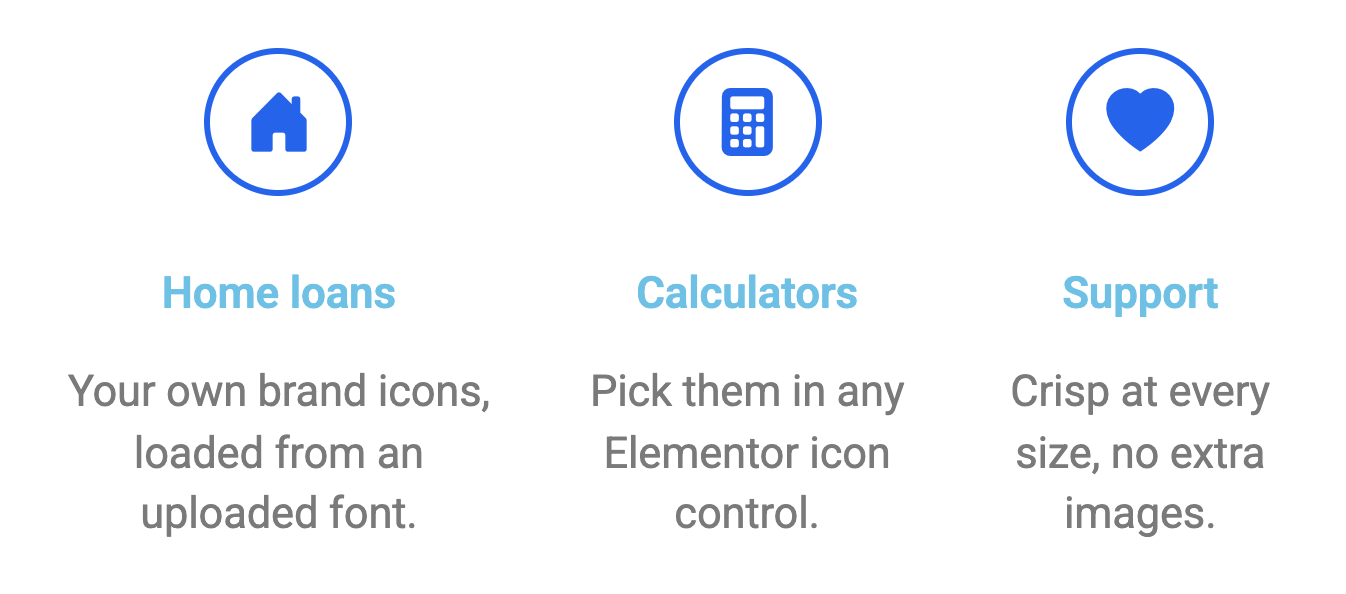
The custom icons on the front end of the site.

Faq
Open “Custom Icons” in the WordPress admin menu, click “Upload New Icons” and choose your IcoMoon ZIP file. Then open the icon library of any Elementor icon control and look for your icon set in its own tab.
ZIP files exported from the IcoMoon app. The archive must contain IcoMoon’s selection.json together with the font files. Archives from other generators, including Fontello, are not accepted.
Yes. After you upload an icon set it is available in the icon picker of WPBakery’s Icon element.
Make sure the ZIP is an unmodified IcoMoon export and that the upload finished without an error message. Then clear your page, server and CDN caches and, in Elementor, regenerate the CSS. If you see a different error after uploading, check the file size limits listed above.
Yes. Click “Delete Icon Set” on the set’s box in the Custom Icons page. Renaming a set is not supported: the set takes its name from the uploaded font.
By default only administrators. The Custom Icons page requires the manage_options capability and uploading requires update_plugins.
Reviews
Works perfectly
By  gdprcompliancewp on March 25, 2024
Works as it should be! A lot of icons!
Changelog
1.0.7
- Security: the uploaded icon set is now validated. Only font files with a whitelisted extension are extracted from the ZIP, the font name must be a plain slug, and icon names are no longer written into executable PHP; icons are read from selection.json instead.
- Security: the font upload no longer requests the extracted SVG over HTTP, and the temp folder is no longer made world-writable.
- The menu page requires the manage_options capability; uploads still require update_plugins.
- Internal classes, constants and the upload capability filter were renamed with a full plugin prefix (the filter is now custom_elementor_icons_file_upload_capability; the old avf_file_upload_capability still works).
- Fixed the icon search, which broke because the tag attribute was never printed.
1.0.6
- Minor bug fix
1.0.5
- Fixed bug with custom icons
1.0.4
- Fixed visual bugs in Admin dashboard
1.0.3
- Added hook to delete icon set button
1.0.2
- Added Customize Enqueue Scripts.
- Added WPCFTO Enqueue Scripts.
1.0.1
- Changed “CustomIcons” class Access Modifiers.
1.0
- First Version of Plugin.