
Agent Abilities for MCP – Connect Claude and ChatGPT with Permission Controls and Audit Log
Description
WordPress MCP server for Claude and ChatGPT, with limited access and an audit log
Agent Abilities for MCP is a WordPress MCP server. You connect Claude, ChatGPT, Cursor or another MCP client to your site. The AI then works as a WordPress user you pick and gets exactly that user’s role, so an Editor connection means limited access, not admin: it can write and edit posts, and it can’t install a plugin or change a setting.
Once connected, you can ask things like:
- “List my five newest drafts and tell me which ones have no featured image.”
- “Fix the typo in the second paragraph of the About page.”
- “Which WooCommerce orders are still on hold?”
- “Write a post about the spring sale and save it as a draft.”
There are 184 abilities (the tools an AI client can call), 90 for WordPress itself and 94 for plugins such as WooCommerce, ACF and Yoast SEO. Every one starts switched off.
What is a WordPress MCP server?
MCP, the Model Context Protocol, is an open standard that lets an AI app ask a service what it can do and then call it, and a WordPress MCP server is a site that answers. Give Claude or ChatGPT your site’s MCP endpoint, the URL on the plugin’s Connection tab, and it can look up an order or draft a post directly instead of you copying text between a chat window and wp-admin.
Connect Claude to WordPress
Switch on the abilities you want and copy your endpoint from the Connection tab. In Claude, open Customize, then Connectors, choose + Add, then Add custom connector, and paste the endpoint. Approve the sign-in once in your browser. On Team and Enterprise plans an Owner has to add the connector first, under Organization settings, then Connectors.
Anthropic’s help article lists custom connectors on Free (one custom connector), Pro, Max, Ultra, Team and Enterprise. Claude connects from Anthropic’s cloud, so your site has to be reachable from the public internet.
Connect ChatGPT to WordPress
On ChatGPT web, open Plugins, select the plus button, then Add custom MCP server, name it, paste your endpoint under Connection, choose OAuth for authentication and select Create as a plugin. You don’t need to turn on Developer Mode first.
OpenAI’s help article says custom MCP servers and full MCP, writes included, are available on Business and Enterprise/Edu, and that Pro can connect with read and fetch permissions, but it doesn’t mention Free or Plus. On Business, admins and owners add the server, while on Enterprise/Edu admins can, and so can members they grant access to. It’s a web feature only.
Manage multiple WordPress sites from ChatGPT or Claude
Install the plugin on each site and add each endpoint as its own connector. Every site keeps its own user, switches and audit log, so an agency can open one client’s site to the AI without touching the others.
Let Claude or ChatGPT edit posts without admin access
Connect the AI as an Editor and it can write and edit any post but can’t install plugins or change settings, while an Author is limited to its own posts and a Contributor can write without publishing.
The catch is that on a new install only Administrators can approve a connection. You can tick Editor under Roles that can connect on the Settings tab, approve as an administrator and pick the Content editor preset, or use the Application Password route with an agent user you’ve given the Editor role.
What people use it for
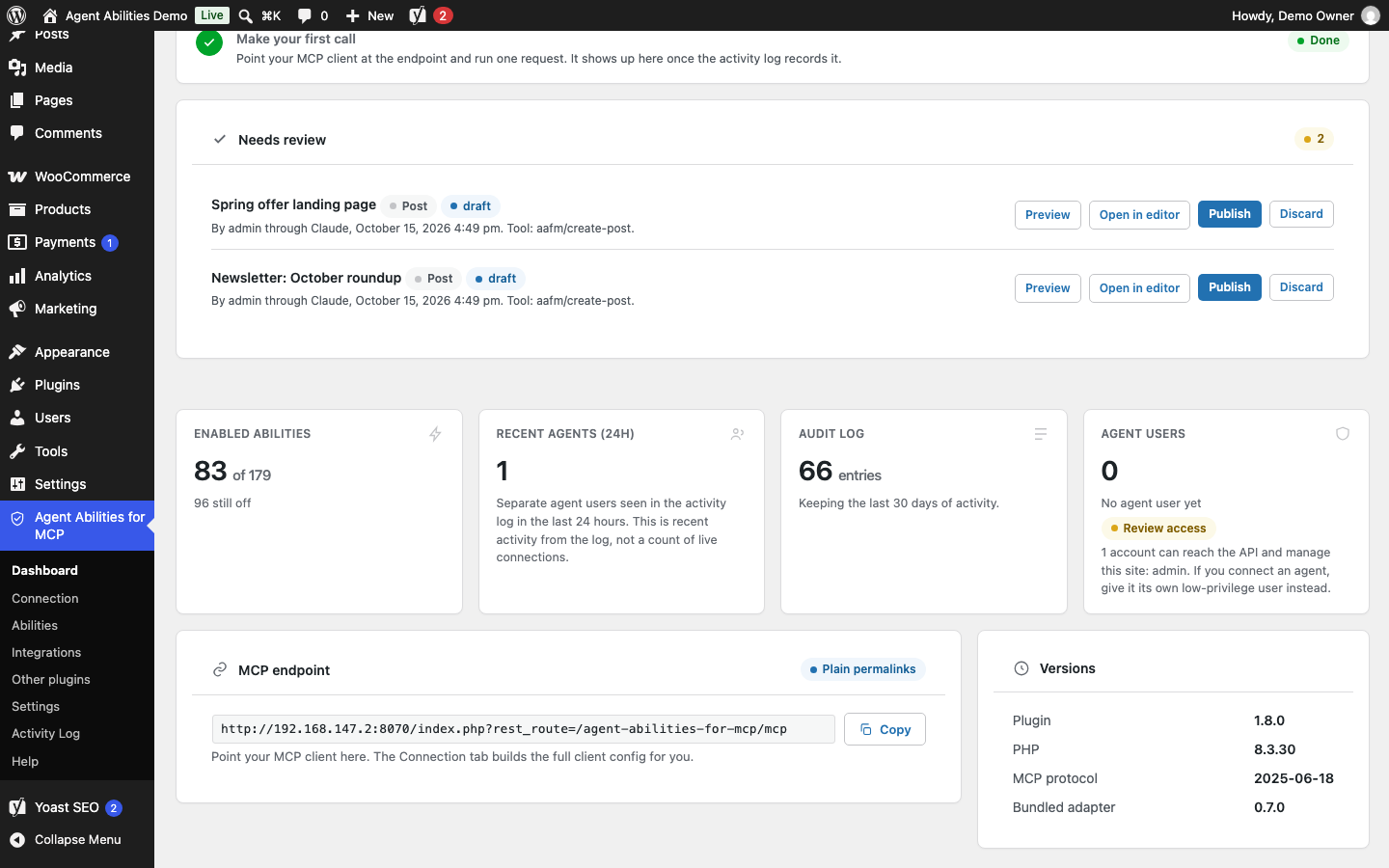
The use I’d start with is Force draft on create in Settings. Whatever the AI creates or tries to publish is saved as a draft, and the Needs review card on the Dashboard lists those drafts with Preview, Open in editor, Publish and Discard buttons. Discard moves the post to the Trash. If you’d rather it only look, read-only mode keeps every write tool unloaded while search and read keep working.
Site Brief on the Settings tab takes a few lines, such as your spelling rules or pages to leave alone, and every agent gets them when its session starts. For structured content the AI can update ACF fields, reading a post’s fields and writing new values that are each sanitized for the field’s type. It can also edit a single block: it lists your block types, reads a block’s settings (an ACF block adds its field names), and Replace block swaps one block without resending the page.
Control what the agent can do
These controls cover this plugin’s own tools, plus any tool from another plugin that you switch on from the Other plugins tab. Each call is checked against the capabilities of the WordPress user the AI connects as, over OAuth or an Application Password. The agent user the Connection tab creates is a Subscriber, so give it the role the job needs.
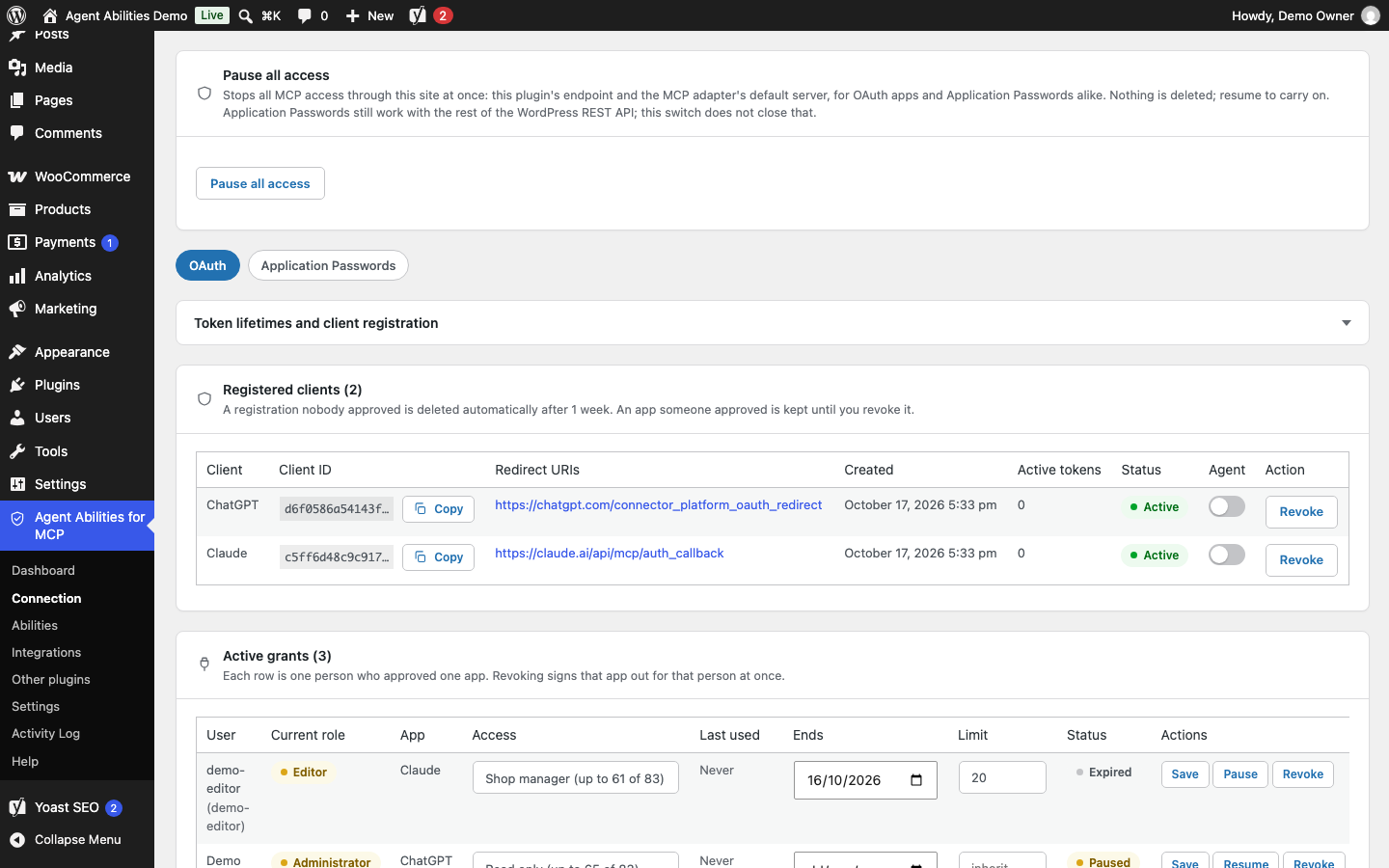
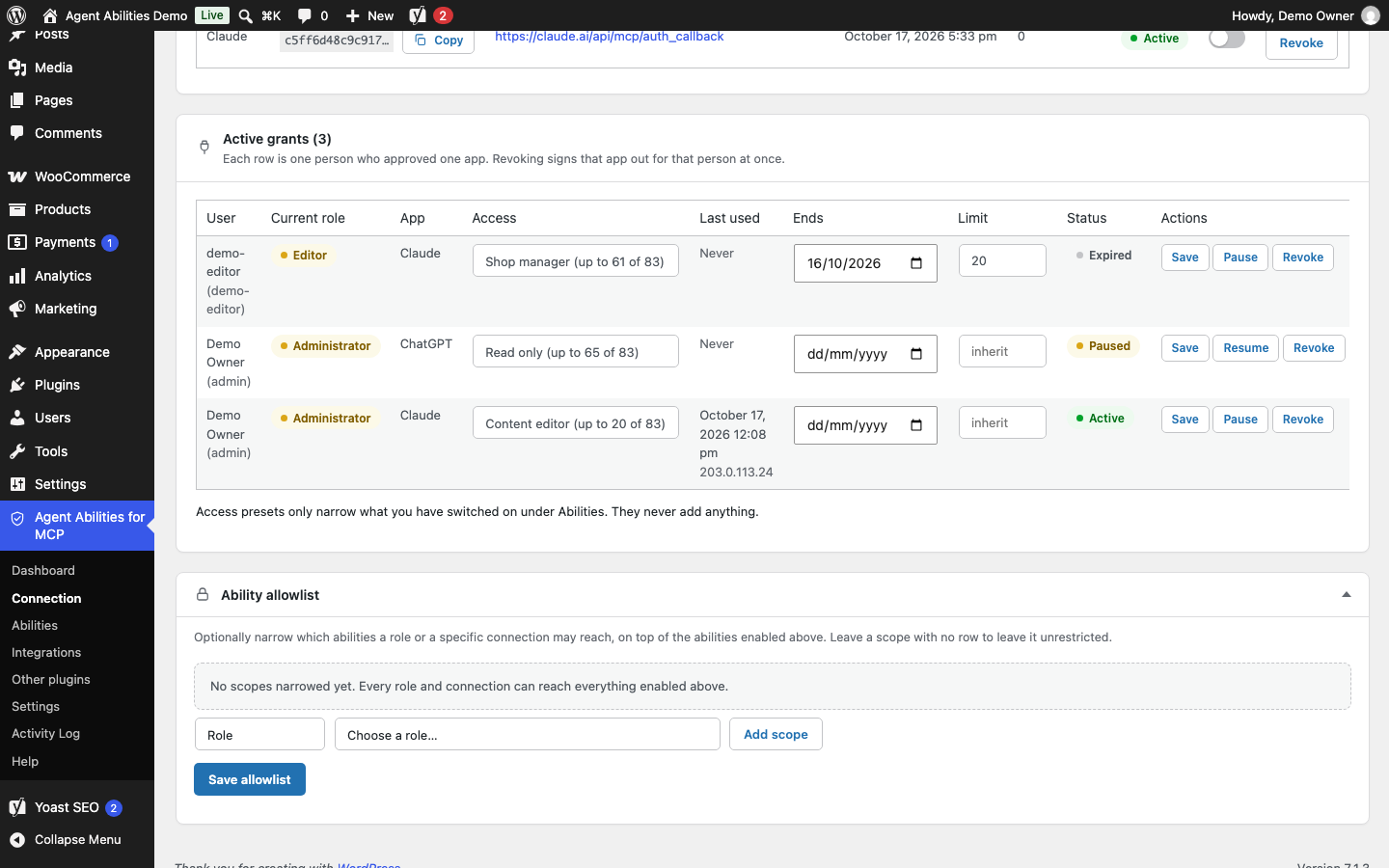
Pause all access on the Connection tab is the emergency stop, the one switch that lets you pause all agents at once. It refuses every MCP request through your site, OAuth apps and Application Passwords alike. An Application Password can still use the rest of the REST API, so revoke it too if you need a full cut-off. To pause an AI agent without disconnecting it, use Pause and Resume next to Revoke on its connection. A connection can also have an end date and a lower rate limit of its own, and it shows when and from which address it last connected.
When you approve an app, or run Quick Connect, you pick an access preset (Read only, Content editor, Shop manager or Custom), and a preset only ever narrows what is already switched on. Read-only mode goes further and unloads every write tool. Per-role and per-connection allowlists narrow things as well, because a tool has to be in the global list, the role’s list and the connection’s list before the AI can call it. The rate limit, the IP allowlist, Force draft on create and a maximum title length all sit on the Settings tab and do nothing until you set them, and the audit log records each call to this plugin’s tools.
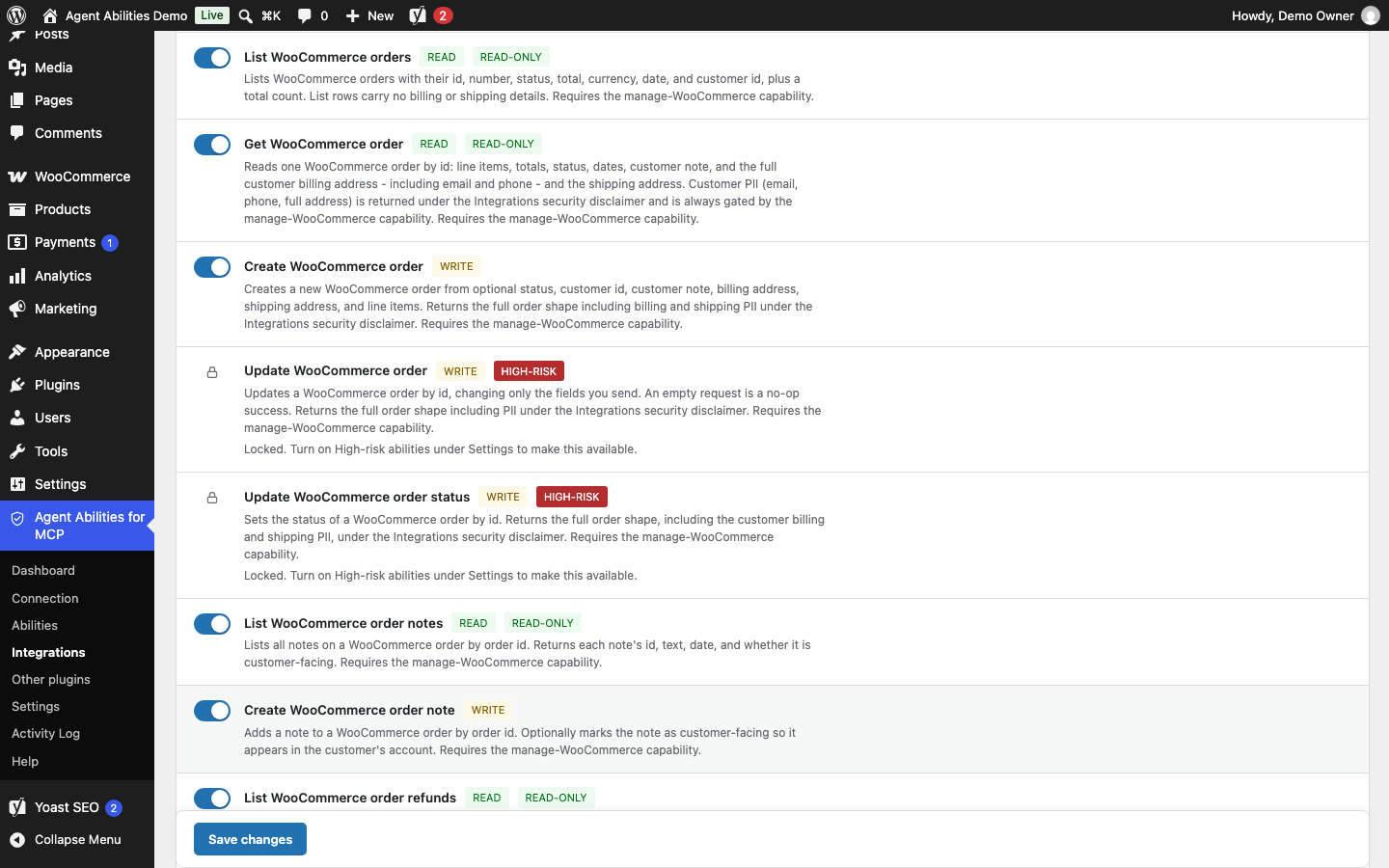
Nine WooCommerce tools that move money or grant authority (refunds, order changes, customer updates, payment gateways, coupons and tax rates) stay locked until you unlock them in Settings, even if you’ve ticked them. Deletes work differently: the tools named Trash post and Trash page move content to the Trash, but most tools named Delete, such as Delete post, Delete page and Delete media, remove it permanently.
What these controls do not cover
The MCP Adapter has a built-in default server that other plugins can publish their own tools to, and tools on that server sit outside this plugin’s controls, so its read-only mode, allowlists, IP allowlist, rate limit and audit log do not apply to them. Pause all access is the exception, since it refuses requests to that server too. A Settings choice, Allow the MCP Adapter’s default server, takes Automatic (the default, which runs it only when another plugin publishes tools there), Always on or Always off, and this plugin’s own tools are never on that server.
See what the agent did
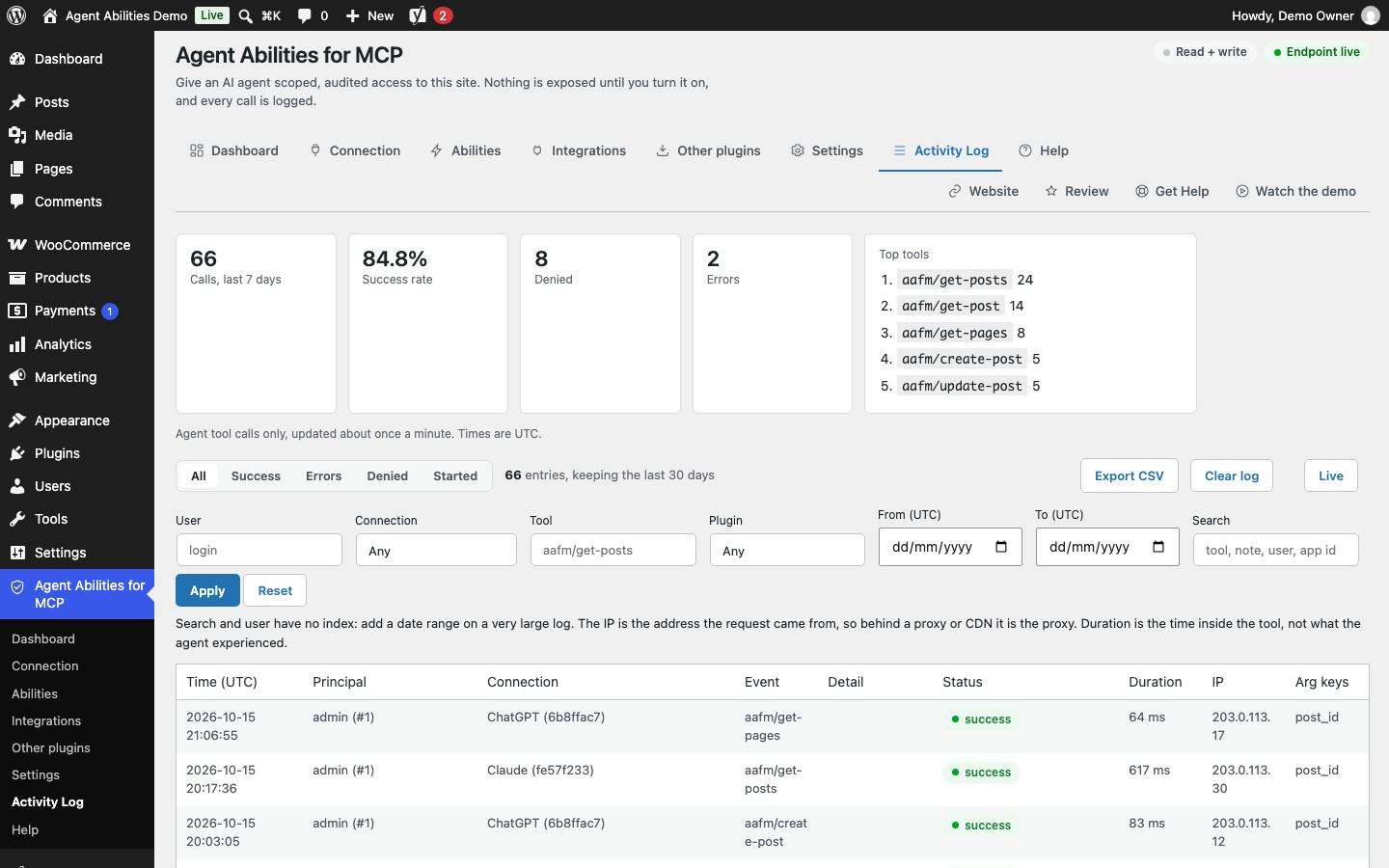
Every call to one of this plugin’s tools lands in the Activity Log tab, denied calls included. A row shows who made the call, the connection and source IP, the tool, the argument names and how long it ran. A denied call also records why.
Each row carries a short note on what the call touched (ids, slugs and meta key names, never post text or email addresses). You can filter by user, connection, tool, plugin, date or text, watch new rows arrive in the Live view and export whatever the filters show as CSV. The log is a table in your own database.
Playbooks: step-by-step instructions for AI agents
Write a checklist once on the Playbooks tab, such as how to check a draft before it goes out, and the AI loads it when a task matches. Five starters come built in (Publish checklist, Weekly content report, Content health check, Draft a new post and Shop tidy-up) and they arrive switched off.
Two read tools, List playbooks and Get playbook, stay off until you enable them on the Abilities tab. With both on, the AI sees your Active playbooks when a session starts and loads one with Get playbook. It reads the text word for word, so keep passwords and private details out. Agents can’t edit playbooks. A playbook is guidance the AI may follow, which means the controls above still decide what it can do.
Works with your other plugins
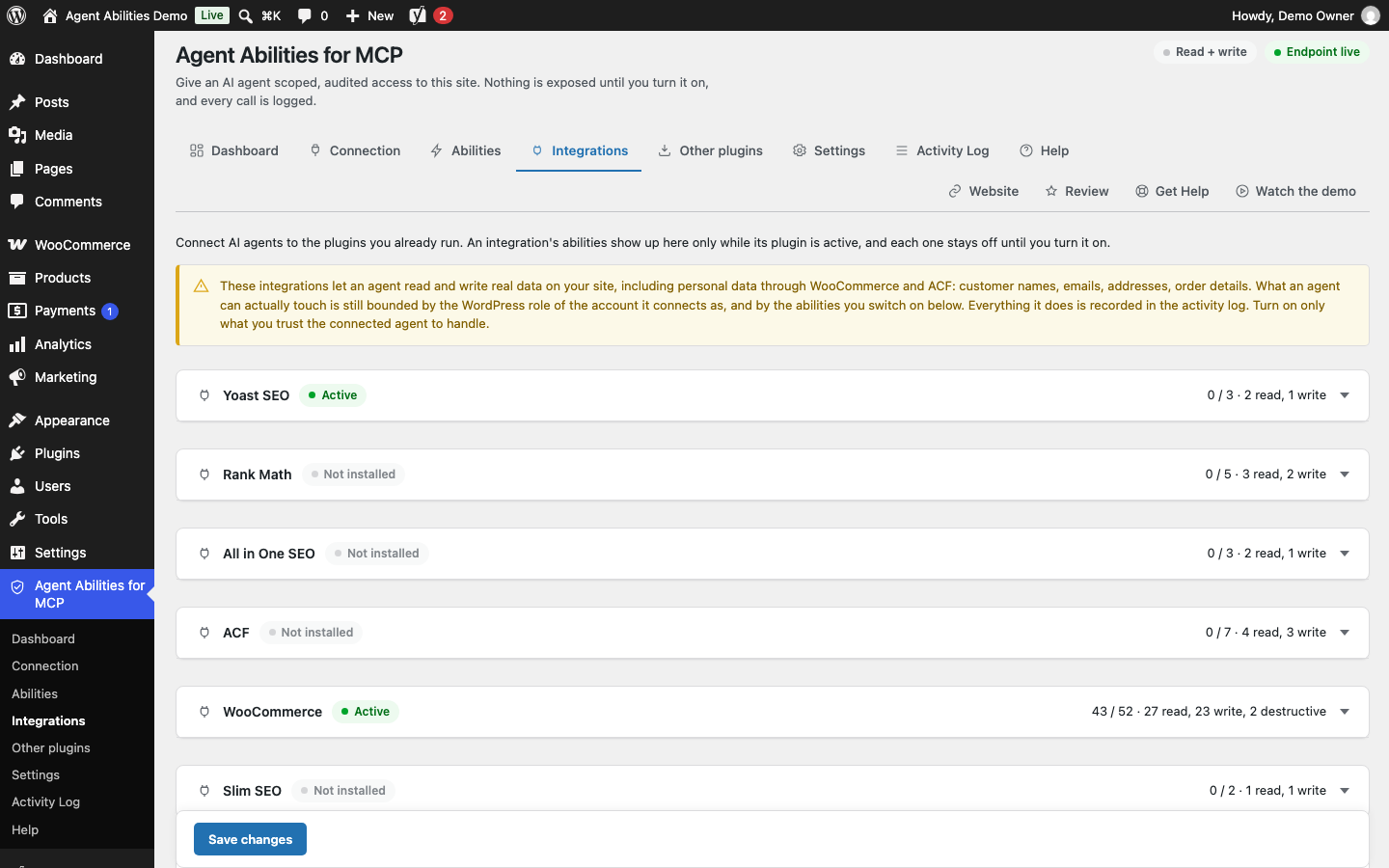
When one of these plugins is active, its abilities appear on the Integrations tab. WooCommerce has the most, 52, covering products, variations, orders, customers, coupons, shipping, tax, payment gateways and reports, and because they reach names, emails and addresses an admin notice flags them. ACF adds 7 for field groups and for the field values on posts, terms and users, and Rank Math (5), Yoast SEO (3), All in One SEO (3) and Slim SEO (2) let the AI read and edit SEO data for a post.
The Events Calendar has 13 abilities for events, venues and organizers, Event Tickets has 3 for reading tickets and attendees, and Avada has 2 that read a page’s Fusion Builder markup and replace text inside it. GeoDirectory has 4 for business listings, and they stay off until you enable that integration on the Integrations tab, even when GeoDirectory is active.
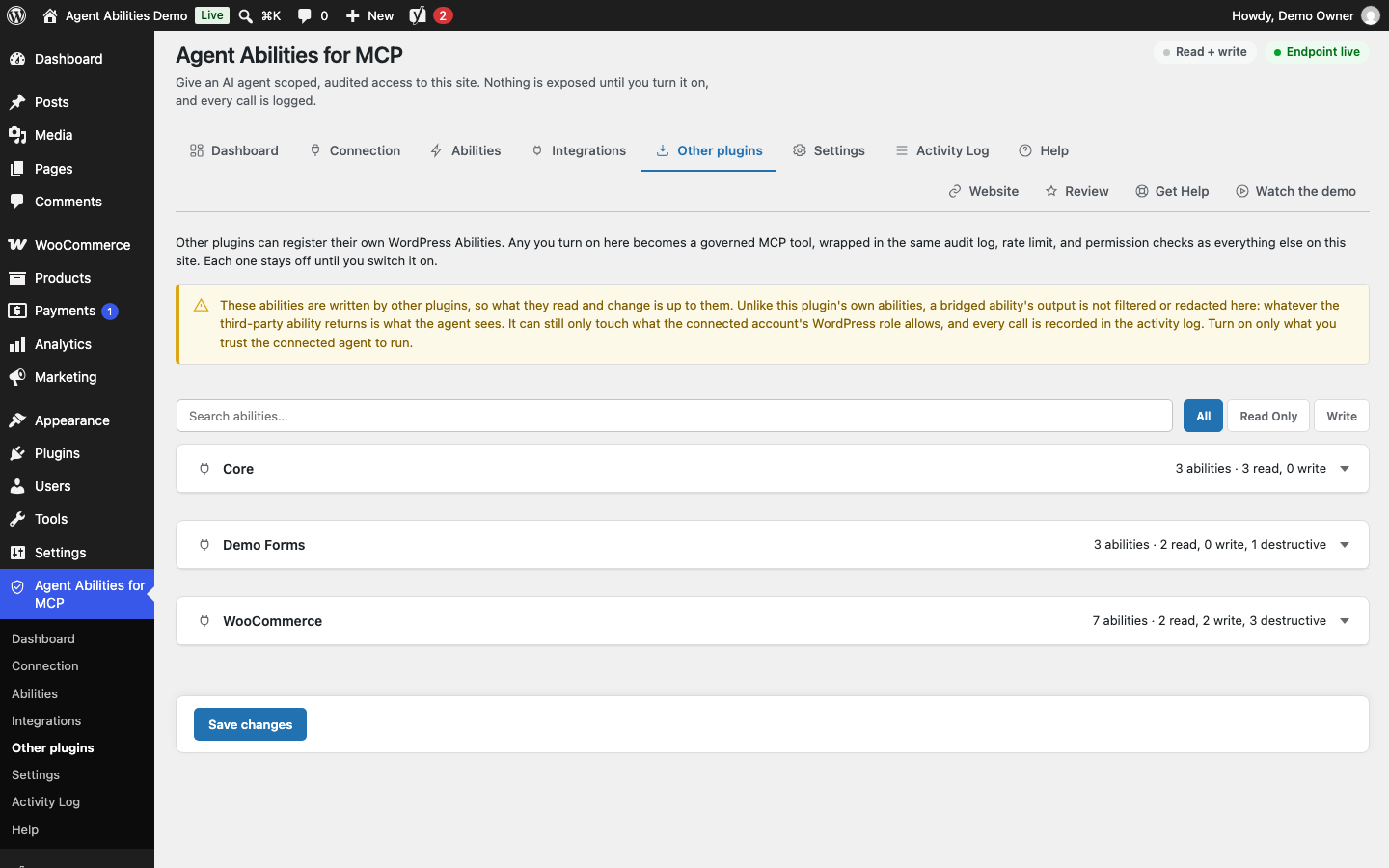
Plugins that register their own abilities with the WordPress Abilities API appear on the Other plugins tab, and this plugin does not filter what another plugin’s ability returns. The WP-CLI command wp aafm catalog export prints those abilities as JSON, and --include-native adds this plugin’s own.
Built on the Abilities API and the MCP Adapter
WordPress 6.9 added the Abilities API, and the official MCP Adapter turns those abilities into MCP tools. The Adapter comes bundled, so there is nothing else to install, and if you also run the standalone Adapter plugin, this plugin uses whichever copy loads first. Agent Abilities for MCP registers its abilities on top of both and adds the permission controls.
Pages built with a page builder
Page builders keep their layout in their own data, so an edit to the post text can report success and change nothing on the page, or get overwritten the next time someone saves in the builder. For Elementor, Divi, Beaver Builder, Avada and Visual Composer the plugin checks first and refuses the write with an error naming the builder. Avada’s two own tools are the exception and refuse shortcode changes.
Compatible clients
Any MCP client that can reach your endpoint can connect. ChatGPT, Claude (web and Desktop) and Manus are hosted apps and use OAuth, while Claude Code, Cursor, VS Code, Windsurf and Gemini CLI can use OAuth or an Application Password. The hosted Gemini app is not supported yet. A client that can’t connect directly can go through a bridge such as mcp-remote, which runs on your own machine.
Disclaimer
The Model Context Protocol is an open specification that Anthropic originally developed. Claude, ChatGPT, Cursor, VS Code, Gemini and other product names belong to their owners, and Agent Abilities for MCP is a third-party plugin that isn’t affiliated with, endorsed by or sponsored by any of them.
External Services
This plugin calls no AI provider and sends no telemetry.
It makes two kinds of outbound request on its own. The first is the Connection tab’s checks, which are requests your site makes to its own address to test the MCP endpoint, the headers and body it receives and, with OAuth on, the discovery documents. The second only happens if you enable the upload-media-from-url ability, which is off by default: it fetches the exact HTTPS URL your AI client supplies so the file can be added to your media library, refuses private and reserved addresses and follows no redirects. The server at that URL sees the URL, your site’s IP address and the time of the request, and the request carries none of your content, credentials or site data.
Connecting a client happens in the client. Some clients reach your endpoint directly, and others use a bridge that runs on your own machine and is not bundled with the plugin:
- mcp-remote: https://www.npmjs.com/package/mcp-remote
- @automattic/mcp-wordpress-remote: https://www.npmjs.com/package/@automattic/mcp-wordpress-remote
Installation
- Upload the plugin to
/wp-content/plugins/agent-abilities-for-mcp, or install it from Plugins, Add New in your admin, then activate it. - Open Agent Abilities for MCP in the admin menu and, on the Abilities tab, switch on the tools you want the AI to have.
- On the Connection tab, copy your MCP endpoint and paste it into your AI client. Most clients ask you to approve the connection once in the browser, as your own account.
- If a client can’t use OAuth, create the low-privilege agent user the Connection tab offers, add an Application Password for it and connect with that, using the config the tab builds for you.
- Click Check my connection to confirm your server answers.
Each client has its own steps in the getting started guide and in connecting a client.
Screenshots

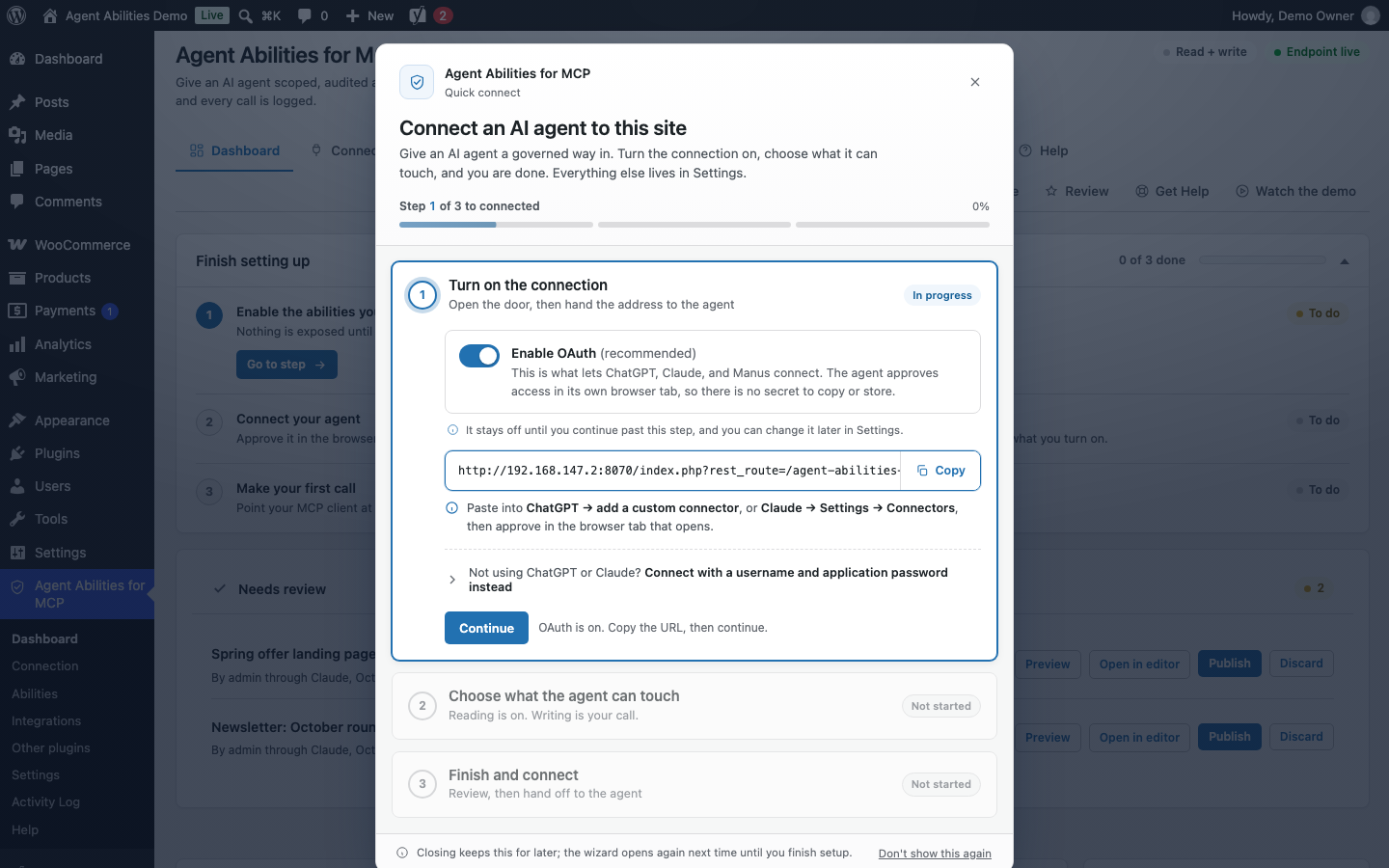
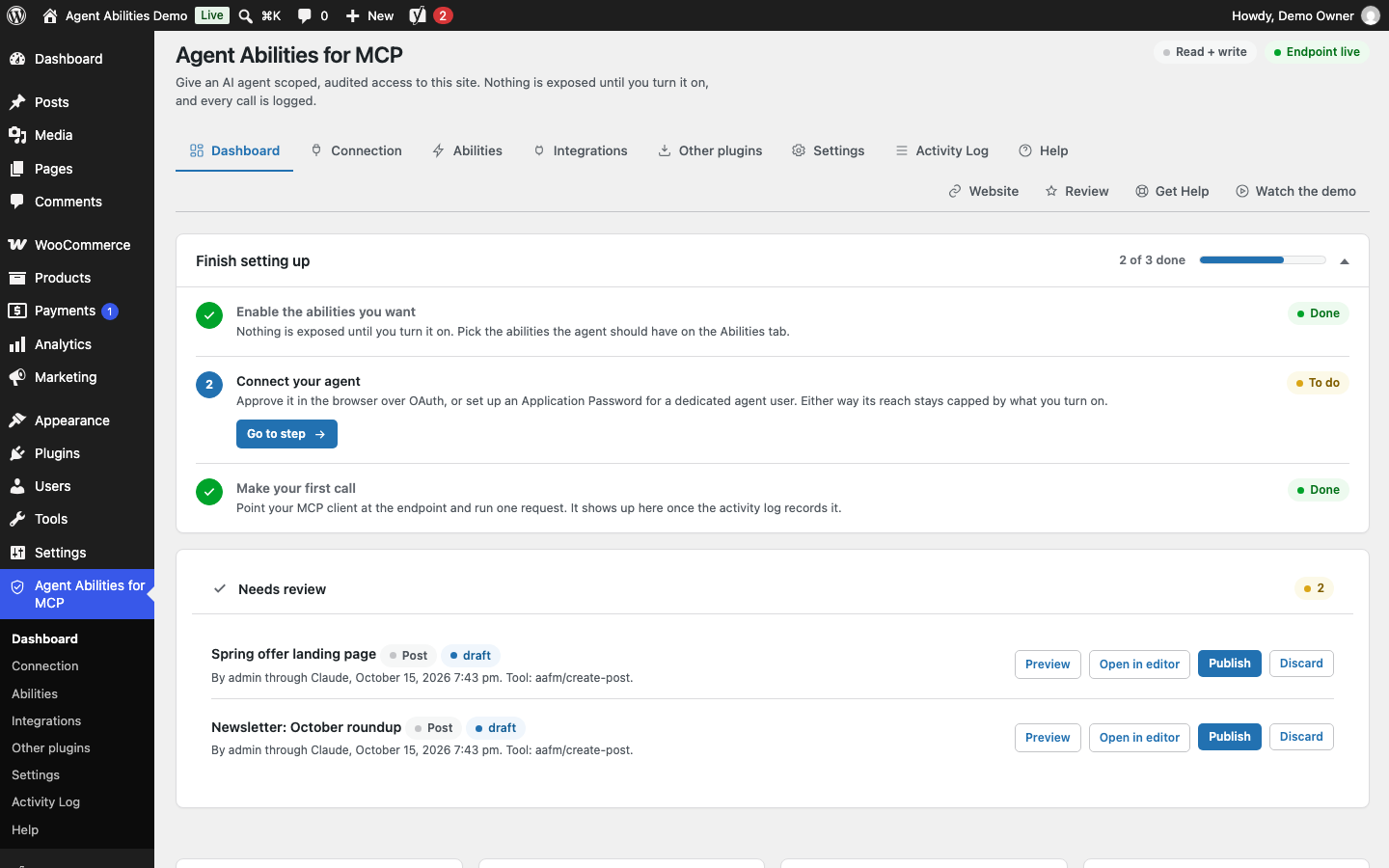
First-run setup walks you through connecting an agent in three steps: turn the connection on, choose what it can touch, then hand the endpoint to your AI client.
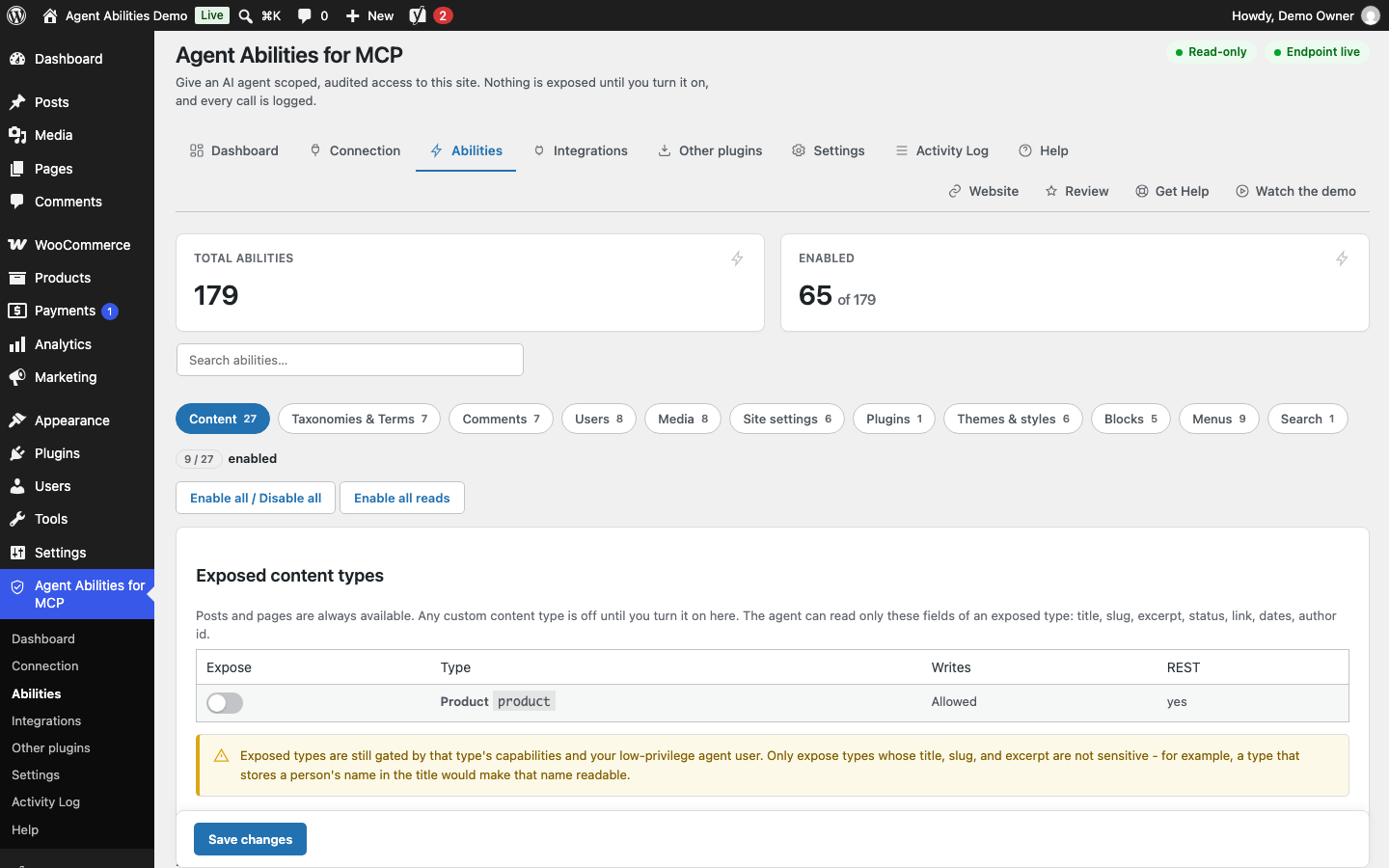
The Abilities tab. Nothing is exposed until you switch it on. Abilities are grouped by section, here Menus with its reads on and its writes off, and each section has buttons to enable all reads or all writes.
Read-only mode on. The header badge says Read-only and the Content section loses its Enable all writes button.
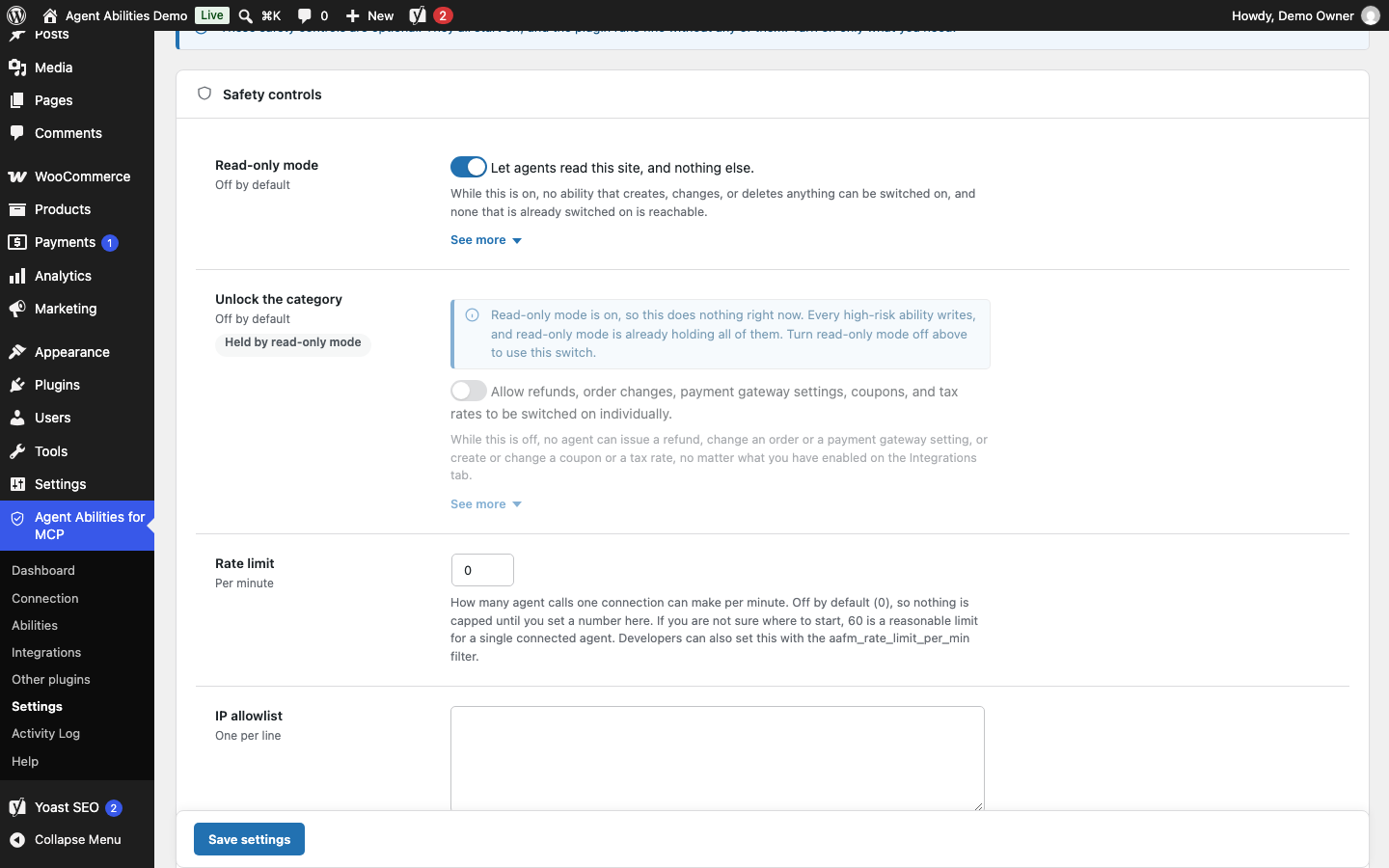
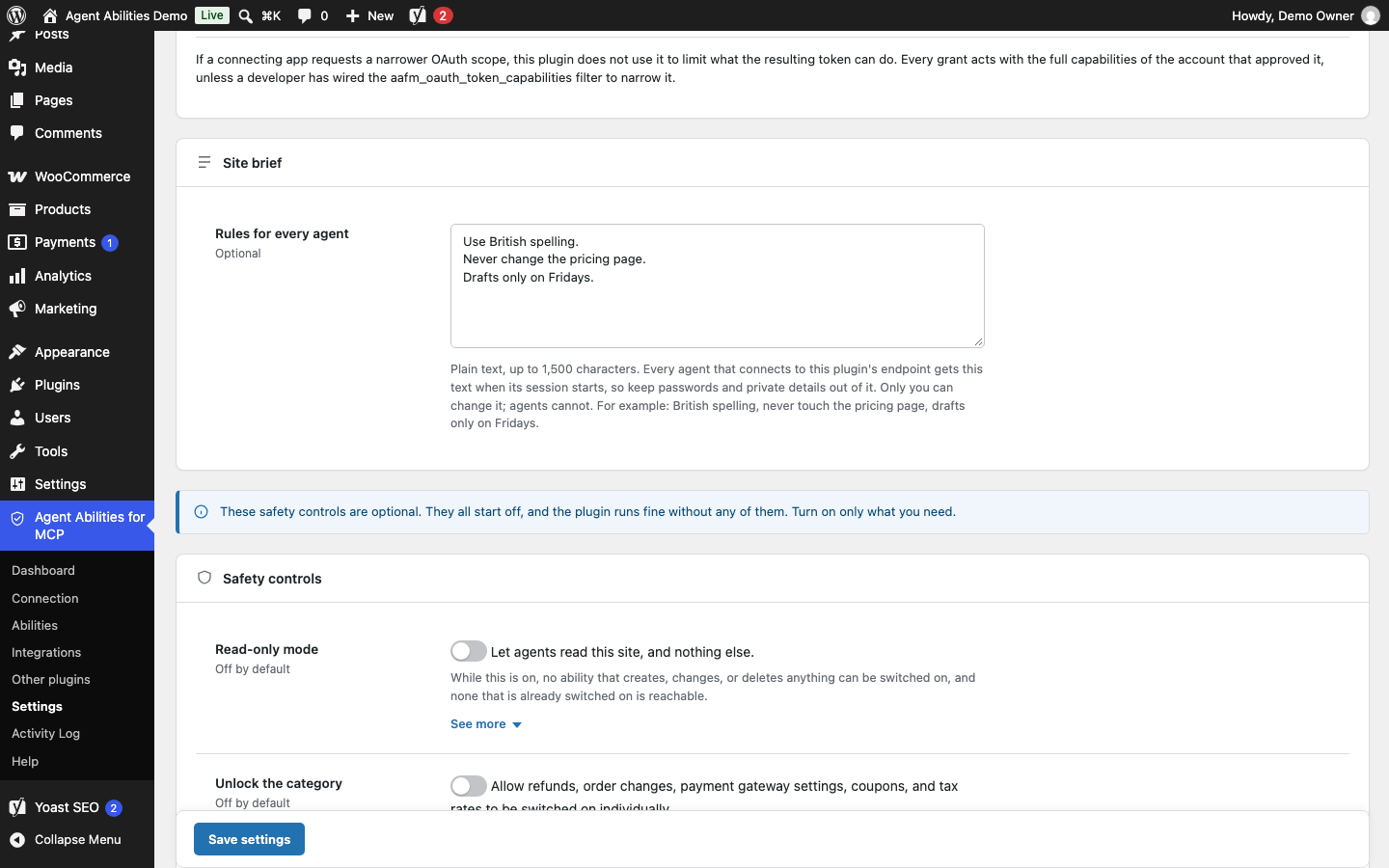
The Read-only mode switch under Safety controls on the Settings tab. While it is on, the high-risk unlock beneath it is held too, and says so.
WooCommerce tools that change orders, issue refunds or touch payment settings stay locked behind a second switch on the Settings tab.
Each integration has a card showing whether its plugin is active and how many of its abilities are on. WooCommerce and Yoast SEO are active here, and the rest say Not installed.
Abilities that other plugins register, grouped by plugin and off until you turn them on. A warning says this plugin does not filter what they return.
The Connection tab: the Pause all access switch, then the OAuth and Application Passwords tabs, a token lifetimes card, registered clients and active grants.
The Activity Log with a 7-day summary, filters, the connection and IP of each call, duration, a Live view and a CSV export that follows the filters.
The Dashboard: a setup checklist, the Needs review card, enabled abilities, recent agents, audit history, your endpoint and the versions in play.
Site Brief: a few plain rules every connected agent reads when its session starts, such as spelling and what to leave alone.
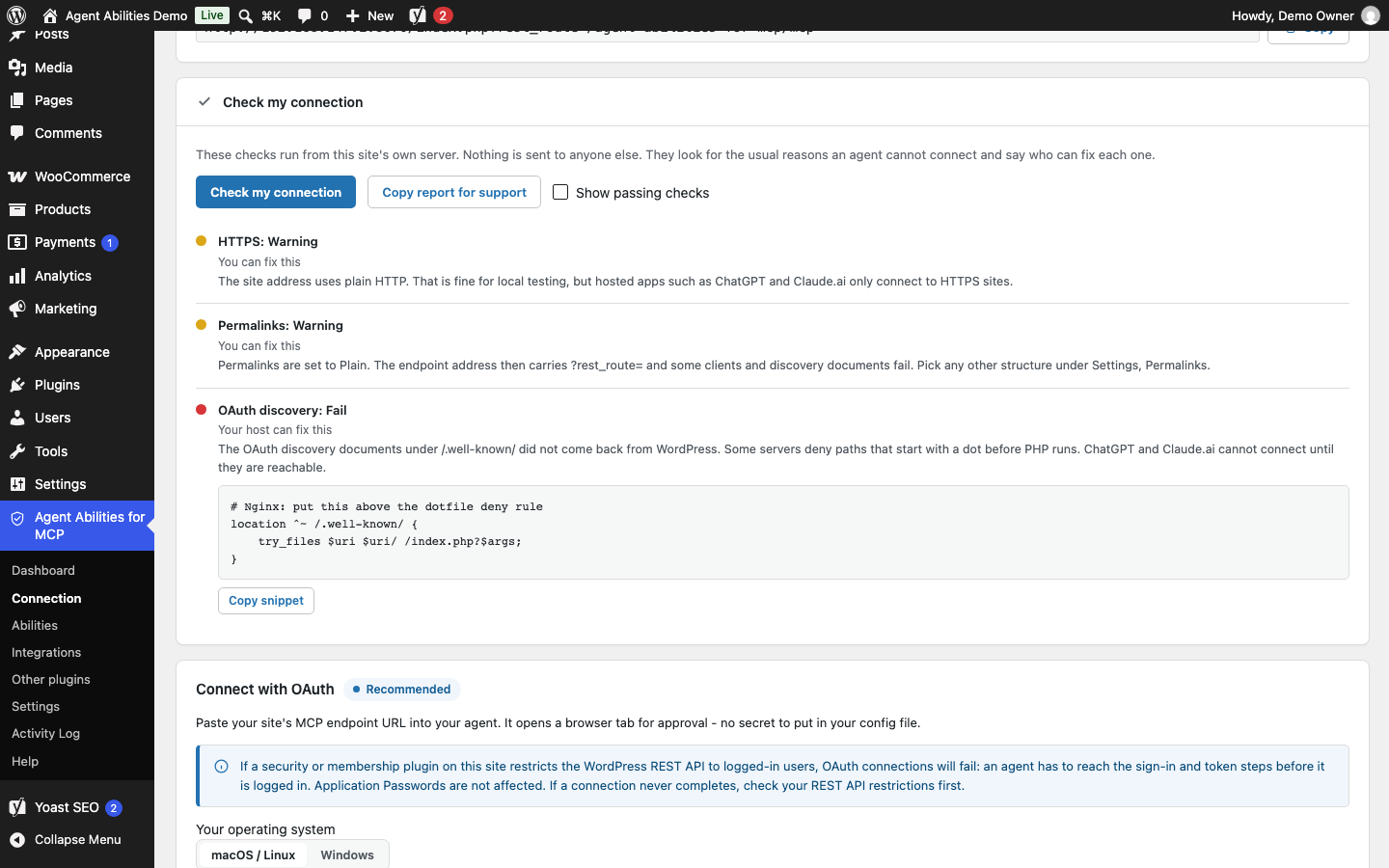
Connection Doctor checks the connection from your own server and says what to fix. Each finding says whether you or your host can fix it, and some come with a snippet to paste.
Needs review: drafts and pending posts your agents wrote, with Preview, Open in editor, Publish and Discard.
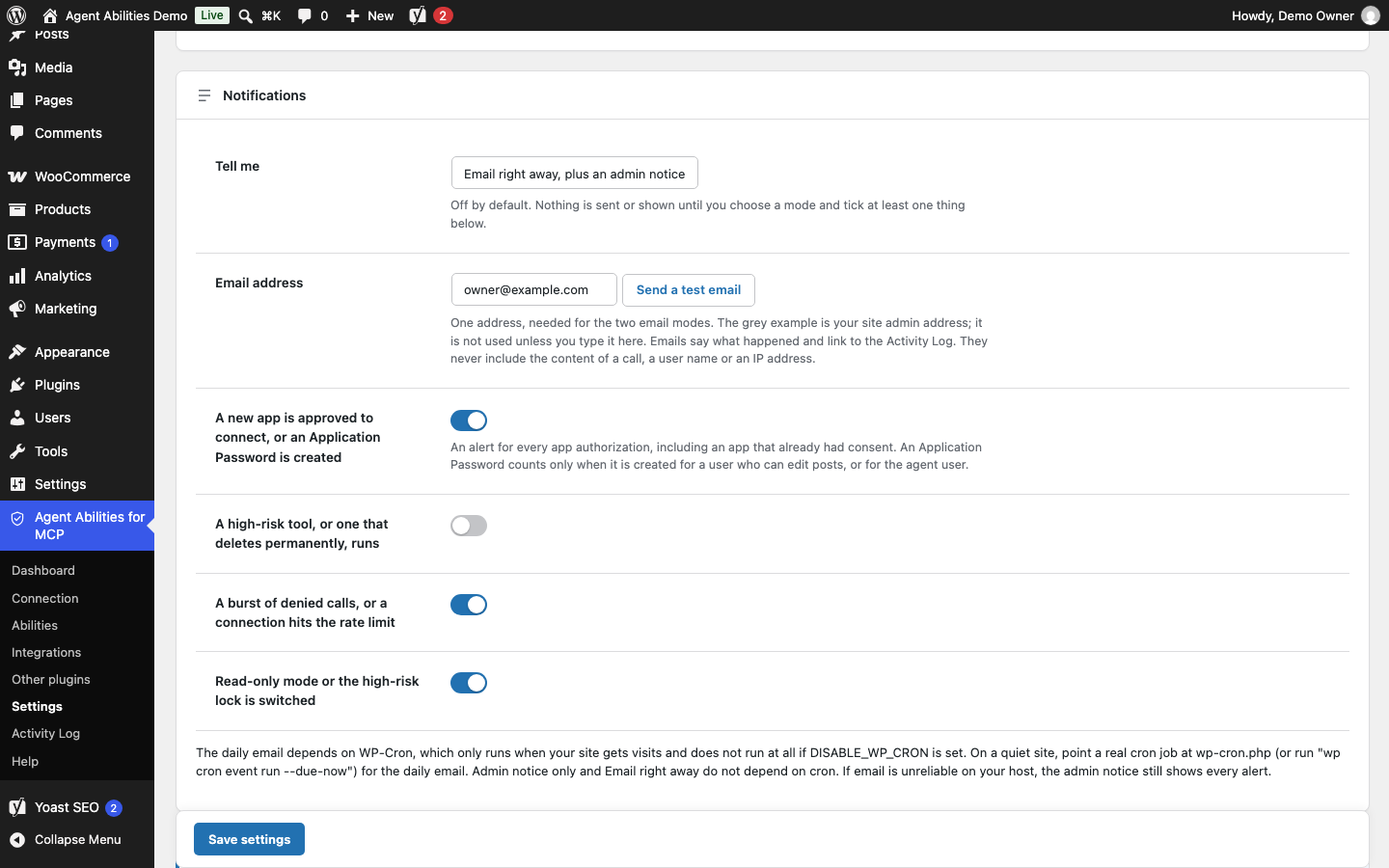
Notifications, off until you choose an admin notice, an email right away or a daily email for the events you tick.
Active grants: each approved connection with its access, last use, optional end date and rate limit, and its status, with Pause or Resume next to Revoke.
Application Passwords: the agent users’ passwords with when each was created and last used, the address it was last used from, and a Revoke button.


Faq
More help: Documentation | Troubleshooting | Security | Support forum
What is a WordPress MCP server?
A WordPress site that AI apps can call to do things like list posts or update a product, with this plugin supplying the endpoint and the rules about who can use it and for what.
How do I connect Claude to WordPress?
Follow the steps under Connect Claude to WordPress above, which add your endpoint as a custom connector under Customize, then Connectors. The one thing to add here is that Claude connects from Anthropic’s cloud, so a site on localhost or behind a VPN won’t work. The Claude guide has the full setup.
How do I connect ChatGPT to WordPress?
You don’t need to turn on Developer Mode first, and the steps are under Connect ChatGPT to WordPress above (the ChatGPT guide walks through them too). ChatGPT reaches your endpoint over the public internet, so a site on localhost or behind a VPN won’t connect, and because custom servers are a web feature you can’t add one from the mobile app.
Is it safe to connect ChatGPT or Claude to my WordPress site?
It can be, as long as you keep the access small: the AI works as one WordPress user you choose, this plugin’s tools start off, and each call to them is checked against that user’s capabilities and logged. I’d start with read-only mode or Force draft on create and widen from there once you’ve seen what it does.
What ChatGPT or Claude does with the content it reads is up to that vendor, and text on your own site (a comment, say) can try to steer an AI, a risk called prompt injection that the post on indirect prompt injection covers.
Is Agent Abilities for MCP safe?
The code is GPL-licensed and public on GitHub, the plugin makes no calls to AI providers and sends no telemetry, and it stores OAuth credentials as SHA-256 hashes in its own tables. The security page lists the controls and says how to report a problem.
Does the AI agent get admin access?
Not unless you connect it as an administrator, which I wouldn’t. It gets the role of the user it connects as: for OAuth that’s whoever approves the connection, and Roles that can connect on the Settings tab decides who may approve, with a new install allowing Administrators only. The Application Password route uses a Subscriber account the Connection tab creates, which you can raise to Editor or Author.
An Application Password works across the whole REST API and this plugin’s limits apply only to calls through its MCP endpoint, whereas a token issued over OAuth works on that endpoint alone.
Can I give Claude access to edit posts but not change settings?
Yes, through the user’s role. An Editor can write and publish any post but can’t touch site settings or install plugins, an Author is confined to its own posts, and a Contributor writes without publishing. The Content editor preset narrows it further to posts, pages, media, categories and tags, and because a new install lets only Administrators approve a connection, add the role under Roles that can connect first or approve as an administrator and pick the preset.
Can I stop an AI agent right now?
Flip Pause all access on the Connection tab, the emergency stop for every connected app and Application Password. Nothing is deleted and Resume all access turns everything back on, but since Application Passwords keep working on the rest of the REST API you should revoke one if it has to go.
Can I pause an AI agent without disconnecting it?
Yes. Each approved OAuth connection on the Connection tab has Pause next to Revoke, and a paused connection keeps its sign-in and can still list tools while every tool call comes back with a message that the connection is paused. Resume it and nobody has to approve it again. The same person’s Application Password is unaffected, since it has no pause of its own.
Can I give an AI agent access that expires?
For an OAuth connection, yes. Set an end date on its row on the Connection tab and the connection stops at the end of that day and stays refused until a site administrator renews it, and its old tokens never work again. An Application Password has no end date, so revoke it when the job is done.
Can the AI read my site without changing anything?
Turn on read-only mode in Settings and no write tool is loaded, whatever else is ticked, including write abilities you bridged from other plugins. Search and read keep working, and your selections come back when you switch it off. To limit a single connection instead, pick the Read only preset when you approve it.
Can the agent only save drafts so I approve before anything goes live?
With Force draft on create switched on in Settings, anything the AI creates and any request to publish is saved as a draft, which covers posts, pages, custom content items, reusable blocks and WooCommerce products. Edits to a post that’s already live still go live, so if every change should be reviewed, connect the AI as a Contributor, who can’t edit published posts. The drafts wait on the Needs review card on the Dashboard.
Can I stop an AI agent from deleting my posts?
I’d leave the delete tools off, which is how they ship. Trash post and Trash page move content to the Trash where you can restore it, but most of the tools named Delete, such as Delete post, Delete page and Delete media, remove it permanently. Read-only mode takes away every write and delete tool at once and the Content editor preset has no deletes in it, and the Activity Log shows which tool ran on which item though it keeps no copy of deleted content.
How do I see what ChatGPT or Claude did on my site?
Open the Activity Log tab (the guide to finding what an agent did walks through it). Each row gives the time, user, connection, source IP, tool, run time and a short note on what the call touched, such as a post ID or a meta key name, and a 7-day summary sits at the top. Export CSV downloads whatever your filters show. The log records which tool ran on which item and never stores the text the AI wrote.
Is there rate limiting for AI agents?
Yes, once you set it. Enter a number under Rate limit (per minute) on the Settings tab and each agent user can make that many calls a minute, shared across all its connections, with 0 turning the limit off. One OAuth connection can have a lower limit of its own on the Connection tab, in which case its calls count against both, and calls over a cap are denied and logged.
Can I limit the MCP endpoint to certain IP addresses?
Yes. Enter addresses or CIDR ranges, one per line, under IP allowlist on the Settings tab and requests from anywhere else are refused before they sign in. Behind Cloudflare or another proxy, switch on Real visitor address behind a proxy or CDN first, because otherwise the plugin sees the proxy’s address and the allowlist can lock your agents out.
What are the access presets?
A preset caps what one OAuth connection can reach, and you pick it when you approve an app or in Quick Connect and can change it later on the connection’s row.
- Read only: look at your content, never change it.
- Content editor: posts, pages, media, categories and tags. No deletes, users, settings or comments.
- Shop manager: everything in Content editor plus WooCommerce, minus deletes and the money and authority tools.
- Custom: everything you’ve switched on, limited by the approving user’s role.
Someone who approves an app but can’t manage the site gets the default preset or a narrower one, never a wider one.
What are playbooks?
Step-by-step instructions you write on the Playbooks tab, for example how to check a draft before it goes out. A site can keep 50 of them, with steps up to 8,000 characters, and you can add your own or start from one of the five starters. Once List playbooks and Get playbook are switched on, the AI sees your Active playbooks at the start of a session and loads one when a task fits, and the list refreshes when the client reconnects.
Can I manage multiple WordPress sites from ChatGPT or Claude?
Yes. Put the plugin on every site and add each endpoint as a separate connector, and name the connectors after the sites so you can tell them apart in the chat.
Can an AI agent update my ACF fields or edit one block without breaking the layout?
With ACF active, the ACF tools list field groups and read and write field values on posts, terms and users, sanitizing each value for its field type, and a write that names a field ACF doesn’t know is refused with an error that names it.
For layout, the AI can list block types and read one block’s attributes, plus field names and an example for an ACF block. Replace block then swaps one block in a post, found by its position, and leaves the others alone, although WordPress may still sanitize the whole post on save for users who can’t post unfiltered HTML. Questionable block markup saves with a warning unless you turn on Strict block validation in Settings.
Will an agent break my Elementor or Divi page?
Before any content write the plugin checks whether a page builder owns the post, and if one does it refuses with an error that names the builder. Elementor, Divi, Beaver Builder, Avada and Visual Composer are covered, so edit those pages in the builder itself. Avada’s two dedicated tools can replace text in a page and refuse changes to its shortcodes.
Can an AI agent manage my WooCommerce store?
With WooCommerce active, 52 abilities cover products and variations, orders with notes and refunds, customers, coupons, shipping, tax, payment gateways and reports, and because they reach customer data an admin notice flags them. The tools that move money or grant authority stay locked until you unlock them in Settings, and the Shop manager preset leaves them out.
Do I need to install the MCP Adapter? Does it work with the Abilities API?
No, the official MCP Adapter is bundled, and if the standalone Adapter plugin is active too, this plugin uses whichever copy loads first. It builds on the WordPress 6.9 Abilities API.
The Adapter also has a built-in default server that other plugins can publish tools to, and those tools sit outside this plugin’s controls: its read-only mode, allowlists, IP allowlist, rate limit and audit log don’t apply to them, though Pause all access does.
Under Settings, Allow the MCP Adapter’s default server starts on Automatic, which runs it only when another active plugin publishes tools there. Choose Always off to keep it off, or Always on if you ran the standalone Adapter only to reach WordPress core’s public abilities, since those don’t count as a publisher. This plugin’s own tools are never on that server.
How is this different from other WordPress MCP plugins?
Because this plugin’s tools are all off until you switch them on, it’s a poor fit if you want everything available from day one. In exchange the AI acts as a user you choose, each OAuth connection can be paused or given an end date, and the plugin builds on the Abilities API and the MCP Adapter instead of running a server of its own.
Does it send my content to OpenAI, Anthropic or Google?
The plugin never contacts an AI provider and has no telemetry, but your AI client does receive whatever a tool returns, because that is how it reads your site, and what it does with that is covered by the vendor’s terms and your plan. The only request the plugin makes to an outside address is the upload-media-from-url tool, which stays off until you enable it, and External Services above has the details.
Is it free? Which WordPress and PHP versions? Do I need to know how to code?
It’s free on WordPress.org. There’s no paid tier, the plugin adds no usage limits and it needs no API key. You need WordPress 6.9 or newer, where the Abilities API arrived, and PHP 7.4 or newer. You can get connected without writing code, since the Connection tab gives you the endpoint to paste into your AI client, and developers get filters and a WP-CLI command that are documented on GitHub.
Why can’t ChatGPT or Claude connect?
Click Check my connection on the Connection tab and the Connection Doctor runs its checks from your own server, then names the fix, whether that’s a host stripping the Authorization header, a firewall emptying the JSON body, a redirect or a blocked discovery document. The nginx rule and the Cloudflare and WP Engine steps are in the troubleshooting guide, and server rules that block /.well-known/ or CDN rules such as Cloudflare’s AI bot blocking are common causes.
Why is a tool I switched on missing from my agent?
The AI client may be showing an old tool list. To refresh it in ChatGPT, open Settings, then Integrations, then Plugins, pick the app and choose Refresh, and in Claude start a new chat or reconnect the connector. If that isn’t it, the Why is my tool missing? card on the Dashboard lists each of this plugin’s own tools that you switched on but agents can’t see, with the reason, such as read-only mode, the high-risk lock or an inactive plugin.
Why was my browser-based MCP client refused?
The MCP endpoint refuses requests sent from a web page on another site, as the MCP specification requires, while desktop apps, command-line tools and the hosted ChatGPT and Claude apps are unaffected. Developers can allow a browser client they trust with the aafm_mcp_allowed_origins filter.
Can I get an email when something important happens?
Under Settings, Notifications, pick an admin notice, an email right away or one email a day, then tick the events you care about, such as a new app being authorized or a burst of denied calls. Nothing is sent until you do. The safety controls guide lists every event and the sending limits, and the emails themselves link to the Activity Log and never include the content of a call, a user name or an IP address.
Does uninstalling the plugin revoke my agent’s access?
Not by itself. Deleting the plugin leaves the dedicated agent user and its Application Passwords in place because they’re ordinary WordPress accounts, and by default it keeps your settings, activity log and OAuth data too, so a reinstall picks up where you left off. Switch on Delete data on uninstall in Settings first if you want that data removed, and to cut an agent off, revoke its OAuth connection on the Connection tab or delete its Application Password or user on the Users screen.
How do I report a security issue?
Use the Report a vulnerability option on the Security tab of the GitHub repository so the report stays private until there’s a fix. The security policy lists the other contact route.
Reviews
Save tons of time
By  dmncvs on October 9, 2026
A very relevant and easy-to-use plugin. It really saved me tons of time
Easy to use!
By  danielkam1 on October 9, 2026
Stumbled onto this gem thanks to ChatGPT. It made managing multiple websites easier! A time saver.
Makes managing multiple sites easier
By  davidbaracsy1992 on October 7, 2026
I’ve been using this plugin across several WordPress sites, and it’s worked well for me. Setup was straightforward, and handling WooCommerce products and orders with it has saved me a lot of time. Happy to give it five stars.
image alt issue
By  jerri69 on August 20, 2026
plugin does not allow to update image alt.
Worked perfectly!!
By  Muhammad Farooq Abdullah (farooqabdullah) on July 15, 2026
I was able to connect MCP server with claude via WordPress Application Password but was unable to connect it with chatgpt as it allows only OAuth authentication so I was trying to add OAuth authentication in my custom abilities plugin but I found this plugin which saved me with this extra work.
Changelog
1.10.2
- Fix: A request from another site’s web page now gets a 403 even when it carries wrong credentials, and responses requested with ?_envelope=1 send Cache-Control: no-store like every other response.
- Fix: Content editor and Shop manager connections can read playbooks. The Playbooks editor refuses to save over a playbook someone else changed after you opened it, and keeps your text in the form.
- Fix: The unknown ACF field refusal names fields only for callers who can list them. A paused connection no longer leaves a “paused” note in the server instructions after you resume it. An app the site no longer recognizes now gets the steps and MCP URL to add it again.
- Fix: Seven integration tool descriptions now match what the tools do, and every description that lists page builders names all five.
- Chore: The ability picker on the Playbooks tab has space between its search box and the count line.
1.10.1
- Feature: The new Playbooks tab holds step-by-step instructions for agents. Tick the abilities each one uses or add one of five starters. Two read tools, off until you enable them, let agents list and load Active playbooks.
- Fix: A paused connection now signs in and lists tools, and each tool call returns a message that the connection is paused. Claude used to show a firewall or sign-in error instead.
- Fix: The MCP endpoint refuses requests from web pages on other sites, as the MCP specification requires, and sends Cache-Control: no-store on every response. Clients that open with server discovery now get the playbook list too.
- Fix: A blocked address, the rate limit and an unknown ACF field name now say why in the refusal. An unreadable playbook list is reported rather than overwritten, and a connection row shows Saved after you save it.
- Chore: New FAQ answers cover refreshing a client’s tools, ChatGPT plans, playbooks and refused browser clients. The delete-tool and ChatGPT menu wording is corrected.
1.10.0
- Feature: Each OAuth connection can be paused and resumed without signing in again, given an end date and a lower rate limit of its own, and shows when and from which address it was last used. Approving an app, and Quick Connect, offer Read only, Content editor, Shop manager or Custom access.
- Feature: The Connection tab now has OAuth and Application Passwords tabs, a token lifetimes card (the client registration switch moved there from Settings), a switch that pauses all MCP access to the site, and a list of the agent users’ Application Passwords with their last use and a Revoke button.
- Feature: Settings can limit which roles may connect an app and can read the visitor’s real address behind Cloudflare or another proxy. Connection Doctor checks MCP headers, JSON bodies, redirects and stale or blocked discovery documents; the Dashboard says why an enabled tool is missing; tabs show a dot while they have unsaved changes; the Abilities tab opens on an All view listing every ability under its category, with the same bulk buttons each category has.
- Feature: Agents can list the site’s block types and read one block’s attributes, supports and styles, plus, for ACF blocks, its field names, choices and an example payload. A new Replace block tool swaps one block in a post or page without resending the whole page. Like every other tool, they stay off until you turn them on in the Abilities tab.
- Fix: Plain attribute text that WordPress would only entity-encode, such as an & in an ACF field, is now stored as written for users who may post unfiltered HTML, style and script elements are removed with their contents, WooCommerce product descriptions and Events Calendar events no longer strip the backslash escapes from block attributes, and writes that return content warnings now also flag unknown blocks or ACF fields, invalid attribute JSON and ignored block gaps. A custom-field-only change now clears that post’s or term’s cache entry (with an action for page caches and an opt-in full re-save for caches that need one), blank-looking IP allowlist lines are dropped, Settings and the Dashboard no longer scroll sideways on a phone, new drafts report real dates, OAuth clients and tokens record their creation time in UTC, and the Activity Log and Connection Doctor show placeholders while they load. The bundled MCP Adapter moves to 0.7.1.
1.9.0
- Feature: The Activity Log can be searched and filtered by user, connection, tool, plugin, date and text. Each call shows its connection and IP address, and its duration when it ran; the log adds a 7-day summary and a Live view. The CSV export follows your filters.
- Feature: Optional alerts, off by default: an admin notice, an email right away or a daily email when an app is authorized to connect, an Application Password is created for a user who can edit posts or for the agent user, a high-risk tool or permanent delete runs, calls are denied in a burst, or read-only mode or the high-risk lock is switched.
- Fix: A denied call now records why in the Activity Log, for example “key is not on the allowlist”; the message the agent sees is unchanged. Reading a meta key now logs a note the way writing one does.
- Chore: The Cloudflare advice in the FAQ, README and Help tab now points to “Configure AI bot policies” instead of the deprecated “Block AI bots” switch, and adds steps for WP Engine edge traffic rules and HTTP 429 limits.
1.8.1
- Fix: Bridged tools such as WooCommerce orders and products failed in strict clients like Claude when a value didn’t match the format the source plugin declared, for example a date without a timezone or an empty URL. Bridged tools no longer advertise strict formats; the values are unchanged.
1.8.0
- Feature: A Site Brief box on the Settings tab lets you describe your site in a few lines. Every agent that connects to this plugin reads it.
- Feature: The Connection tab has a Connection Doctor. One click checks the connection from your own server and tells you what to fix, for example a host that strips the Authorization header.
- Feature: A Needs review card on the Dashboard lists the drafts your agents wrote, with Preview, Open in editor, Publish and Discard buttons. Discard moves the post to the Trash.
- Fix: Other plugins’ tools on the MCP Adapter’s default server stopped working while this plugin was active. A new Settings switch (Automatic, Always on, Always off) brings that server back, and existing sites move to Automatic, which starts it only when another plugin publishes tools there. This plugin’s own tools never appear on it, so a site that used it only for WordPress core abilities should pick Always on.
- Fix: With Force draft on, an agent that sent “publish” again for a post that was already live took it offline. The post now stays live. A “WP_MCP_VERSION already defined” warning next to the standalone MCP Adapter 0.6.x and a Settings crash with an older adapter copy are also fixed, and the plugin title now names Claude and ChatGPT.
1.7.10
- Fix: Query Monitor showed a “bundled dependency” deprecation warning from the MCP Adapter on every request that started it; it no longer does.
1.7.9
- Fix: With the standalone MCP Adapter plugin (0.7.0) active and loading before this one, the /mcp endpoint returned a 404. It now serves in either load order.
- Fix: The standalone MCP Adapter plugin showed a red “Another version of MCP Adapter is already loaded” notice while this plugin’s copy was in use. It no longer does.
- Fix: The adapter’s per-request “bundled dependency” deprecation line no longer lands in the PHP error log.
- Chore: The bundled MCP Adapter moves from 0.6.1 to 0.7.0, and adapter versions 0.6.1 through 0.7.x are supported. The adapter itself now returns error -32602 instead of -32003 for an unknown tool, and clients must send the MCP-Protocol-Version header after initialize.
1.7.8
- Feature: A bridged ability’s error now says which plugin returned it, and the Activity Log records that plugin’s error code (the code only, never its message).
- Fix: 37 bridged tools from WooCommerce, Meta Box, SiteOrigin, Premium Addons, SEOPress, WPForms, Elementor and ElementsKit worked when called but never showed in the tool list. They now list for users who can edit posts, and the source plugin still decides whether a call is allowed.
- Fix: Deleting through bridged ACF reported an error after the item was already deleted. It now returns ACF’s own result.
- Fix: Bridged results holding plain objects (such as a PixelYourSite response) were refused after the write had already happened. They now come through, and a refused call is logged as an error instead of success.
- Fix: On WordPress 7.0 and later, the raw exception text from a throwing plugin no longer reaches the client.
1.7.7
- Feature: The Abilities tab now has one Save changes button that saves every section on it, with an “Unsaved changes” note and a warning if you leave the page with edits pending.
- Feature: The Activity Log gets a row when an exposed list changes (content types, or post, user or term meta keys), giving the list name and how many keys were added and removed.
- Fix: Edits to exposed meta keys or content types were lost when you pressed only the main Save. The four separate section buttons are gone, and the one Save covers them.
- Fix: When a section fails to save, the page names it and keeps your edits so you can retry. Sections that did save stay saved.
- Fix: The Activity Log table scrolled sideways when a value such as the detail JSON was long; the columns now share the page width and long values wrap.
1.7.6
- Fix: An OAuth token issued for the MCP endpoint also signed its holder in on other REST routes, admin-ajax.php, admin-post.php, the comment form, the OAuth authorize screen and discovery URLs. It now works on the MCP route only.
- Fix: Meta, SEO, media, WooCommerce and The Events Calendar writes now check the database for what actually landed and report written, unchanged, refused or a failed read. The Activity Log records each outcome, identifiers only.
- Fix: Read-only mode, the high-risk lock, ability switches and the allowlist are read from the database on every MCP request. A failed read keeps the stricter setting, so a stale object cache can’t loosen them.
- Fix: WP-CLI printed a pair of “called incorrectly” notices for each enabled bridge tool whose source plugin was inactive; those tools are now skipped quietly. Activity Log rows for denied calls now read “Attempted: …” instead of looking like the change happened.
- Fix: Under a persistent object cache, the review prompt wiped other plugins’ cached “option doesn’t exist” entries; it now clears only its own. Smaller fixes land in replace-sitewide, WooCommerce gateway ordering, the Rank Math and AIOSEO head previews, and several tool descriptions.
1.7.5
- Feature: The Connection tab swaps the allowlist textarea for a searchable checkbox picker and adds role and client selects, a Client ID copy control, paginated tables, and cross-tab abilities search.
- Fix: A zero-match abilities search left the Save button stranded on an empty card; the savebar now hides and returns with the results.
- Fix: The client picker’s hover and selected states looked identical; hover is now a border outline only.
- Fix: Ability order now survives a re-save, a stale search clears on keyboard navigation, a large allowlist no longer renders every checkbox at load, and new controls have accessible names and translations.
- Fix: Post, block and template writes now confirm what landed, a stuck OAuth migration can no longer re-enable a switch you disabled, comment counts no longer hint at hidden comments, and a failed token revoke no longer reports success.