
Advanced Media Offloader – Offload Media to Amazon S3, Cloudflare R2, DigitalOcean Spaces & More
Description
Advanced Media Offloader automatically moves your WordPress Media Library to cloud storage — Amazon S3, Cloudflare R2, DigitalOcean Spaces, Backblaze B2, Wasabi, MinIO, or any S3-compatible service — and serves your files from there.
Your server stays light, your pages load faster, and you never touch your existing content: every media URL is rewritten automatically. Setup takes about five minutes, with no code required.
Why offload your WordPress media?
- Cut hosting costs — stop upgrading your hosting plan just to store images and videos. Cloud storage is far cheaper per GB.
- Speed up your site — serve media from cloud storage or a CDN close to your visitors, instead of your web server.
- Lighter, faster backups — with media in the cloud, your site backups shrink dramatically.
- Zero content changes — URLs are rewritten on the fly; posts, pages, and products keep working exactly as before.
- Stay in control — keep local copies, clean them up smartly, or go fully cloud. You choose the retention policy.
Supported cloud storage providers
- Amazon S3 — The industry standard object storage service
- Cloudflare R2 — S3-compatible storage with zero egress fees
- DigitalOcean Spaces — Simple object storage from DigitalOcean
- Backblaze B2 — Affordable S3-compatible storage with predictable pricing
- Wasabi — Hot cloud storage with predictable pricing
- MinIO — Any S3-compatible storage (MinIO, OVHcloud Object Storage, Scaleway, Linode, Vultr, IBM COS, and more)
Not sure which provider to choose? Check our cloud storage pricing comparison for real-world cost breakdowns.
How it works
- Install and activate the plugin, then open Media Offloader in your WordPress admin.
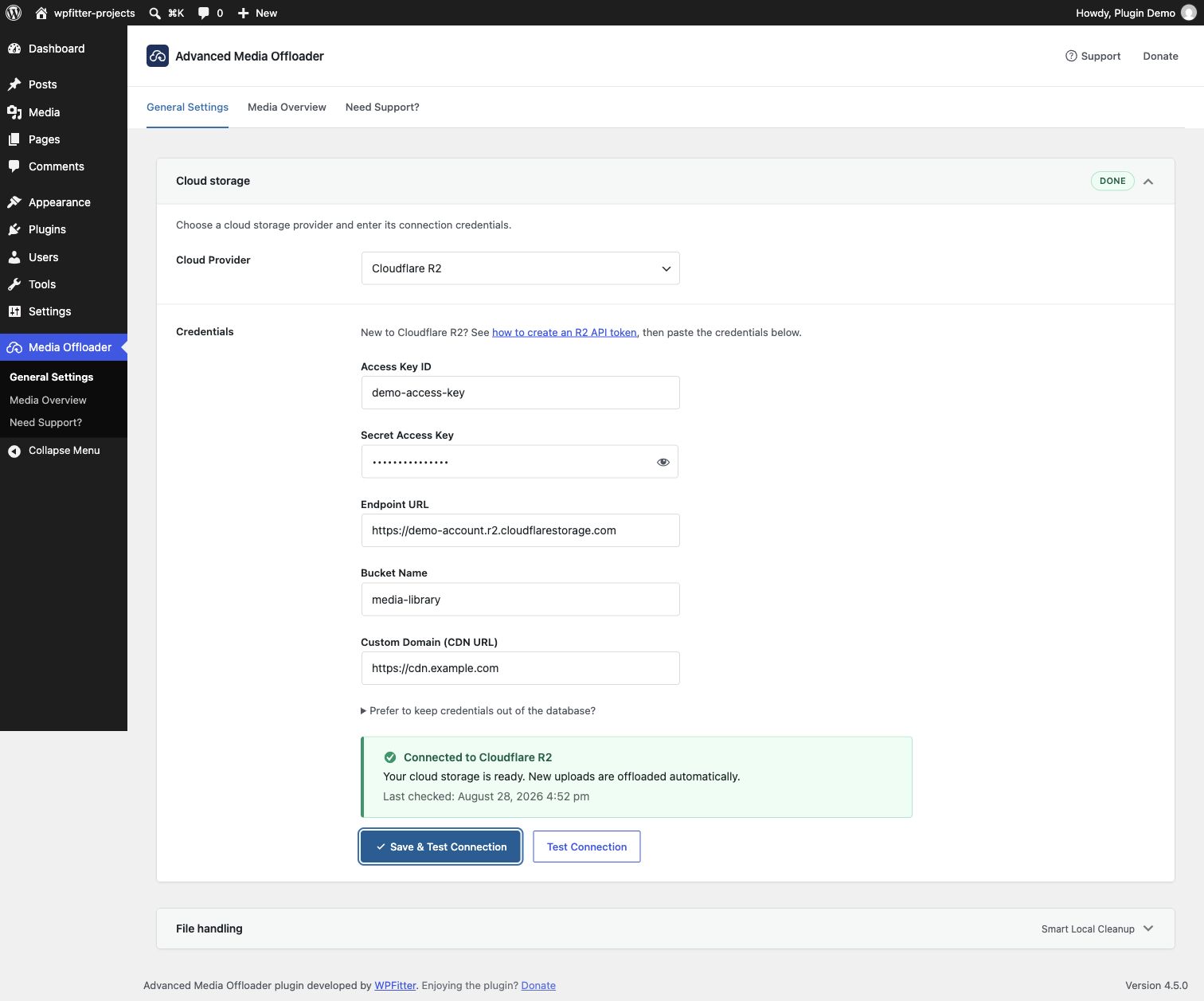
- Connect your cloud storage — pick a provider, enter its credentials, then click Save & Test Connection.
- Offload — new uploads go to the cloud automatically. Move existing files with one click from the Media Overview page.
That’s it. Most sites are fully set up in about five minutes.
Features
- Automatic offloading — every new upload goes straight to your cloud storage.
- Bulk offload existing media — migrate your current Media Library from the Media Overview page, or use WP-CLI (
wp advmo offload) for unlimited, scriptable migrations. (Learn more) - AI assistant and automation ready — check your setup, find failed files, and run offloads from an AI assistant, a script, or the REST API, through the WordPress Abilities API.
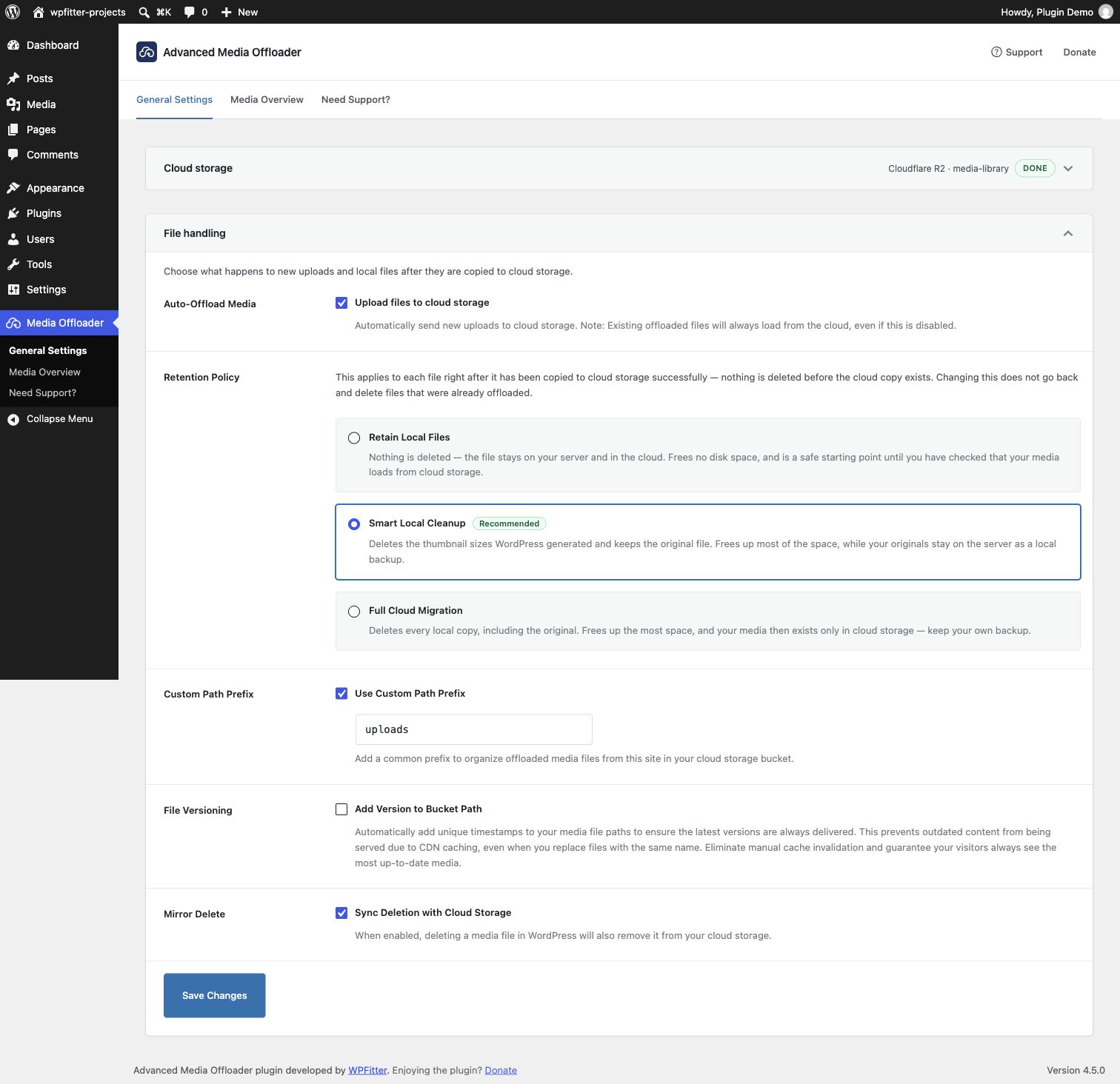
- Flexible retention policies — keep local copies (Retain Local Files), free up space while keeping originals as backup (Smart Local Cleanup), or remove all local files (Full Cloud Migration). (Learn more)
- Smart URL rewriting — all media URLs, including every thumbnail size and srcset, are served from the cloud automatically.
- Offload status at a glance — cloud badges in the Media Library, an offload-status filter, and per-file “Offload Now” and “Retry Offload” buttons.
- Mirror Delete — optionally remove files from cloud storage when you delete them in WordPress.
- Custom path prefix — control exactly where your files live inside your bucket.
- File versioning — add unique timestamps to media paths to prevent stale CDN caches.
- Thumbnail regeneration support — compatible with WP-CLI
wp media regenerateand the Regenerate Thumbnails plugin; regenerated thumbnails offload automatically. Full Cloud Migration temporarily restores the cloud source, regenerates it, and safely removes the local working files afterward.
Works with your favorite plugins
- WooCommerce — product images and WooCommerce-specific image sizes offload and display correctly.
- Page builders — Elementor, Beaver Builder, Visual Composer, and any builder that uses standard WordPress media functions.
- Image optimizers — Modern Image Formats (recommended), Imagify, and EWWW Image Optimizer. Optimized WebP and AVIF files are offloaded alongside the originals. (Learn more)
- WP-CLI — automate offloading in deployment scripts and cron jobs.
Manage your media with AI assistants
Advanced Media Offloader supports the WordPress Abilities API (WordPress 6.9 and later). AI assistants and automation tools can now work with your offloaded media, using an administrator account.
Install the free MCP Adapter plugin and connect an AI assistant that supports MCP (Model Context Protocol, the standard way AI assistants connect to apps), such as Claude or Cursor. Then just ask:
- “Is my cloud storage connected?”
- “How many files are not offloaded yet?”
- “Which files failed to offload, and why?”
- “Start a bulk offload and show me the progress.”
What your assistant can do:
- Check your setup, media counts, and the last connection test
- Check the offload status of specific files
- List files that failed to offload
- Test the connection to your cloud storage
- Offload or re-offload files (up to 20 at a time)
- Start, watch, and cancel bulk offloads
It always uses your saved provider and settings. It cannot change your settings, and it never receives your access keys.
Read the AI Assistant Setup Guide
For developers
Advanced Media Offloader is built to be extended: 20+ action and filter hooks let you control what gets offloaded, where it goes, and what happens before and after each step.
Quick example — skip offloading files larger than 5MB:
add_filter('advmo_should_offload_attachment', function($should_offload, $attachment_id) {
    $file = get_attached_file($attachment_id);
    if ($file && filesize($file) > 5 * 1024 * 1024) {
        return false;
    }
    return $should_offload;
}, 10, 2);
View Developer Hooks Documentation
WordPress Abilities API. The plugin registers 9 abilities in the advmo-media category: advmo/get-status, advmo/get-attachment-status, advmo/list-offload-errors, advmo/get-bulk-offload-status, advmo/test-connection, advmo/offload-attachments, advmo/reoffload-attachments, advmo/start-bulk-offload, and advmo/cancel-bulk-offload. Run them from PHP, the REST API (/wp-json/wp-abilities/v1/abilities/{name}/run), or any MCP client.
$result = wp_get_ability('advmo/get-attachment-status')
    ->execute(['attachment_ids' => [123, 456]]);
View Abilities API Documentation
Under the hood, the plugin uses the official AWS SDK for PHP, namespace-isolated with PHP-Scoper so it never conflicts with other plugins that bundle the same SDK.
Pro version coming soon
We’re working on Advanced Media Offloader Pro with premium features such as private media files with secure, authenticated access. Follow wpfitter.com to be the first to know when it launches.
Installation
Setup takes about five minutes and requires no code changes.
- Install the plugin from Plugins Add New (search for “Advanced Media Offloader”), or upload the plugin files to
/wp-content/plugins/advanced-media-offloader/. - Activate the plugin through the “Plugins” menu in WordPress.
- Go to Media Offloader in the admin menu, choose your cloud provider, and enter its credentials.
- Click Save & Test Connection to save and verify your credentials.
- New uploads are now offloaded automatically. Offload your existing media from the Media Overview tab.
Advanced (optional): define credentials in wp-config.php
The settings page is the quickest way to configure the plugin — no code required. Alternatively, you can define your credentials as constants in wp-config.php using the examples below. Constants take priority over credentials saved in the admin and lock the corresponding fields. This keeps secrets out of the database — useful for version-controlled or multi-environment setups.
Note: Domain and endpoint URLs will automatically be prefixed with https:// if you don’t include it, but we recommend always including the full URL for clarity.
Amazon S3 Configuration
define('ADVMO_AWS_KEY', 'your-access-key');
define('ADVMO_AWS_SECRET', 'your-secret-key');
define('ADVMO_AWS_BUCKET', 'your-bucket-name');
define('ADVMO_AWS_REGION', 'your-bucket-region');
define('ADVMO_AWS_DOMAIN', 'your-domain-url');
Cloudflare R2 Configuration
define('ADVMO_CLOUDFLARE_R2_KEY', 'your-access-key');
define('ADVMO_CLOUDFLARE_R2_SECRET', 'your-secret-key');
define('ADVMO_CLOUDFLARE_R2_BUCKET', 'your-bucket-name');
define('ADVMO_CLOUDFLARE_R2_DOMAIN', 'your-domain-url');
define('ADVMO_CLOUDFLARE_R2_ENDPOINT', 'your-endpoint-url');
DigitalOcean Spaces Configuration
define('ADVMO_DOS_KEY', 'your-access-key');
define('ADVMO_DOS_SECRET', 'your-secret-key');
define('ADVMO_DOS_BUCKET', 'your-bucket-name');
define('ADVMO_DOS_DOMAIN', 'your-domain-url');
define('ADVMO_DOS_ENDPOINT', 'your-endpoint-url');
Backblaze B2 Configuration
define('ADVMO_BACKBLAZE_B2_KEY', 'your-application-key-id');
define('ADVMO_BACKBLAZE_B2_SECRET', 'your-application-key');
define('ADVMO_BACKBLAZE_B2_BUCKET', 'your-bucket-name');
define('ADVMO_BACKBLAZE_B2_REGION', 'your-bucket-region');
define('ADVMO_BACKBLAZE_B2_DOMAIN', 'your-domain-url');
define('ADVMO_BACKBLAZE_B2_ENDPOINT', 'your-endpoint-url');
Wasabi Configuration
define('ADVMO_WASABI_KEY', 'your-access-key');
define('ADVMO_WASABI_SECRET', 'your-secret-key');
define('ADVMO_WASABI_BUCKET', 'your-bucket-name');
define('ADVMO_WASABI_REGION', 'your-bucket-region');
define('ADVMO_WASABI_DOMAIN', 'your-domain-url');
MinIO Configuration
Use this for any storage that supports the S3 API via a custom endpoint (e.g., MinIO, OVHcloud Object Storage, Scaleway, Linode, Vultr, IBM COS). Select this if your provider isn’t listed separately.
define('ADVMO_MINIO_KEY', 'your-access-key');
define('ADVMO_MINIO_SECRET', 'your-secret-key');
define('ADVMO_MINIO_BUCKET', 'your-bucket-name');
define('ADVMO_MINIO_DOMAIN', 'your-domain-url');
define('ADVMO_MINIO_ENDPOINT', 'your-endpoint-url');
define('ADVMO_MINIO_PATH_STYLE_ENDPOINT', false); // Optional. Set to true if your MinIO server requires path-style URLs (most self-hosted MinIO setups). Default is false.
define('ADVMO_MINIO_REGION', 'your-bucket-region'); // Optional. Set your MinIO bucket region if needed. Default is 'us-east-1'.
Screenshots

Settings page — connect Amazon S3, Cloudflare R2, or any S3-compatible cloud storage in minutes with Save & Test Connection.
File handling — choose how much local storage to keep, with clear guidance for every retention policy.
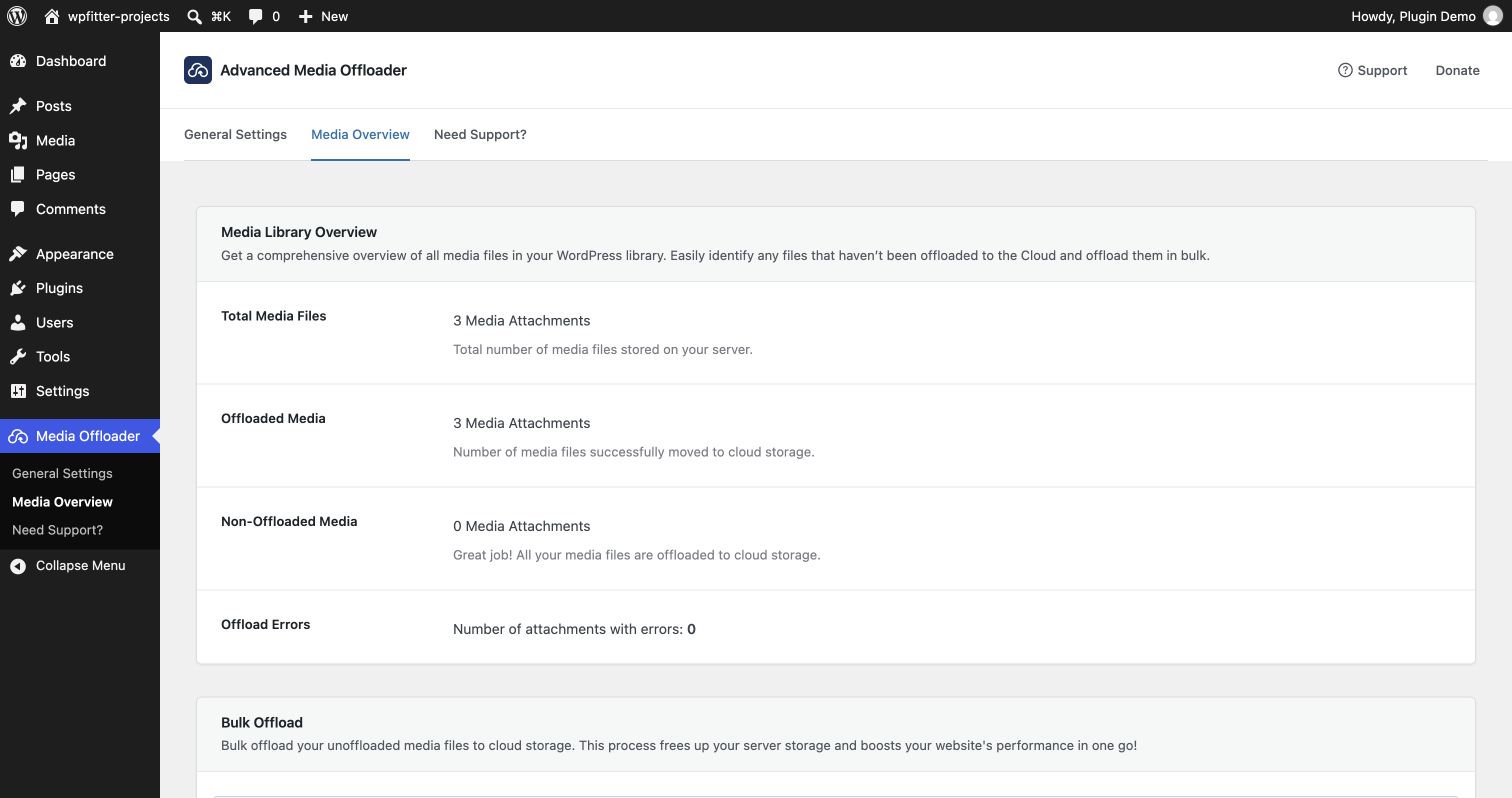
Media Overview — see how much of your Media Library is offloaded and bulk offload existing files to cloud storage.
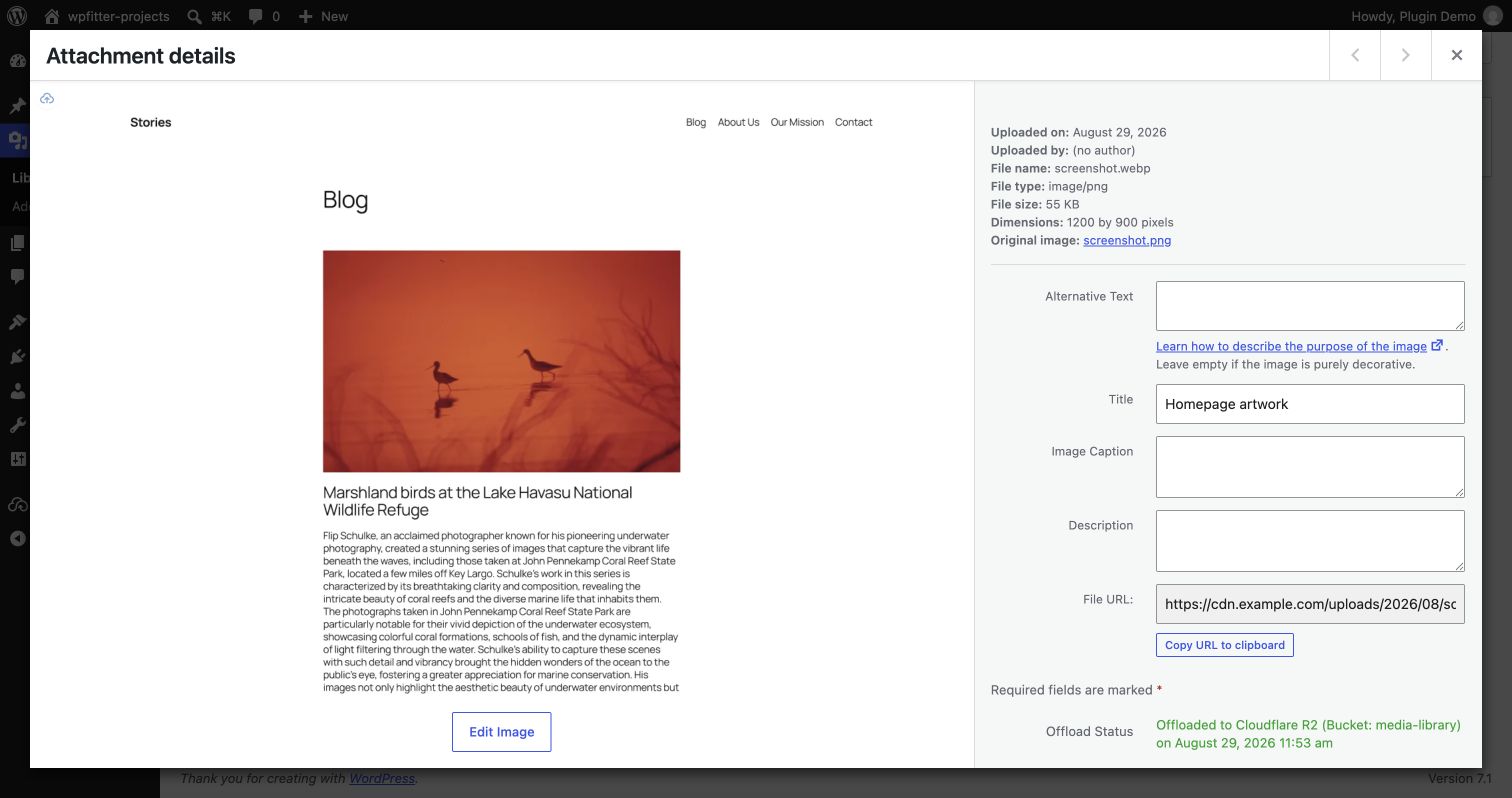
Attachment details — confirm each file’s cloud storage status directly in the Media Library.
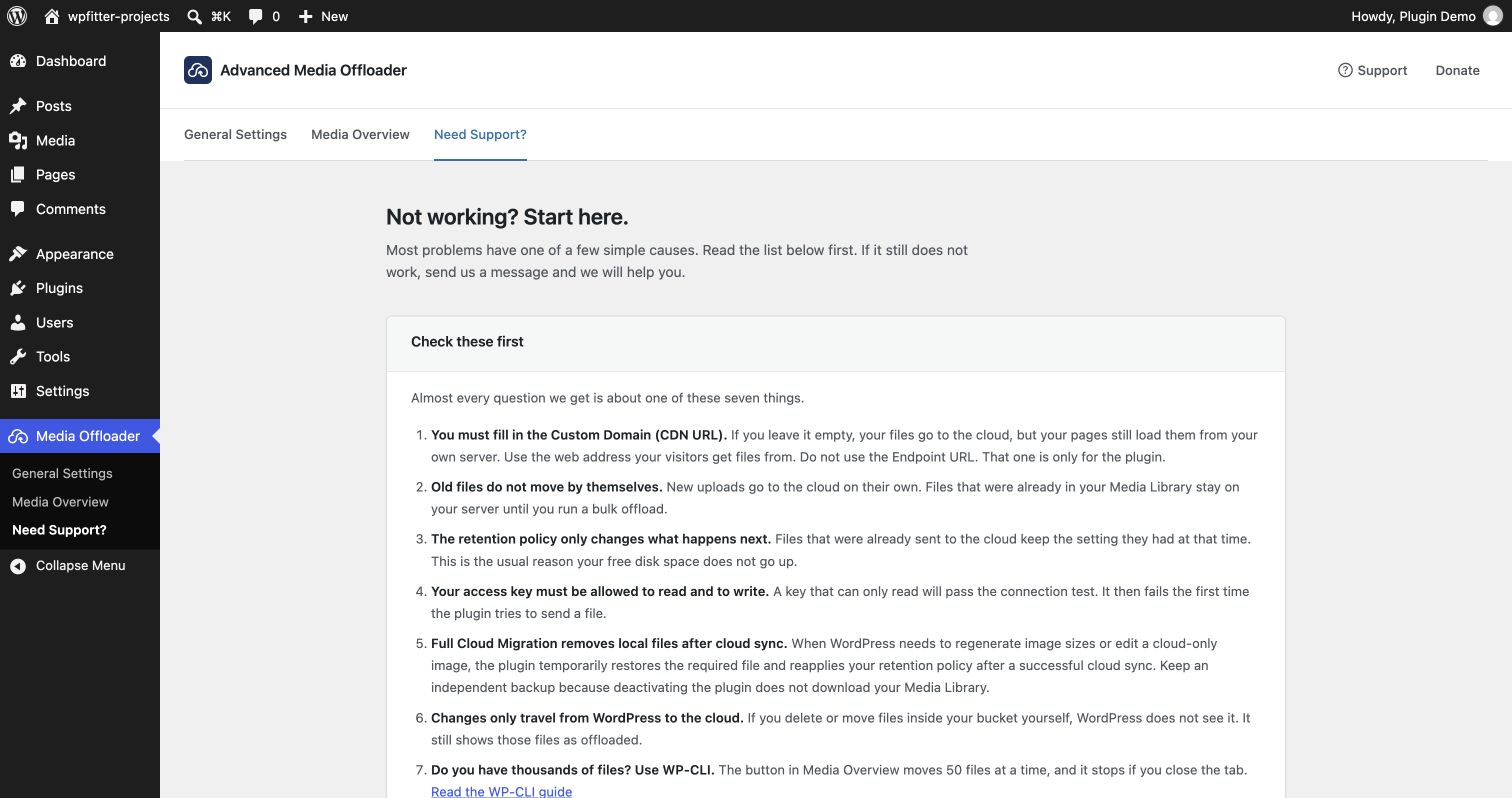
Support page — check the most common setup issues before asking for help.
Faq
Is Advanced Media Offloader free?
Yes. Everything described here — automatic offloading, bulk migration, WP-CLI, AI assistant support, all six providers — is completely free. A Pro version with extras such as private media files is in the works.
Which cloud storage providers are supported?
Amazon S3, Cloudflare R2, DigitalOcean Spaces, Backblaze B2, Wasabi, and MinIO — plus any other S3-compatible service (OVHcloud, Scaleway, Linode, Vultr, IBM COS, and more) via the MinIO option. Additional providers are added based on user demand.
What happens to media files already on my server?
Nothing, until you say so. Existing files stay untouched until you run the bulk offload from the Media Overview page (or via WP-CLI). New uploads are offloaded automatically based on your settings.
Will offloading make my site faster?
Serving media from cloud storage takes load off your web server, and pairing your bucket with a CDN delivers files from locations close to your visitors. Media-heavy sites usually see the biggest improvement.
Does it work with WooCommerce, Elementor, and other page builders?
Yes. URL rewriting hooks into WordPress core media functions (wp_get_attachment_url and related filters), so WooCommerce, Elementor, Beaver Builder, and most themes and plugins work without any changes.
Can I manage my offloaded media with an AI assistant?
Yes. On WordPress 6.9 or later, the plugin supports the WordPress Abilities API. Install the free MCP Adapter plugin and connect an AI assistant that supports MCP, such as Claude or Cursor. You can then ask it to check your setup, find failed files, test the connection, offload files, or run a bulk offload. There is nothing to turn on in the plugin settings. Read the setup guide.
Is it safe to let an AI assistant use the plugin?
These actions work only for administrators. The assistant uses your saved provider and settings. It cannot change settings or delete media, and it never receives your access keys. Offloading follows your retention policy, just like the Offload Now button. With Smart Local Cleanup or Full Cloud Migration, local copies are removed after upload. Choose Retain Local Files if you want to keep them.
Do I need an AI assistant to use these features?
No. Most of what an AI assistant can do is already one click away in the plugin:
- Test your connection — click Save & Test Connection on the settings page.
- See your progress and run a bulk offload — open the Media Overview page to start or cancel it.
- Find failed files — use the cloud badges and the offload-status filter in the Media Library, or click Download Errors CSV on the Media Overview page.
- Offload or retry a single file — use the Offload Now and Retry Offload buttons in the Media Library.
Developers can also run these actions from PHP or the REST API, offload in bulk with WP-CLI (wp advmo offload), and use 20+ action and filter hooks to change how offloading works. See the “For developers” section.
Can I keep local copies of my files?
Yes — that’s the default. You can choose between three retention policies: Retain Local Files (keep everything), Smart Local Cleanup (free up space but keep originals as backup), or Full Cloud Migration (remove all local copies).
Is there a limit on bulk offloading?
The browser-based bulk offload processes up to 50 files (max 150 MB) per batch — simply run it again for the next batch. For large libraries, the WP-CLI command wp advmo offload has no limit and supports options like --limit and --skip-failed.
Can I undo offloading and go back to local files?
If you use the “Retain Local Files” policy, yes — deactivate the plugin and your media is served locally again. With Full Cloud Migration you would need to re-download your files first, so keep local copies until you’re confident.
How are image sizes and thumbnails handled?
All generated image sizes are offloaded alongside the original, and URL rewriting covers every size and srcset attribute — responsive images keep working as expected.
Does it work with WebP/AVIF image optimizer plugins?
Yes — Modern Image Formats (recommended), Imagify, and EWWW Image Optimizer are fully supported. Optimized WebP and AVIF versions are offloaded automatically alongside the originals.
Does it support private files with access control?
Not yet — the free version supports publicly accessible files. Private media with secure, authenticated access is planned for the upcoming Pro version.
What happens if I delete a media file from the WordPress Media Library?
With Mirror Delete enabled, the corresponding cloud files are removed automatically. Otherwise, files remain in cloud storage, potentially creating orphaned objects.
What’s the recommended bucket configuration?
For optimal performance:
- Enable CORS configuration
- Set appropriate public read permissions
- Configure the region closest to your audience
- Consider using a CDN for global distribution
How do I configure public access for my bucket?
By default, the plugin sets a public-read ACL on uploaded objects. However, some providers don’t support ACLs, and AWS S3 has ACLs disabled by default on new buckets since April 2023. You should configure bucket-level public access using your provider’s bucket policies.
If you encounter AccessControlListNotSupported errors or need to disable ACLs, add the following code to your theme’s functions.php or a custom plugin:
add_filter('advmo_object_acl', '__return_false');
How can I debug issues with file offloading?
Check the Media Overview page — it shows offload errors and lets you download a CSV of failed attachments. The plugin also logs errors to attachment metadata, and you can enable WordPress debug logging for more detail.
Reviews
Perfect
By  abdeenoz on October 22, 2026
Just a perfect media offloading plugin, and it’s free!
Something went wrong
By  ANDCAP (Andrea Capretti) on September 29, 2026
The offloading process itself worked, which is why I’m giving 2 stars. However, the recommended “Smart Local Cleanup” setting caused a serious issue on my WordPress site.
This option deletes locally generated thumbnails while keeping the original images. However, WordPress Media Library, WPBakery, and Elementor continued requesting those thumbnails from local URLs instead of Cloudflare R2.
In my case, 880 out of 890 image attachments were affected, with 4,718 thumbnail files missing. Each missing image triggered a full WordPress 404 request, consuming memory and database queries. When many of these requests ran concurrently, they exhausted the hosting process limit and temporarily brought the entire site down with HTTP 403 errors.
I had to deactivate the plugin and regenerate the thumbnails manually in controlled batches.
The offloading feature is useful, but I would not recommend Smart Local Cleanup unless the plugin can reliably serve missing local thumbnail URLs from the remote storage provider.
Great plugin + great tech support
By  kimherbs on September 3, 2026
The plugin is straightforward and works well. Tech support is very responsive and helpful. A+
Just Works
By  Dr. Melvin Temo (temovision) on June 10, 2026
A little technical but that’s when I was creating my Cloudflare R2 storage. The app is straightforward. However, it seems my webp images aren’t sent to the bucket. Thanks
Does not work on WordPress.com
By  jt13890 on April 27, 2026
This plugin is broken on WordPress.com hosting. I want to make this clear, that this is not a fault of the developer, though.
Jetpack (even with image optimization off) automatically messes with some of the thumbnails, which leads to the plugin’s offloading feature failing repeatedly. (From what I can tell, it adds the virtual:true flag to the image). Regenerating thumbnails doesn’t work.
I gave this a 3-star and not a 1-star because I migrated to a self-hosted setup, and it’s working fine.
Super great!
By  olfrob on March 24, 2026
Thank you for this amazing plugin! It works like a charm, out of the box. I’ve tried it with all sorts of different s3 storage providers, even some lesser known. It worked with all, custom URLs and all… Just great, congrats!
Recommended
By  dbrabyn on February 1, 2026
Slick plugin that works well for me with Cloudflare’s R2.
Amazing Plugin
By  zmzdtc888 on January 12, 2026
I don’t have experience with other offloading plugins, but Advanced Media Offloader has been an absolute joy to use — simple, intuitive, and straightforward.
Great Plugin – Recommend
By  dan009 on January 12, 2026
Fantastic plugin. Easy to setup and rolling. All working fine with no issue.
Much appreciated for the effort you guys put in.
Thank you
Super support!
By  holden71 on December 6, 2025
I tried several plugins—this one is the cleanest and easiest to understand.
Top-notch support, thanks to the developer!
Keep up the good work!
Changelog
4.7.0
- Added: Support for the WordPress Abilities API (WordPress 6.9 and later). AI assistants, scripts, and other tools can now check media status, test the cloud connection, offload or re-offload files, and start or cancel bulk offloads. Only administrators can use these actions. Offloading follows your retention policy.
- Improved: Bulk offloads are more reliable. Starting a bulk offload again joins the run already in progress, interrupted work picks up where it stopped, and the progress bar and Cancel button stay correct after you reload the page.
- Improved: An upload and the cleanup of local copies can no longer run on the same file at the same time. This keeps a file from being removed from your server while it is still uploading.
- Fixed: On multisite, all sites shared one bulk offload queue. Each site now has its own queue.
- Fixed: Themes and plugins could not get the attachment ID of an offloaded file from its Custom Domain URL (
attachment_url_to_postid()returned 0). They now get the correct ID. - Fixed: When you re-offloaded a file, failed uploads of its Imagify or EWWW WebP/AVIF versions were not reported. They now show as errors, so you can find and retry them.
- Fixed: Files stored at the top level of a bucket (not in a folder) could not be re-offloaded. They can now be re-offloaded without moving them into a folder.
4.6.0
- Fixed: Images could break when no Custom Domain was set and Smart Local Cleanup or Full Cloud Migration was on. Local files were deleted while the site still served them. Now they are kept until you set a Custom Domain.
- Fixed: A saved cloud provider that is no longer available (for example after removing the add-on that added it) took the whole site down. The plugin now keeps running and the settings page tells you to choose a provider again.
- Fixed: SVG files from plugins like SVG Support could break. On Amazon S3 new ones were stored under the wrong key, and on Cloudflare R2 and MinIO a cloud-only SVG could not be read and was requested again on every page load, which slowed pages down.
- Fixed: Lazy-load placeholders in images (for example Avada’s) were turned into broken cloud URLs.
- Added: Developers can extend the plugin with the new
advmo_register_providersandadvmo_loadedactions, and storage providers added with theadvmo_cloud_providersfilter can now be selected. The plugin now starts onplugins_loaded. Code that usesadvmo()->containerkeeps working.
4.5.2
- Security: Restricted individual media offloading to users who can edit the selected attachment.
- Improved: The production package now passes Plugin Check without errors.
- Fixed: Resolved thumbnail regeneration errors now clear after a successful retry, while unrelated errors stay visible.
4.5.1
- Fixed: Sites that load another Composer-managed copy of Guzzle before Advanced Media Offloader no longer miss the plugin’s isolated Guzzle functions or fail while creating a cloud client.
- Fixed: Cloud storage validation for
wp advmo offloadnow starts only when that command runs, so command discovery and other WP-CLI operations remain safe when the plugin is not configured. - Fixed: Imagify and EWWW Image Optimizer can load alongside Advanced Media Offloader without duplicate third-party function declarations.
- Fixed: Existing WebP and AVIF files created by Imagify and other supported image optimizers are now included when an image is offloaded for the first time, including bulk and WP-CLI offloads. If a sidecar upload fails, the attachment is not marked as offloaded and local files are kept safely.
- Fixed: Cloud-only SVG files now use a stable local cache path that preserves the original filename and
.svgextension, preventing failures in WordPress and page builders that require a real local file.
4.5.0
- Added: A clearer settings experience with two focused, collapsible sections: Cloud storage and File handling. Media waiting to be offloaded now appears in a visible banner above the settings, with a direct link to Media Overview.
- Added: A “Need Support?” page with the checks that solve most problems, links to the support forum and our contact page, and a one-click system report to paste into your message. The report contains no keys, passwords or bucket names, so it is safe to post in public.
- Added: Save & Test Connection now saves your credentials, runs the connection test, and shows the result in one action.
- Added: Every provider now links to its own guide for creating credentials, and a ready-to-copy
wp-config.phpsnippet sits under the credential fields for anyone who prefers to keep credentials out of the database. - Improved: Connection errors now say what went wrong and what to check — a secret key that does not match its access key, a bucket in another region, a server clock that is out of sync, an endpoint that cannot be reached — instead of a single “Connection failed!”.
- Improved: The connection result stays on screen instead of disappearing after a few seconds, and is remembered between visits, so the settings page no longer contacts your storage provider every time it loads.
- Improved: Settings sections can be collapsed to keep the page short. A closed section still shows a useful summary, such as the selected provider and bucket or the retention policy.
- Improved: The retention policy options now say exactly what is deleted, what is kept, and when it happens. Smart Local Cleanup is now the recommended option, and the whole option box can be clicked, not only its title.
- Improved: Cloud credentials and file-handling settings now have separate save actions, so saving a retention or offload setting no longer runs another connection test.
- Fixed: The settings and Media Overview pages were hard to use on phones and tablets. Table rows spilled outside their card, and the tab menu could not be tapped at all.
- Fixed: The show/hide button in the Secret Access Key field was not centred in the field, and its icon could appear cut off.
- Fixed: Checkboxes and radio buttons were larger than intended on small screens, and the two did not match each other.
- Fixed: Pressing Save before choosing a cloud provider reported “Invalid Cloud Provider!”. It now asks you to choose one.
- Fixed: Full Cloud Migration could trigger repeated missing-file warnings when WordPress checked image sub-sizes after the local original had been removed.
- Improved: Regenerated thumbnails now stay synchronized with cloud storage.
- Added: Full Cloud Migration can now regenerate cloud-only images safely.
- Fixed: Image edits, Restore Original backups, and optimizer-generated formats are preserved.
- Fixed: Failed or interrupted operations keep local files and can recover safely.
4.4.4
- Fixed: Conflict with other plugins or themes that also use the AWS PHP SDK. The plugin’s SDK is now fully isolated and no longer shares the unprefixed
Aws\S3\Exception\S3Exceptionclass name. - Fixed: With EWWW Image Optimizer in background mode, deleting a media item while its optimization job was still queued caused a fatal error that permanently blocked EWWW’s queue — new uploads no longer got their WebP versions generated or offloaded. Deleted attachments are now skipped cleanly and the queue keeps processing.
- Fixed: The bulk offload stall-check cron (
advmo_check_stalled_processes) no longer runs every 15 minutes when idle. It is now scheduled only while a bulk offload job is active and cleared when the job completes, is cancelled, or recovers from a stall. - Fixed: The bulk offload background healthcheck cron (
advmo_bulk_offload_media_process_cron) could remain scheduled after a successful bulk offload. It is now cleared reliably when the job finishes or the queue is empty. - Improved: Small fixes and improvements
4.4.3
- Fixed: With Object Versioning enabled, newly offloaded images could appear broken on your site. The files were uploaded correctly, but the saved location sometimes didn’t match — so images failed to load. The correct location is now always saved, so your images display properly.
- Fixed: Offloading an existing image that is stored directly in the uploads folder could add an extra
/./to its URL — for examplehttps://cdn.example.com/./image.png— so the image failed to load on some CDNs. The URL is now correct. - Fixed: Repeated PHP warnings and possible high server load on pages with images whose saved metadata had a broken size entry.
4.4.2
- Added: Compatibility with WordPress 7.0
- Fixed: Editing an image (crop, rotate, or scale) could fail to upload to your cloud storage and show an error. Edited images now offload reliably.
- Fixed: With Full Cloud Migration active alongside an image optimizer (such as Imagify or EWWW), editing an image could leave the edited copies — including their WebP/AVIF versions — on your server. They are now removed according to your retention policy.
- Fixed: With EWWW Image Optimizer in background mode, newly offloaded images could be left on your server instead of being removed under your retention policy. They are now cleaned up reliably.
- Fixed: Deleting an image you had previously edited could leave leftover WebP/AVIF copies behind in your cloud storage. These are now removed too — covering Modern Image Formats, Imagify, and EWWW Image Optimizer.
4.4.1
- Fixed: Custom/intermediate image sizes in src attribute being replaced with the full-size URL when using page builders like Elementor
4.4.0
- Added: Imagify compatibility for WebP/AVIF offloading
- Added: EWWW Image Optimizer compatibility
4.3.2
- Fixed: Visual Composer compatibility – resolved PHP TypeError caused by strict type hints on admin_enqueue_scripts callbacks
4.3.1
- Added:
advmo_object_aclfilter to customize or disable object-level ACL permissions
4.3.0
- Added: New visual badges in Media Library show offload status at a glance. Cloud icon for offloaded files, warning icon for failed uploads.
- Added: Visual “Deleting…” loading indicator with spinner in Media Library attachment modal when deleting offloaded media
- Added: Offload status filter dropdown in Media Library for quick filtering by offload state.
- Improved: Optimized cloud deletion performance using batched deleteObjects API (up to 1000 keys per request) for faster deletion of attachments with multiple sizes
- Fixed: MinIO “Use Path-Style Endpoint” now correctly respects boolean
wp-config.phpconstants (e.g.define('ADVMO_MINIO_PATH_STYLE_ENDPOINT', true);).
4.2.3
- Fixed: TypeError when uploading non-image files (SVG, ZIP, PDF)
4.2.2
- Added: Compatibility with WordPress 6.9
- Added: Full Compatibility with Modern Image Formats
- Fixed: Minor changes and improvements
4.2.1
- Fix: Checkbox states for credential fields now properly persist when unchecked
- Fix: Deletion failure when WordPress year/month folders are disabled
4.2.0
- New: Added compatibility for thumbnail regeneration with WP-CLI
wp media regeneratecommand and the Regenerate Thumbnails plugin. Regenerated thumbnails now automatically offload to cloud storage. Note: This feature does not work with Full Cloud Migration retention policy. - New: Added the ability to configure cloud provider credentials through the WordPress admin settings page while maintaining backward compatibility with wp-config.php constants. Constants take priority and disable corresponding fields when defined.
- New: Added setting to toggle automatic cloud offloading for new uploads
- New: Added customizable Name field S3-compatible providers to identify specific storage services (e.g., MinIO, OVHcloud, Scaleway). Default is “MinIO” with backward compatibility for existing installations.
- Fix: Minor changes and improvements
Earlier releases are documented in changelog.txt included with the plugin.