

Add Tiktok Pixel for Tiktok ads (+Woocommerce)
Description
Running ads on TikTok? To see what people do on your site after they see or click your ads, and to show your ads again to people who already visited, TikTok needs its pixel, a small piece of tracking code, on your pages.
This plugin adds it for you. Paste your Pixel ID, switch the pixel on, save, and the pixel code is added to the pages of your site. No theme files to edit, no account to connect, no code to maintain.
What you can do with it
- Measure your TikTok campaigns. The pixel records each page view, so you can see in TikTok Ads Manager what visitors from your ads do on your site.
- Reach your visitors again. TikTok can use pixel data to build audiences of people who visited your site, then show them your ads.
- Track the actions that matter. With the pixel in place, you can define events such as a sign-up or a contact form in TikTok Events Manager, without code, using the TikTok Event Builder.
- Keep your setup simple. One screen, one switch. Your settings stay in WordPress, independent of your theme, and you choose whether they are deleted when you deactivate the plugin.
Free and Pro
The free version adds the TikTok Pixel to your site. If WooCommerce is active, it leaves out product, cart and checkout pages.
Pro is for online stores and more precise tracking:
- The pixel on your WooCommerce store. With the store option turned on, Pro adds the pixel to product, cart and checkout pages too, so you can define shopping events, such as add to cart or checkout, in TikTok Events Manager.
- An event on a specific page. A box in the editor of your posts, pages and products lets you add TikTok event code to that page only, for example on a thank-you page after a form.
- Developer mode. Paste your own TikTok code, such as the complete base code or events, and it is added to every page.
Pro does not send order amounts or product details to TikTok by itself. To send them, set them up in the TikTok Event Builder or add your own event code.
You can upgrade from the plugin’s menu in your WordPress admin. Plans and billing are handled through Freemius, which shows the price before you pay.
What this plugin does not do
- It does not create or manage your TikTok campaigns: you do that in TikTok Ads Manager.
- It does not ask your visitors for consent. If consent is required before marketing tags load, use a consent management tool that can hold back the TikTok script until visitors agree.
- It does not use TikTok’s server-side Events API.
This plugin is an independent tool made by Pagup. It is not affiliated with, endorsed by or sponsored by TikTok.
External services
This plugin connects your site to TikTok, a third-party advertising service. Adding the TikTok Pixel to your pages is its main purpose.
- When: only after you switch the pixel on and save a Pixel ID. From then on, the pages that carry the pixel load TikTok’s script from
analytics.tiktok.comin the visitor’s browser. With Pro, this includes WooCommerce product, cart and checkout pages if you turn that option on, and any code you paste in developer mode or in a page’s event box runs as written. - What is sent: TikTok’s script sends TikTok information about the visit, such as the event and the page, a timestamp, the visitor’s IP address, browser and device details (user agent) and TikTok cookies. TikTok describes this data in About TikTok Pixel.
- Terms: TikTok handles this data under the TikTok Business Products (Data) Terms, presented in TikTok Advertiser Tools and Related Terms Overview, and under its Privacy Policy.
The plugin also uses Freemius, its licensing and update service, for Pro upgrades. When you activate the plugin, Freemius asks whether you agree to share basic information about your profile and your site, such as your site address and your WordPress and PHP versions. You can skip this step. Freemius handles this data under its Terms of Service and Privacy Policy.
Installation
From your WordPress dashboard
- Go to Plugins > Add Plugin and search for “Add Tiktok Pixel”.
- Install and activate the plugin by Pagup.
- Open TikTok Pixel in the admin menu.
- Switch the pixel on, paste your Pixel ID and save your changes.
- If your site uses a cache (caching plugin, server cache or CDN), clear it.
- Check the result with TikTok Pixel Helper (see the FAQ).
Manual installation
- Upload the
add-tiktok-advertising-pixelfolder to/wp-content/plugins/. - Activate the plugin from the Plugins screen.
- Continue with steps 3 to 6 above.
Screenshots


Settings page: switch the pixel on and enter your TikTok Pixel ID.
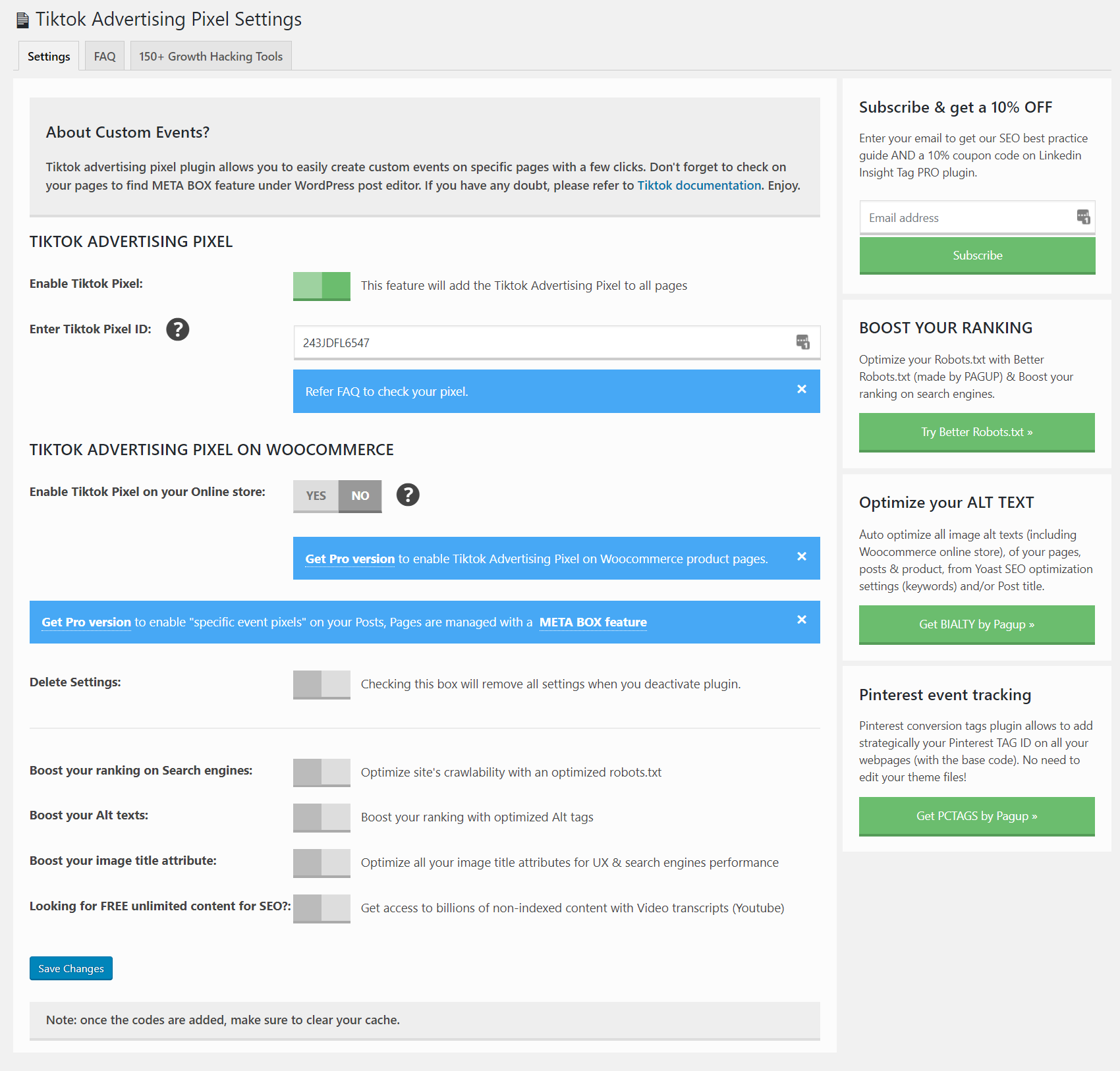
Settings page with the WooCommerce store option (Pro) and the option to remove settings on deactivation.
Faq
Where do I find my TikTok Pixel ID?
In TikTok Ads Manager, go to Tools > Events Manager and open your web pixel. Its Pixel ID is shown in the pixel details.
No pixel yet? In Events Manager, click Connect Data Source, select Web, then Manual Setup, and create your pixel. TikTok explains each step in How to Set Up and Verify TikTok Web Data Connection.
If you only have TikTok’s base code, your Pixel ID is the value in quotes inside ttq.load('...').
How do I check that the pixel works?
Install TikTok Pixel Helper, the Chrome extension published by TikTok For Business, then visit your site. It checks the pixel on the page and points out errors.
You can also open the source code of a page and search for Tiktok Pixel Code.
The pixel does not show up. What should I check?
- The pixel is switched on and your Pixel ID is saved.
- Your cache is cleared (caching plugin, server cache or CDN).
- With the free version, the pixel is not added to WooCommerce product, cart and checkout pages: test another page.
- Ad blockers and some privacy extensions can block TikTok’s script: test in a browser window without them.
Does it work with WooCommerce?
Yes, with one difference between versions. The free version adds the pixel to your site but leaves out product, cart and checkout pages. Pro adds it to those pages too when you turn on its store option.
Does it track purchases automatically?
No. Pro can add the pixel to your store pages; you then define shopping events in TikTok Events Manager or add your own event code. The plugin does not send order amounts or product details to TikTok by itself.
Can I add an event to one specific page?
Yes, with Pro. In the editor of a post, page or product, check Add Event-Specific Tiktok Pixel and paste your event code. It is added to that page only, as long as the pixel is switched on and your Pixel ID is saved.
Only paste code generated by TikTok or code you understand and trust.
What is developer mode?
A Pro option for advanced users. The code you paste is added to every page as is. If you paste the complete TikTok base code there, switch off the standard pixel so it does not load twice.
Do I need a cookie consent banner?
It depends on where your visitors are and on the laws that apply to your site. Once you switch the pixel on, the plugin loads it for every visitor; it does not ask for consent. If you need consent first, use a consent management tool that can hold back the TikTok script until visitors agree. You remain responsible for your privacy notice and for compliance.
Will deactivating the plugin delete my settings?
No, unless you turn on Remove Settings first. With this option on, the plugin deletes its settings when you deactivate it.
Reviews
Does not work as expected
By  jahe112 on September 14, 2023
It seems that the free version is not working as expected. yes, I can set up the Pixel ID.
But I could not find a way to set my Access Token or the html code from tiktok.
So for me the free version is not useful at all. I think it´s easier to just edit the .htaccess directly
TikTok Pixel not loading
By  ecolasurdo on March 12, 2022
echo $this->tiktok( "Option::get('ttap__id')" ) . "\n" ;
instead of
echo $this->tiktok( Option::get('ttap__id') ) . "\n" ;
I’ve changed and now it works, but I wanted to report the issue.Plugin does not work — support is useless
By  jpatricksweeney99 on December 6, 2021
Not for Woocommerce
By  mariuselz on November 18, 2021
Not a useful plugin
By  danieln9 on November 17, 2021
Fantastic Plugin
By  pleesecakesdan on August 17, 2021
Saved me loads of headaches
By  sammm4 on July 22, 2021
***** 5 Star
By  goldendrop on July 22, 2021
Does the job, add the Pixel
By  genphiz on July 21, 2021
Too Early?
By  rockingchef on January 3, 2021
Changelog
1.2.11
- Updated Freemius SDK to the latest version
1.2.10
- Add 10 locale translation catalogues.
1.2.9
- Update Freemius SDK to 2.13.1.
1.2.8
- 🐛 FIX: Security fix
1.2.7
- 🐛 FIX: Security fix
1.2.6
- 👌 IMPROVE: Updated Freemius to v2.5.3
1.2.5
- 👌 FIXED: Cart and checkout issue
1.2.4
- 👌 IMPROVE: Tiktok Booster notification
1.2.3
- 🐛 FIX: Tracking ID Bug (if Woocommerce is active).
1.2.2
- 🐛 FIX: Security issue
1.2.1
- 🐛 FIX: Setting links and few others bug
- 👌 IMPROVE: Top level settings page
- 👌 IMPROVE: New Tiktok Booster add-on integration
1.2.0
- 👌 IMPROVE: New refactored code with many improvements
- 🐛 FIX: Several bugs and issues
1.1.3
- 🐛 FIX: Styling, Text and some issues.
1.1.2
- 🐛 FIX: Added nonce for post request, fixed stable tag, escaped echo
1.1.1
- 🔥 NEW: Floating Button for TikTok Promotion
1.1.0
- 🐛 FIX: Update TikTok Script code to newer version
- 🔥 NEW: Developer Mode for adding custom code (Pro version only)
- 🔥 NEW: 21 languages added
- 👌 IMPROVE: Updated freemius to latest version 2.4.2
1.0.5
- 🔥 NEW: Meta Tags for SEO promotion
1.0.4
- 👌 IMPROVE: Updated freemius to latest version 2.4.1
1.0.3
- 🐛 FIX: Update TikTok Script code to newer version
- 👌 IMPROVE: Updated freemius to latest version 2.4.0
1.0.2
- 📦 NEW: Step 2 for TikTok Video Feed
- 🐛 FIX: Multiple undefined variable notices inside PHP log.
- 👌 IMPROVE: Updated freemius to latest version 2.3.2
1.0.1
- Fixed some styling issues
1.0.0
- Initial release.